- To Schedule a Recurring Event, you may first want to read the related article 'Scheduling an Event'.
- As a Service Provider, navigate to the Dashboard or Calendar Page through the sidebar menu.
- The Event types that can be scheduled as Recurring are
- Session
- Consultation
- Evaluation
- IEP Meeting
- Response to Intervention
- Also, please note when adding a Student(s) to Events:
- If the student(s) that are selected have a Service Plan that starts before the chosen start date then you will get an error message and you will not be able to save the Event without adjusting the date.
- If the student(s) that are selected have a Service Plan that ends before the chosen end date then you will get an error message and you will not be able to save the Event without adjusting the date.
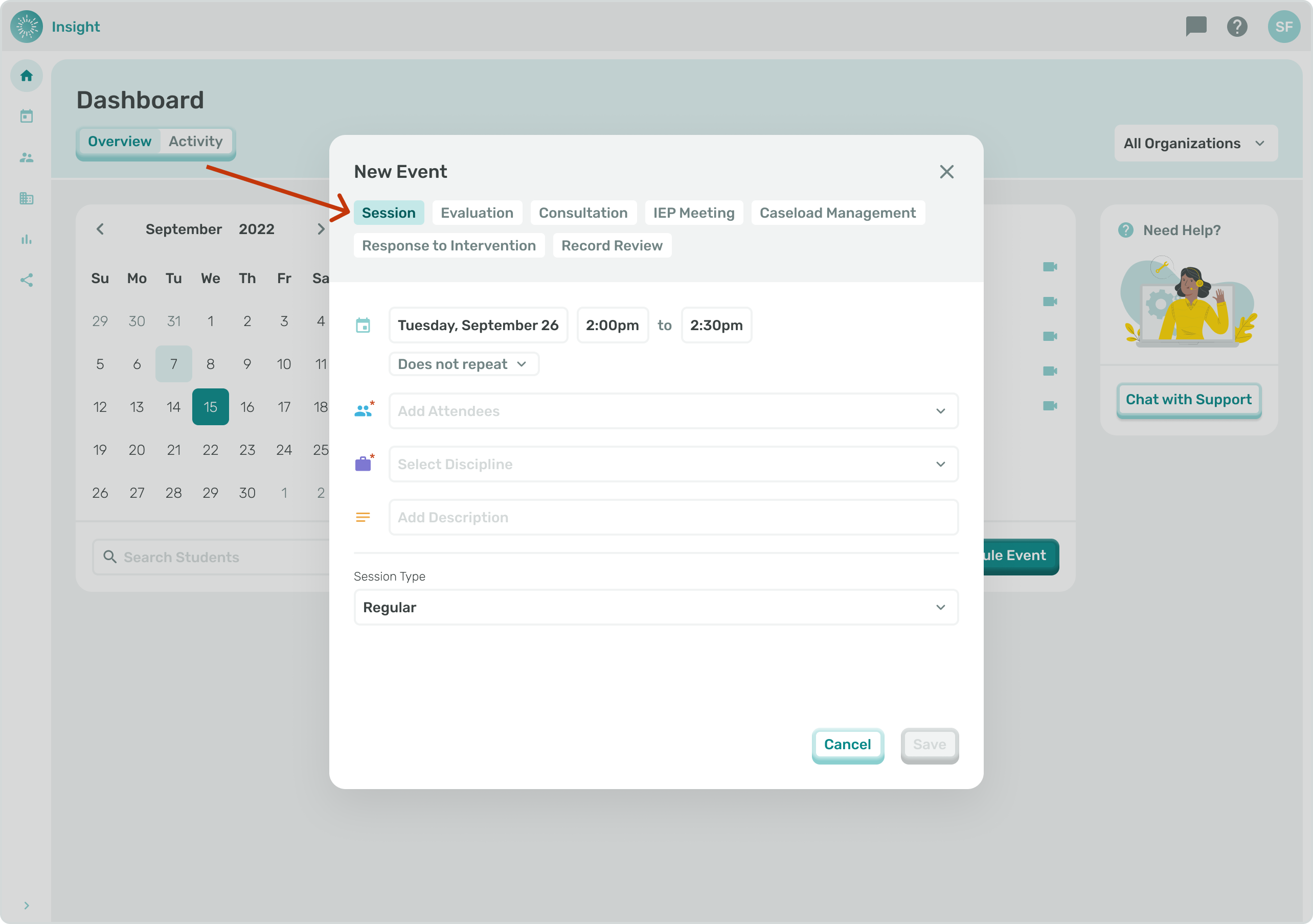
- To Schedule a Recurring Event look below the Day, Date box and click on the downward arrow next to ‘Does not repeat’.
- You can scroll through the options and click on the one that pertains to your Event. Once you select an option a new Day/Date box will appear for you to enter the starting and ending dates for the Event.
- Click in the Day and Date box. A calendar will open to the current month and a blue circle will appear on today's date.
- To select the Event date click on the Day, Date needed.
- The calendar will disappear and the Day, Date you clicked on will populate.
- The default date for the ending date is June 30 of the current school year.
- This Day, Date can be changed the same way as the Start Day, Date.
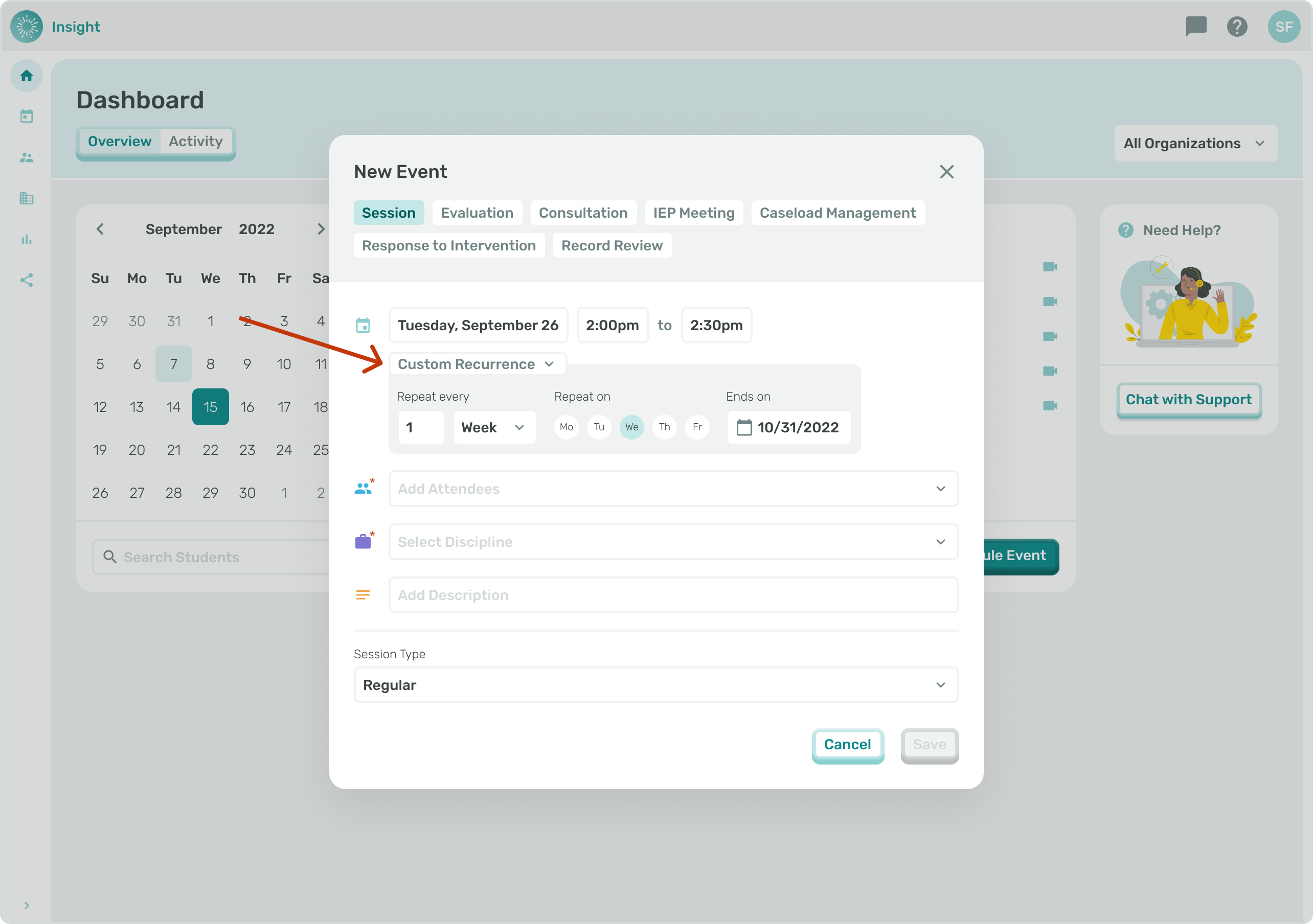
- When Custom Recurrence is selected it is required to enter the following details:
- 1. Repeat every*: If different from the automatically populated '1', meaning every week, update the number of times the Event will recur by updating the '1' in the box.
- Click on the Week drop down box to select if the Event recurs Weekly or Monthly.
- 2. Repeat on* certain days of the week: Click on the day(s) of the Week circles that the Event recurs on. To deselect them click on them a second time.
- 3. Until* Day, Date: To update the Until* Day, Date click in the pre-populated box next to the Until*. A calendar will open to the pre-populated Day, Date.
- To update the month click on the two arrows at the top of the Calendar to go either back or forward in months.
- Once you are on the correct month click on the End Day, Date. The calendar will disappear and the Day, Date you clicked on will populate.
- You can also click on the month listed at the top of the pop-out Calendar to manually select the month and the same for selecting the year, just click on the displayed year.
- 1. Repeat every*: If different from the automatically populated '1', meaning every week, update the number of times the Event will recur by updating the '1' in the box.
- To Exit the New Event modal at any time and not Save your Documentation, click on the Cancel button at the bottom right corner of the modal.
- Once clicked you will go back to the Calendar without making any updates to your Events.
- The remainder of instructions are the same as outlined in the article Scheduling an Event.