---
title: Entering your virtual classroom using Zoom app
description: support in zoom download
---
[[Skip to content](https://onlinetherapy.elumatherapy.com/support/entering-your-virtual-classroom-using-zoom-app#main-content) English Show submenu for translations Open main navigation Close main navigation - English Show submenu for translations - Contact us Contact us How can we help you? - There are no suggestions because the search field is empty.](https://www.canva.com/design/DAHLjH8jnIs/hTUz9WpLsvZ0LDEbb__LvQ/view?utm_content=DAHLjH8jnIs&utm_campaign=designshare&utm_medium=embeds&utm_source=link)
1. [eLuma Knowledge Base](https://onlinetherapy.elumatherapy.com/support?hsLang=en)
2. [Zoom Support](https://onlinetherapy.elumatherapy.com/support/zoom-support?hsLang=en)
# Entering your virtual classroom using Zoom app
Using Zoom through the Zoom Desktop app is the best practice for using Zoom. You can download the Zoom Desktop Client from [https://zoom.us/download](https://zoom.us/download).
Once you have downloaded and installed Zoom to your computer, follow these instructions to log into the Zoom Desktop Client.
1. Locate your Zoom application.
2. Click **Sign In**. 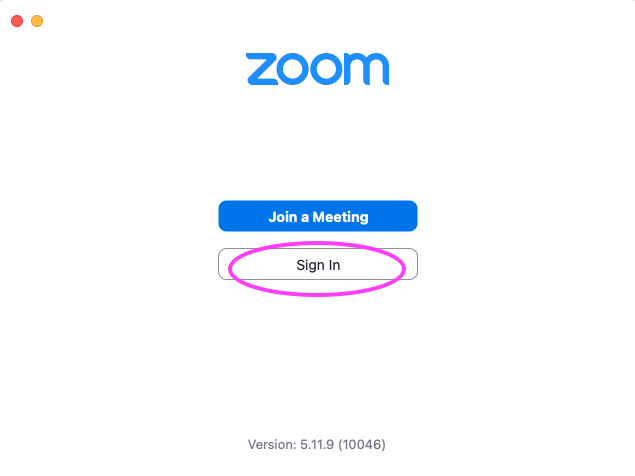
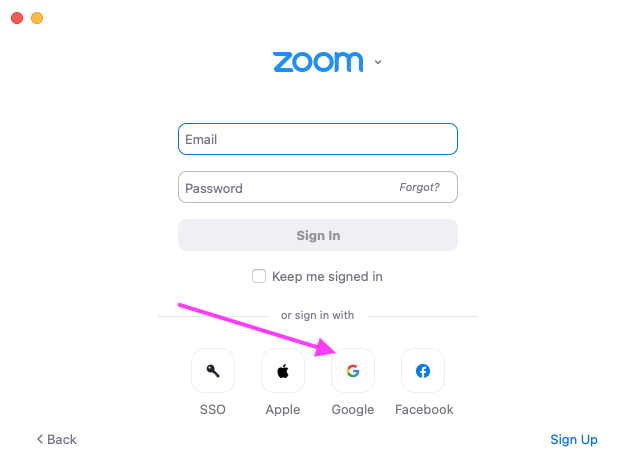
3. Click **Sign-in with Google**.
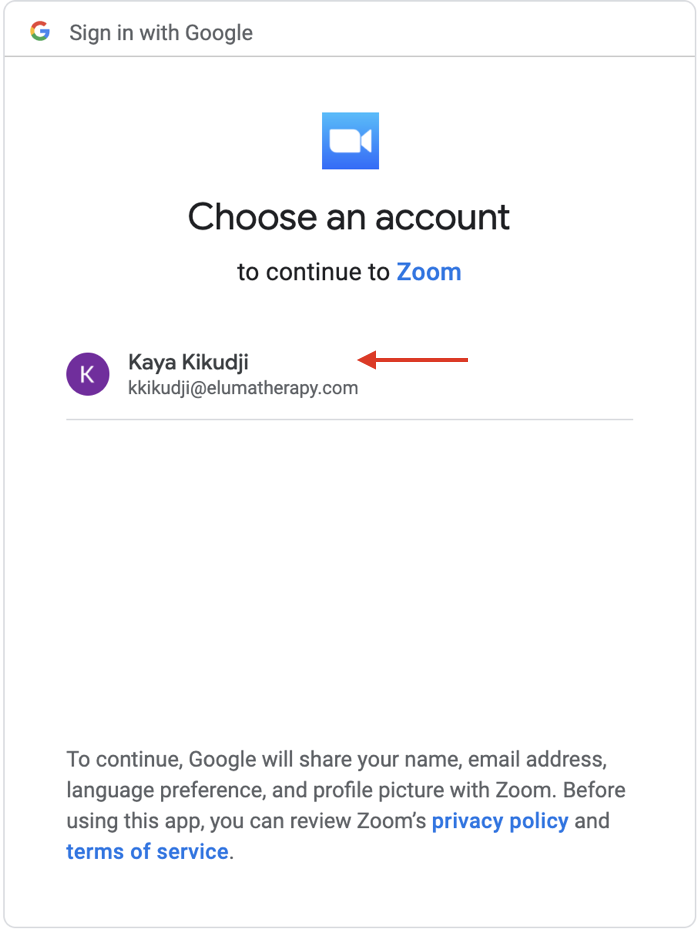
4\. Select or add your **eLuma Therapy email and password.**
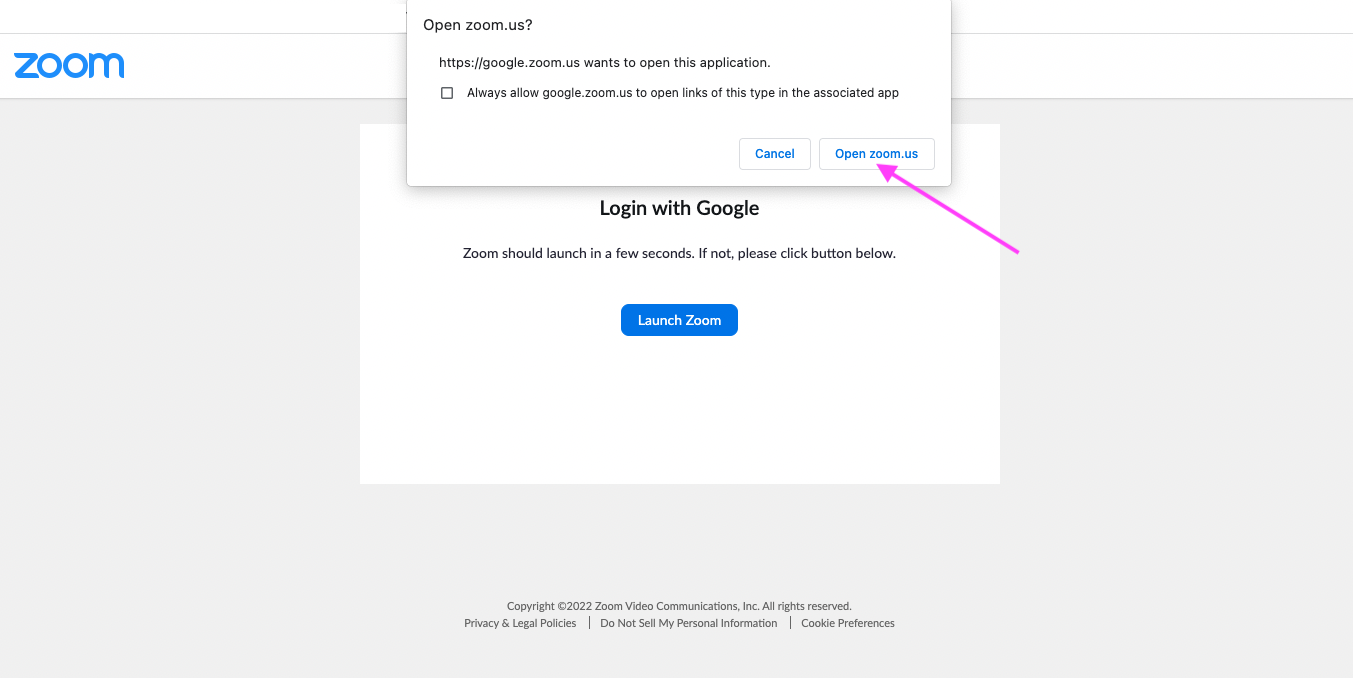
5\. Click on **Open zoom.us.**
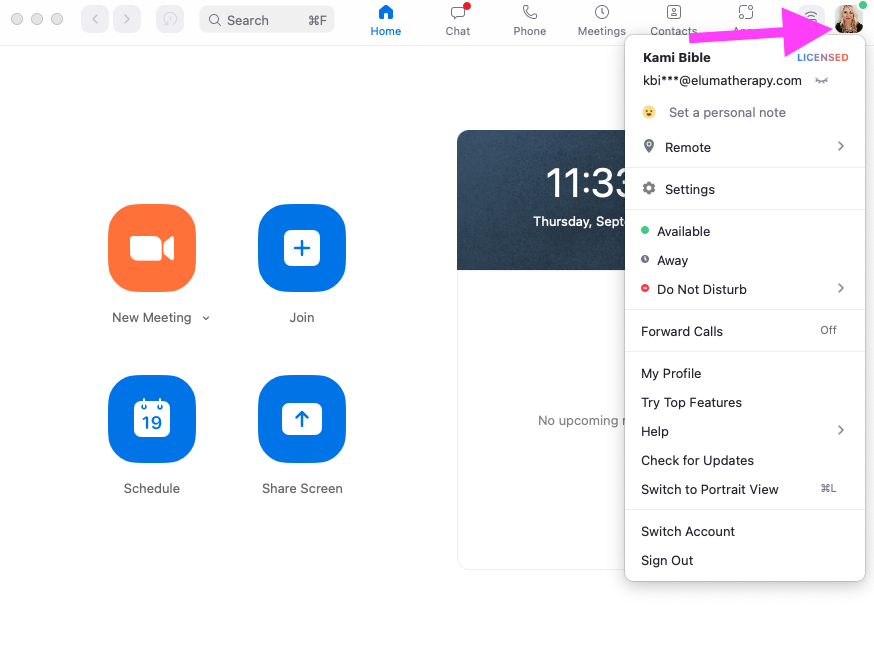
6\. When correctly signed into your eLuma Zoom account, you will see your profile picture and eLuma email on the Zoom Home screen in the top right corner.
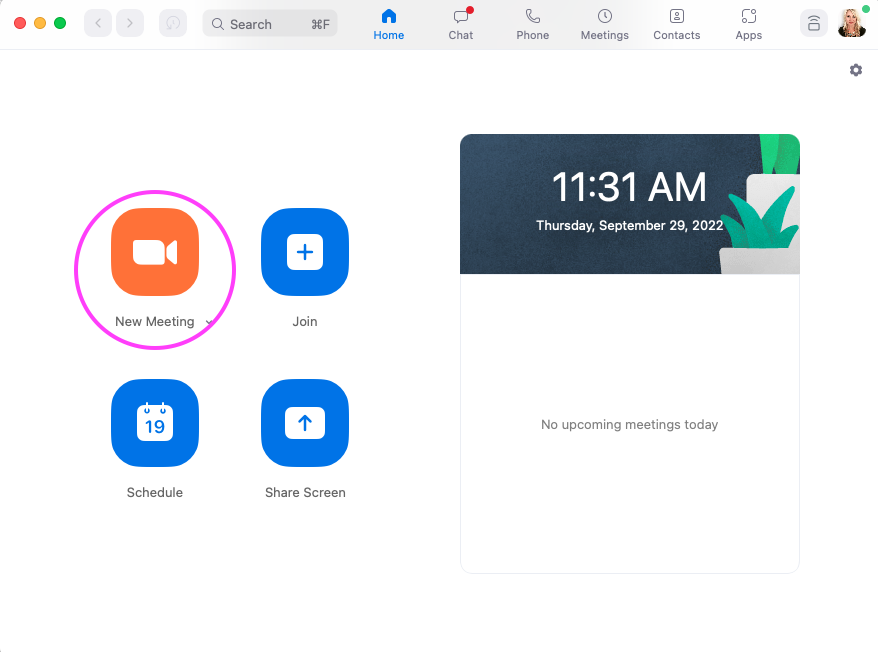
6\. Click on **New Meeting** to open your classroom.
**Submit questions to support@elumatherapy.com.**
- [Insight Help Documents](https://onlinetherapy.elumatherapy.com/support/insight-help-documents?hsLang=en#main-content)
- [Treatment Plans and Active Service Lines](https://onlinetherapy.elumatherapy.com/support/insight-help-documents?hsLang=en#treatment-plans-and-active-service-lines)
- [Scheduling Events: Insight Calendar](https://onlinetherapy.elumatherapy.com/support/insight-help-documents?hsLang=en#scheduling-events-insight-calendar)
- [Documenting Events: Insight Calendar](https://onlinetherapy.elumatherapy.com/support/insight-help-documents?hsLang=en#documenting-events-insight-calendar)
- [Run Reports](https://onlinetherapy.elumatherapy.com/support/insight-help-documents?hsLang=en#run-reports)
- [Insight Features and Navigation](https://onlinetherapy.elumatherapy.com/support/insight-help-documents?hsLang=en#insight-features-and-navigation)
- [Assessment and Evaluation Events](https://onlinetherapy.elumatherapy.com/support/insight-help-documents?hsLang=en#assessment-and-evaluation-events)
- [Provider Success Community](https://onlinetherapy.elumatherapy.com/support/provider-success-community?hsLang=en#main-content)
- [Using BackPack](https://onlinetherapy.elumatherapy.com/support/provider-success-community?hsLang=en#using-backpack)
- [Assessments](https://onlinetherapy.elumatherapy.com/support/provider-success-community?hsLang=en#assessments)
- [Additional Features](https://onlinetherapy.elumatherapy.com/support/provider-success-community?hsLang=en#additional-features)
- [Zoom Support](https://onlinetherapy.elumatherapy.com/support/zoom-support?hsLang=en)
[.png?width=939&height=281&name=eluma-logo-color-notag-lg%20(2).png "eLuma Online Therapy")](http://eluma.com)
[mailto:email@email.com](mailto:email@email.com)
Copyright © 2026, eLuma