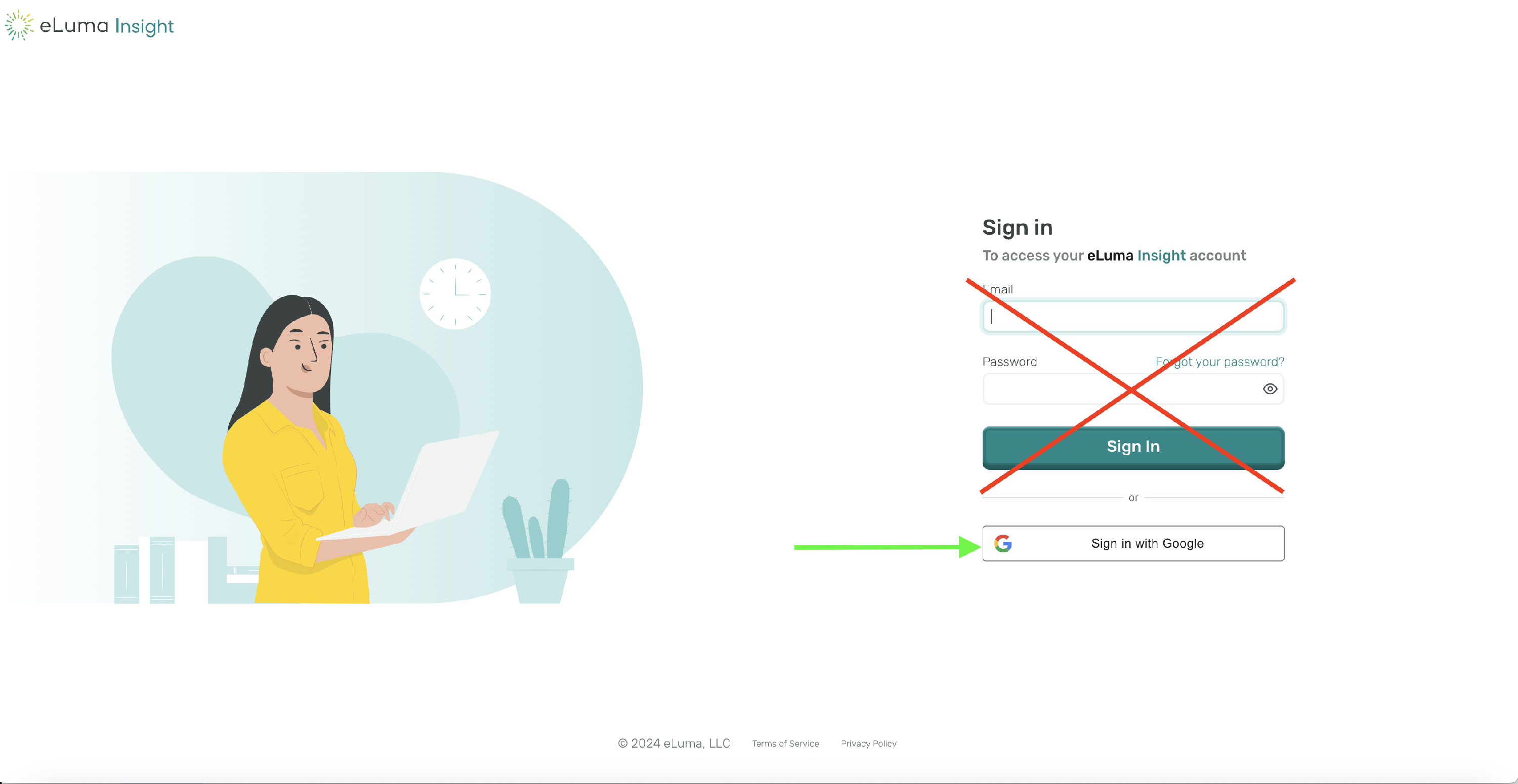
Initial Set up. Sign in using elumainsight.com via the Google Sign-on Icon.
1) Click on Sign In with Google
2) Do not utilize the email/password sign-in
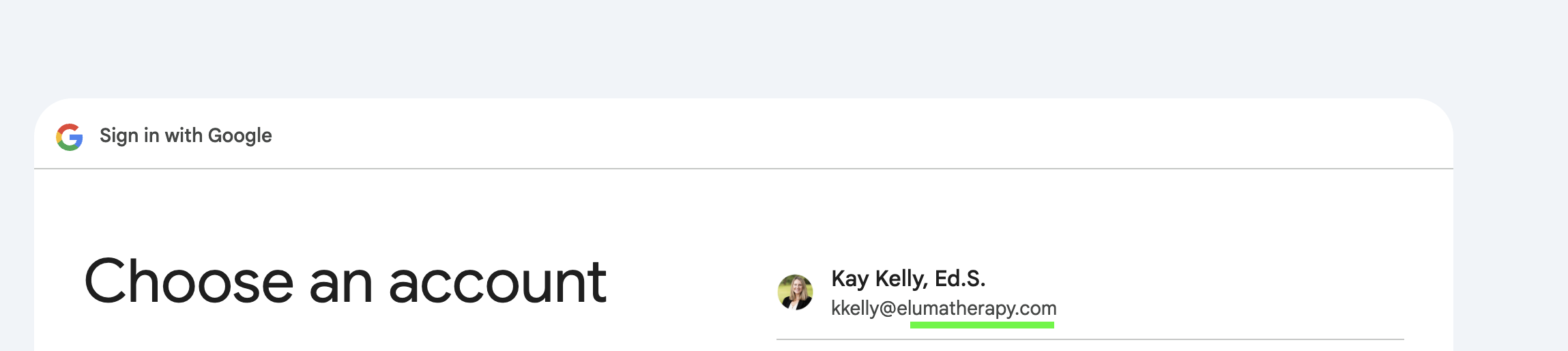
3) Click on your elumatherapy.com account.
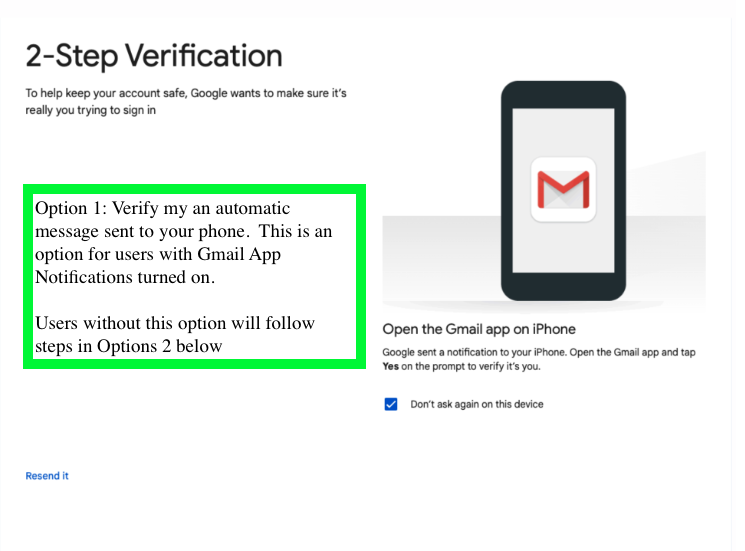
**Some users may be asked to reset their 2-Step Verification. Steps below to set up 2-Step Verification. There are (2) options to complete 2-Step Verification. If not prompted you can skip to Step #4.
Option #1:
Option #2:
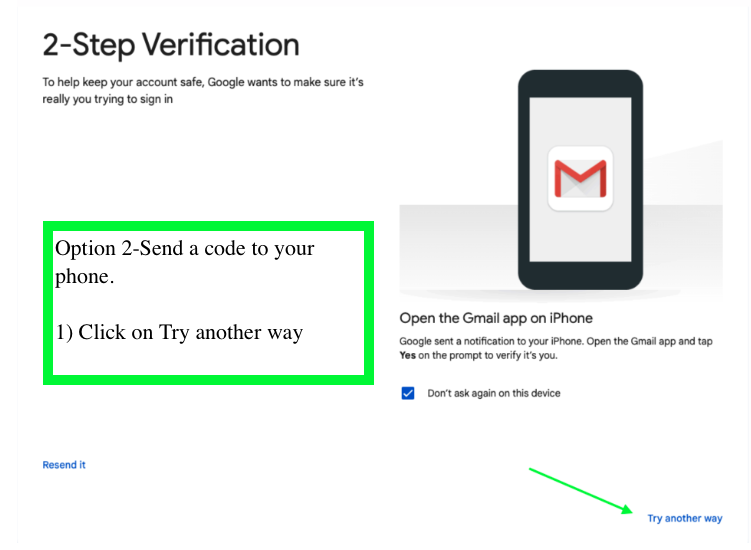
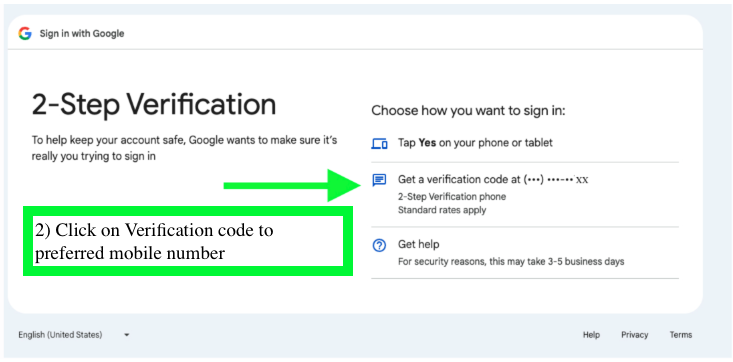
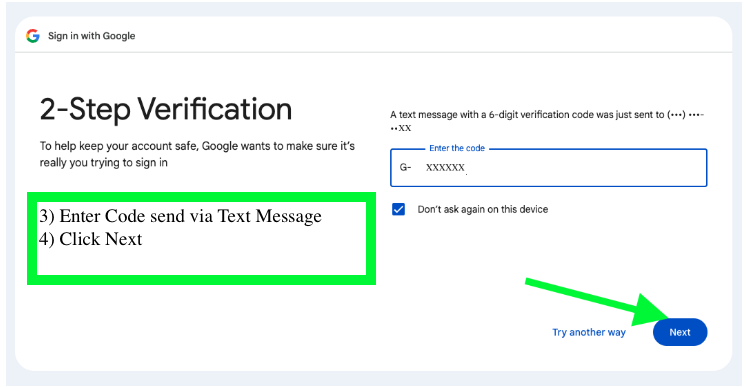
**End of 2-Step Verification Set up. Complete SSO Setup using Step 4
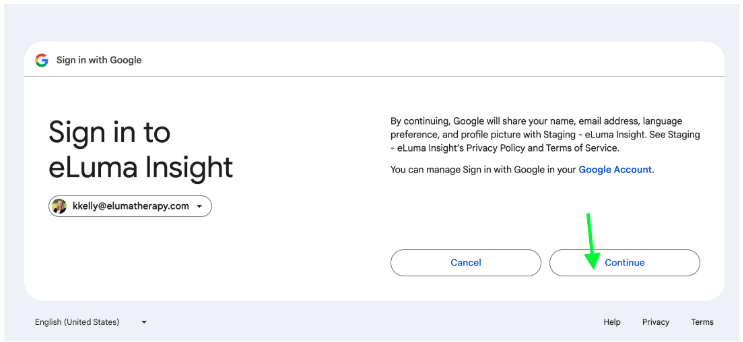
4) Click on Continue. This will take you to your Dashboard.
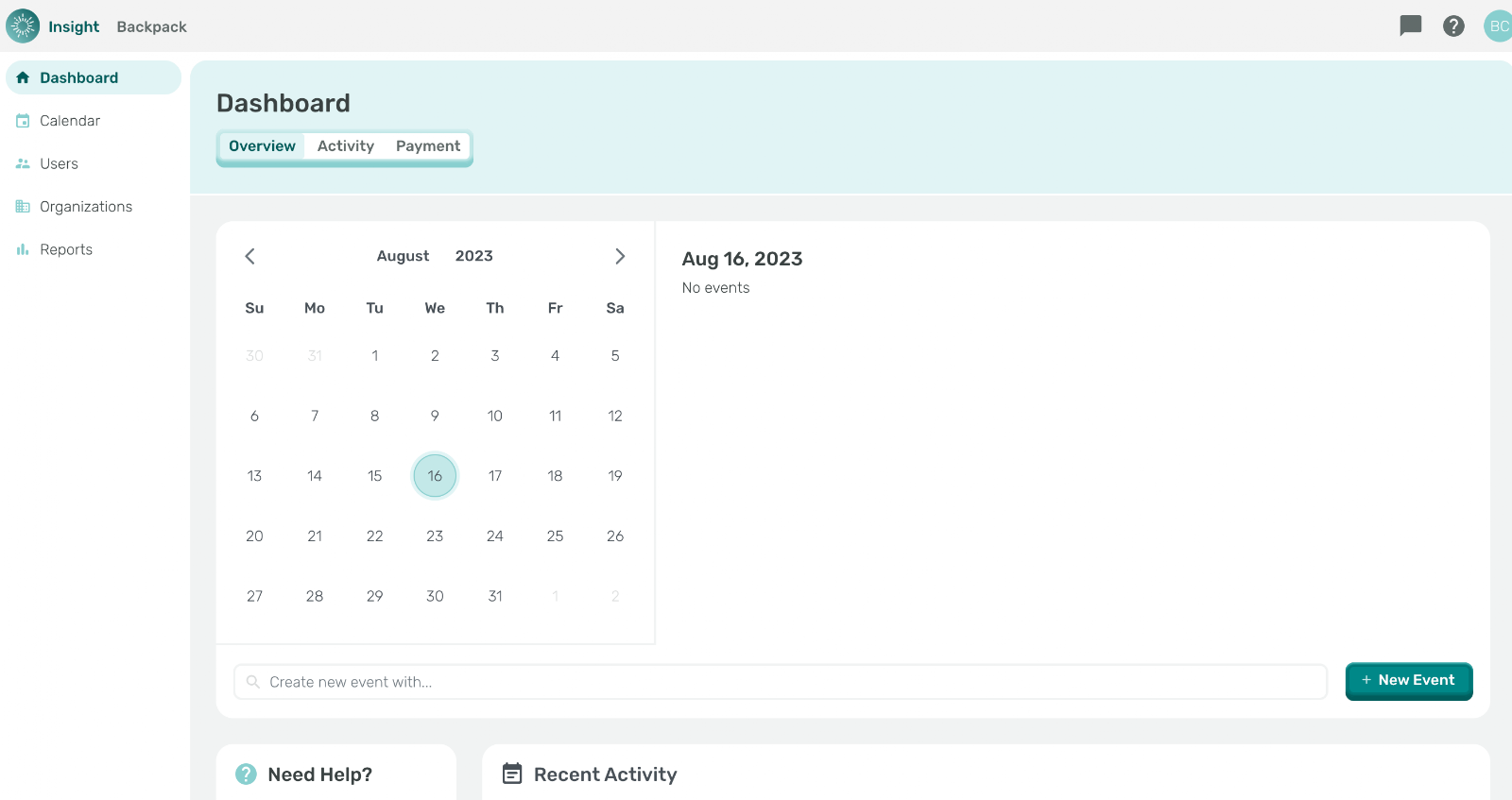
Your Insight Dashboard will look like this. The taskbar features your calendar, user list, organization lists, and reports tabs.
Sign on after Initial setup: Sign in using elumainsight.com via the Google Sign-on Icon.
1) Click on Sign In with Google
2) Do not utilize the email/password sign-in. This will take you to your Dashboard.