---
title: Filtering and Searching in the Activity Logs
description: published
---
[[Skip to content](https://onlinetherapy.elumatherapy.com/support/article/579-filtering-the-activity-log#main-content) English Show submenu for translations Open main navigation Close main navigation - English Show submenu for translations - Contact us Contact us How can we help you? - There are no suggestions because the search field is empty.](https://www.canva.com/design/DAHLjH8jnIs/hTUz9WpLsvZ0LDEbb__LvQ/view?utm_content=DAHLjH8jnIs&utm_campaign=designshare&utm_medium=embeds&utm_source=link)
1. [eLuma Knowledge Base](https://onlinetherapy.elumatherapy.com/support?hsLang=en)
2. [Insight Help Documents](https://onlinetherapy.elumatherapy.com/support/insight-help-documents?hsLang=en)
3. [Insight Features and Navigation](https://onlinetherapy.elumatherapy.com/support/insight-help-documents?hsLang=en#insight-features-and-navigation)
# Filtering and Searching in the Activity Logs
As a School Admin or Service Provider I can search and filter in the Activity Logs for updates that are made within an Organization and Students with whom I am connected.
- If you have questions about what details are in the Activity Logs or where to find them go to the related article 'Understanding the Activity Logs'.
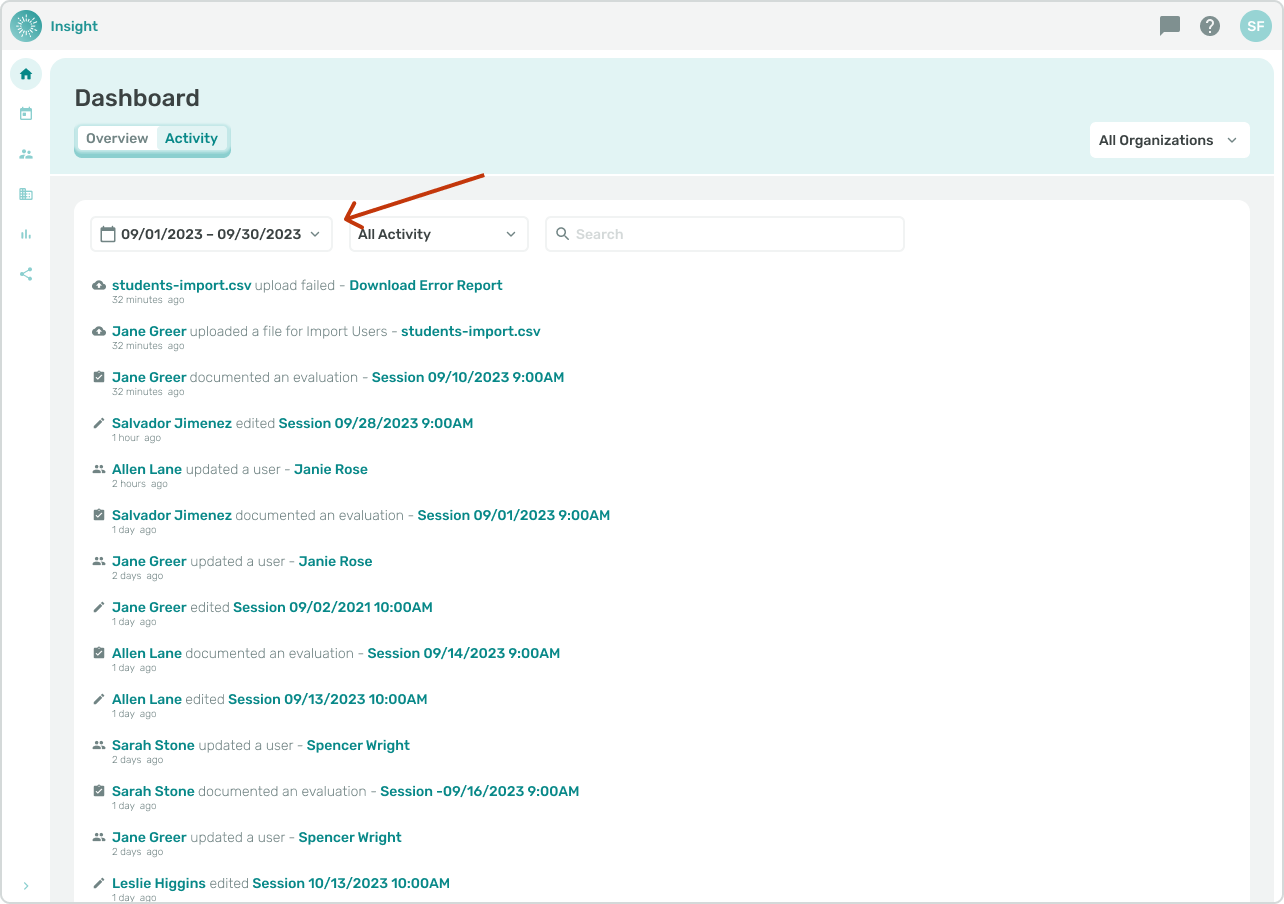
1. The same filter and search criteria are available in both the Dashboard Activity tab and Organization Logs tab using keywords, a time range or a combination. Click the date range selector to change the range to display activity for.
- The default selection is the past 30 days.
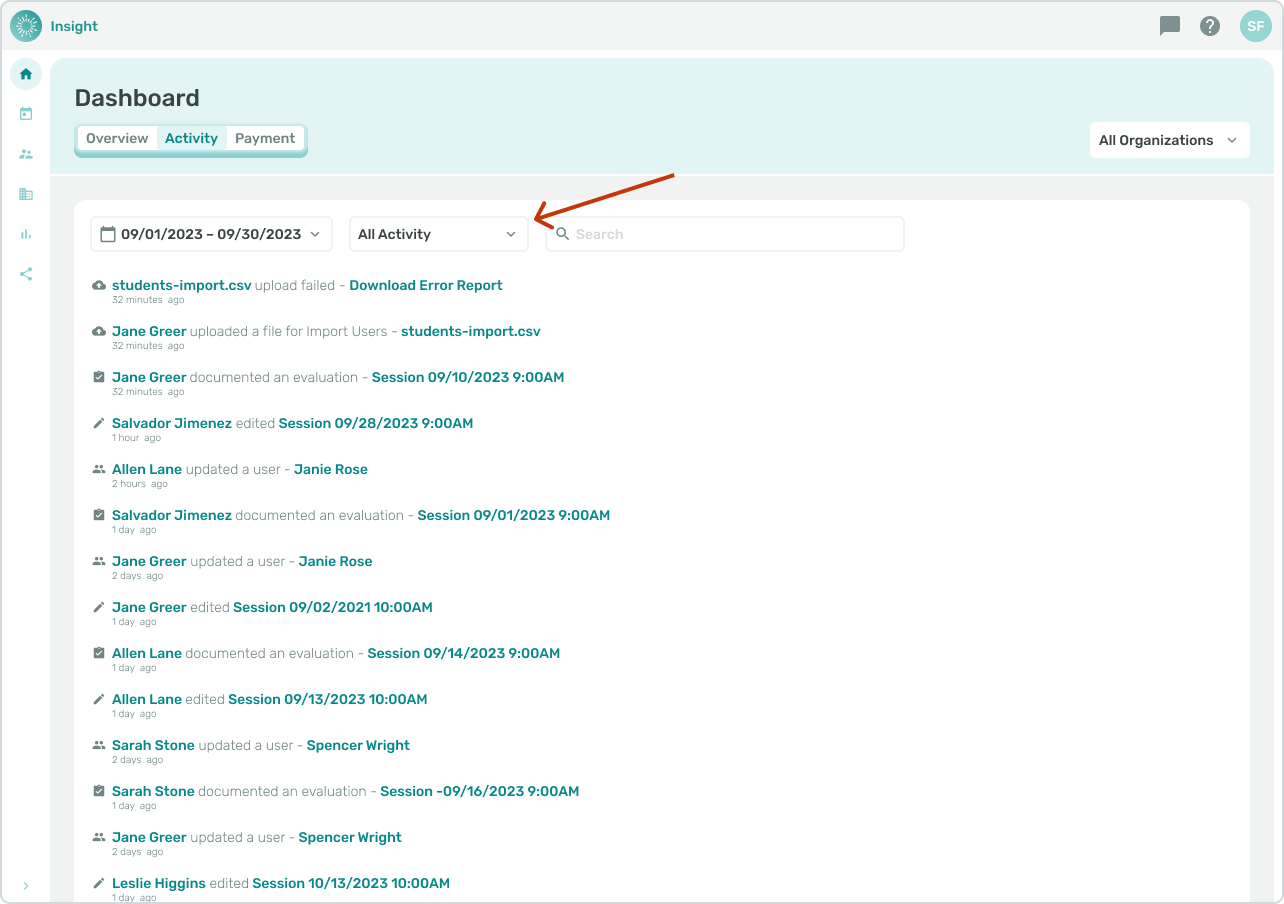
1. Click the "Activity Type" dropdown to filter the results to a specific activity type.
- "All Activity" is the default selection.
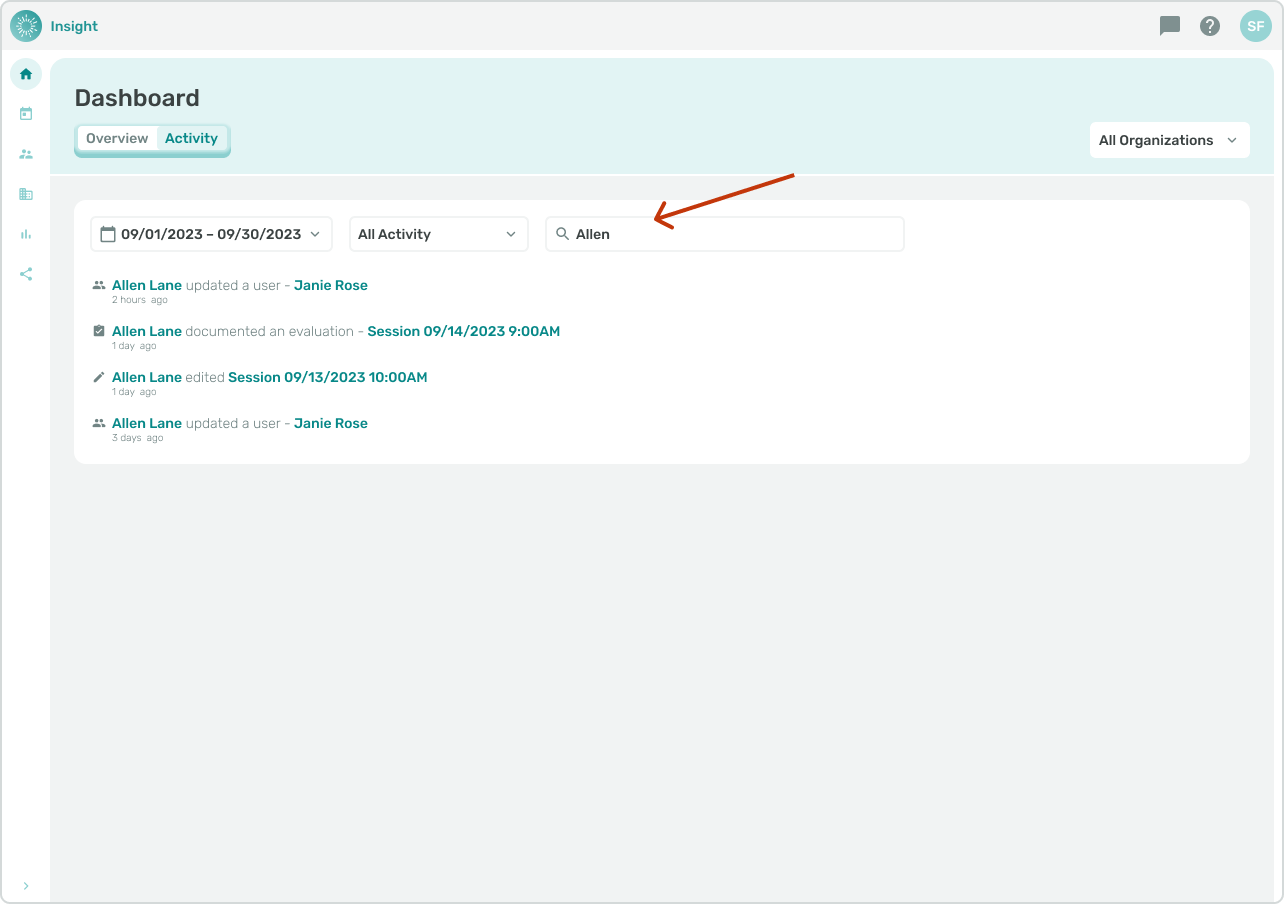
**Search Box**
1. When utilizing the Search box type in the keyword(s), tap Enter on your keyboard and the results are returned below.
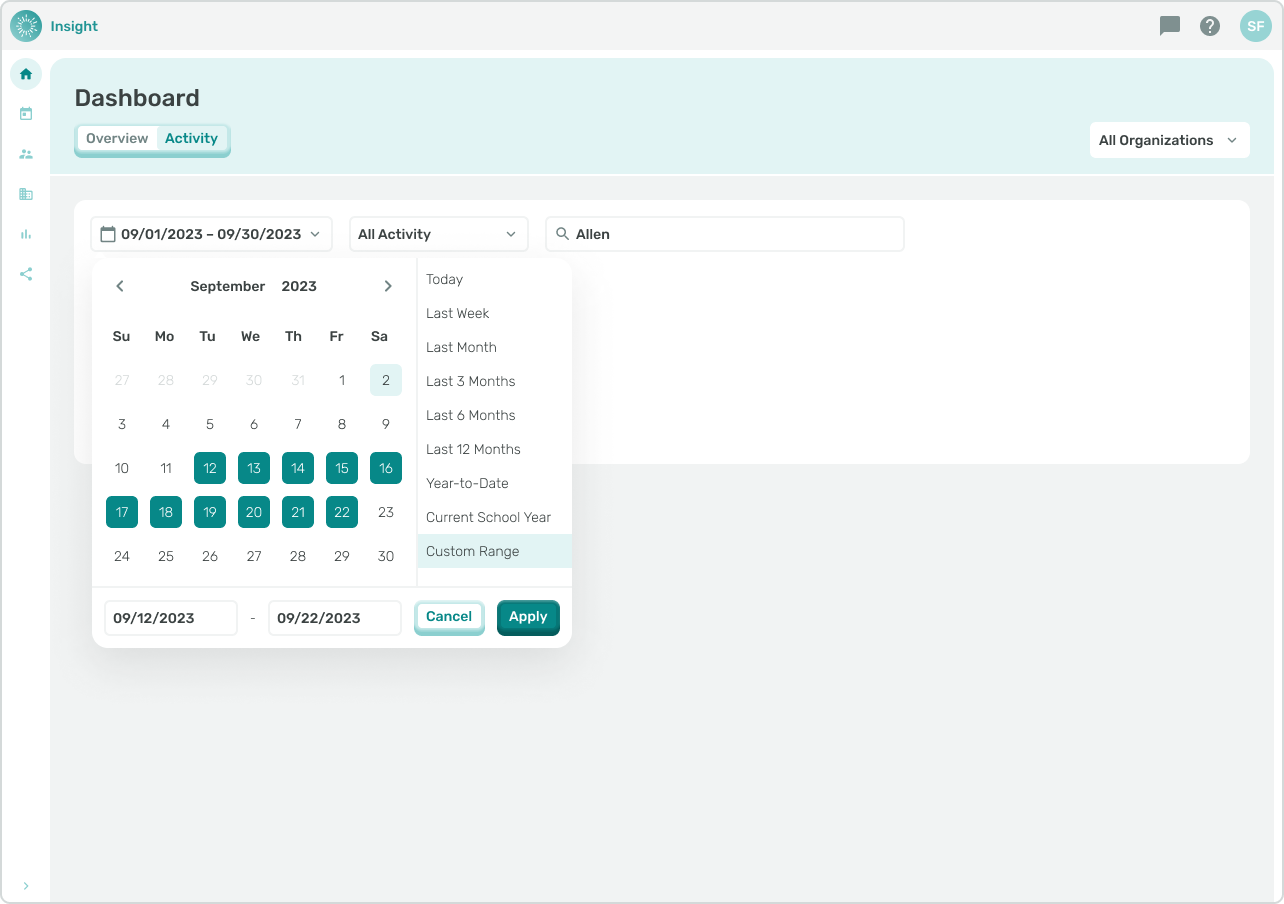
**Date Range Filter**
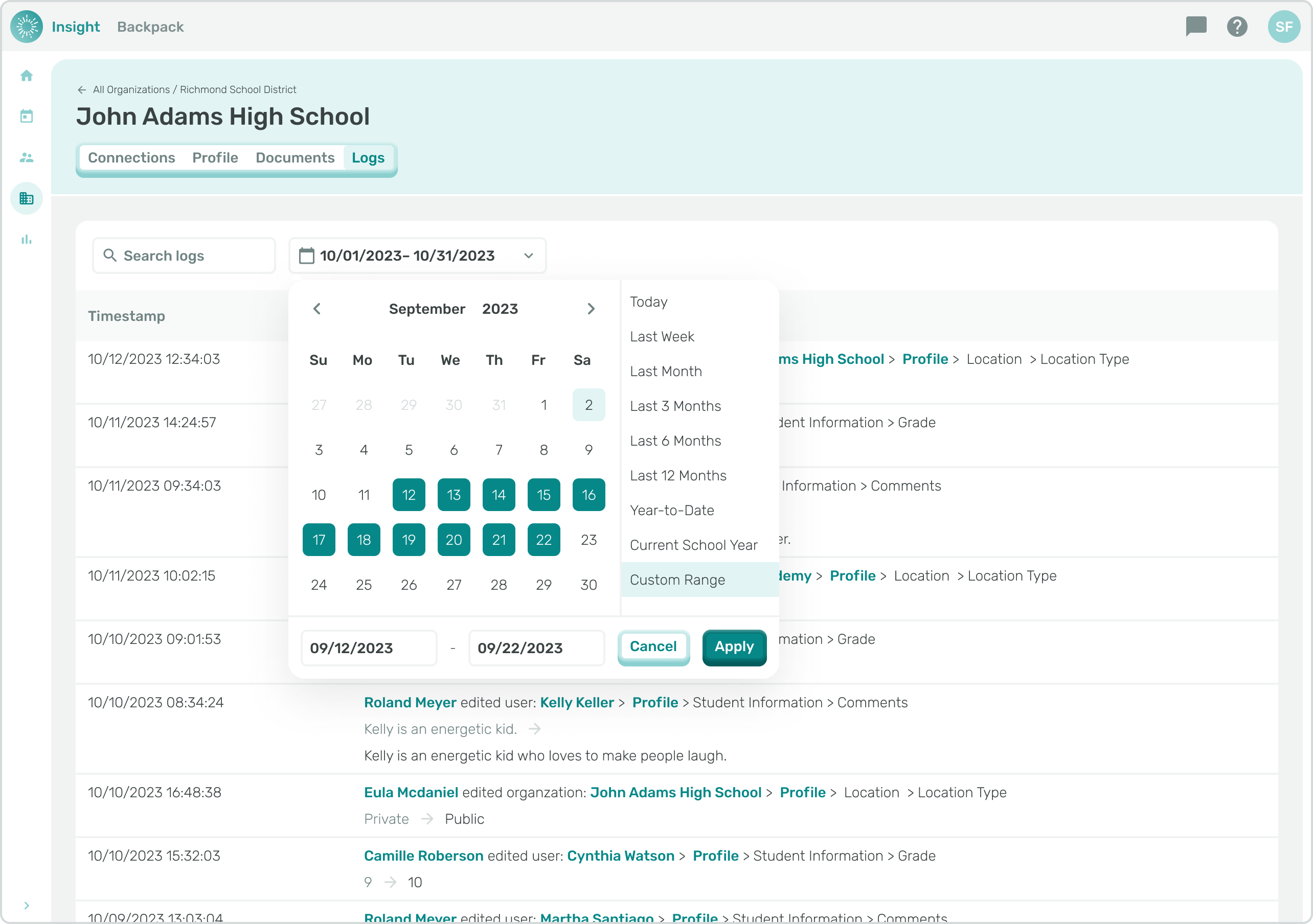
1. To change the filtered dates click in the Date Box. A calendar modal will open with the default dates highlighted in the calendar and also at the bottom of the calendar in separate boxes.
- There are three options to edit the starting and ending dates.
- You can click into the separate date boxes at the top and type in the new dates,
- Click on one of the preloaded date options listed to the right of the calendar (this feature is only available in the Dashboard Activity Log), or
- Select the corresponding starting and ending dates in the calendar.
1. When clicking into the calendar to edit the dates
- To change the month, click on the arrows at the top of the calendar and on each side of the month.
- To go to previous months click on the left arrow and to go forward in months click on the right arrow.
1. Click on the starting date which will populate in the left Date box at the bottom of the calendar.
2. Then click on the ending date to populate the right Date box. The dates you have selected will be highlighted on the calendar.
3. Lastly, click on the “Apply” button which is at the bottom right.
***\*\*\*Dashboard Activity Tab***
***\*\*\*Organization Logs***
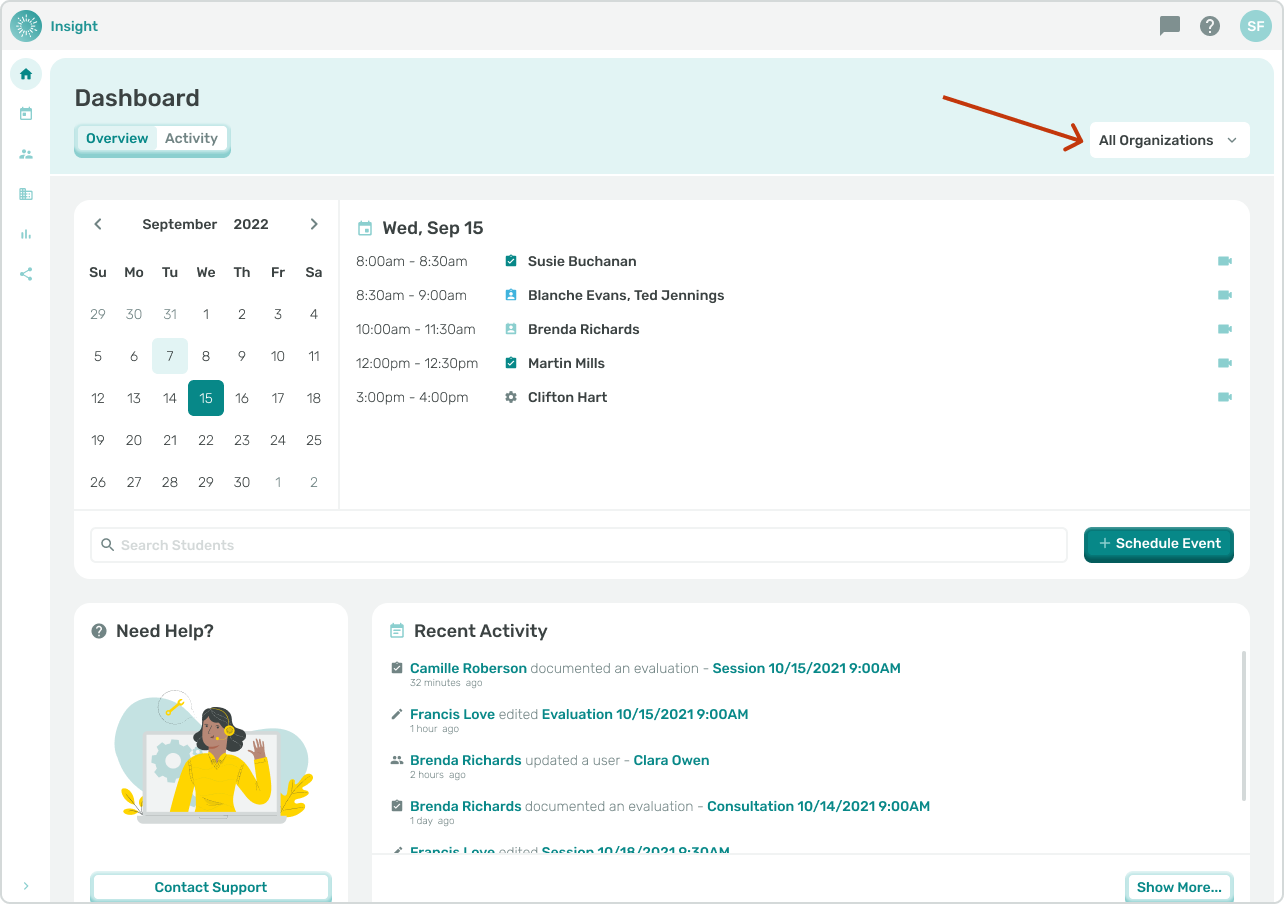
- In the Dashboard Activity Tab if you are connected to more than one Organization you can also change the Organization filter. The default for this filter is ‘All Organizations’.
1. To change the filter click on the dropdown menu. The list of all Organizations that you are connected to will appear.
2. Click on 1 or more Organization(s) which will highlight it with color, add it to the filter, and immediately update the results.
3. To remove an Organization from the filter click on it a second time and the results from the filter will update immediately.
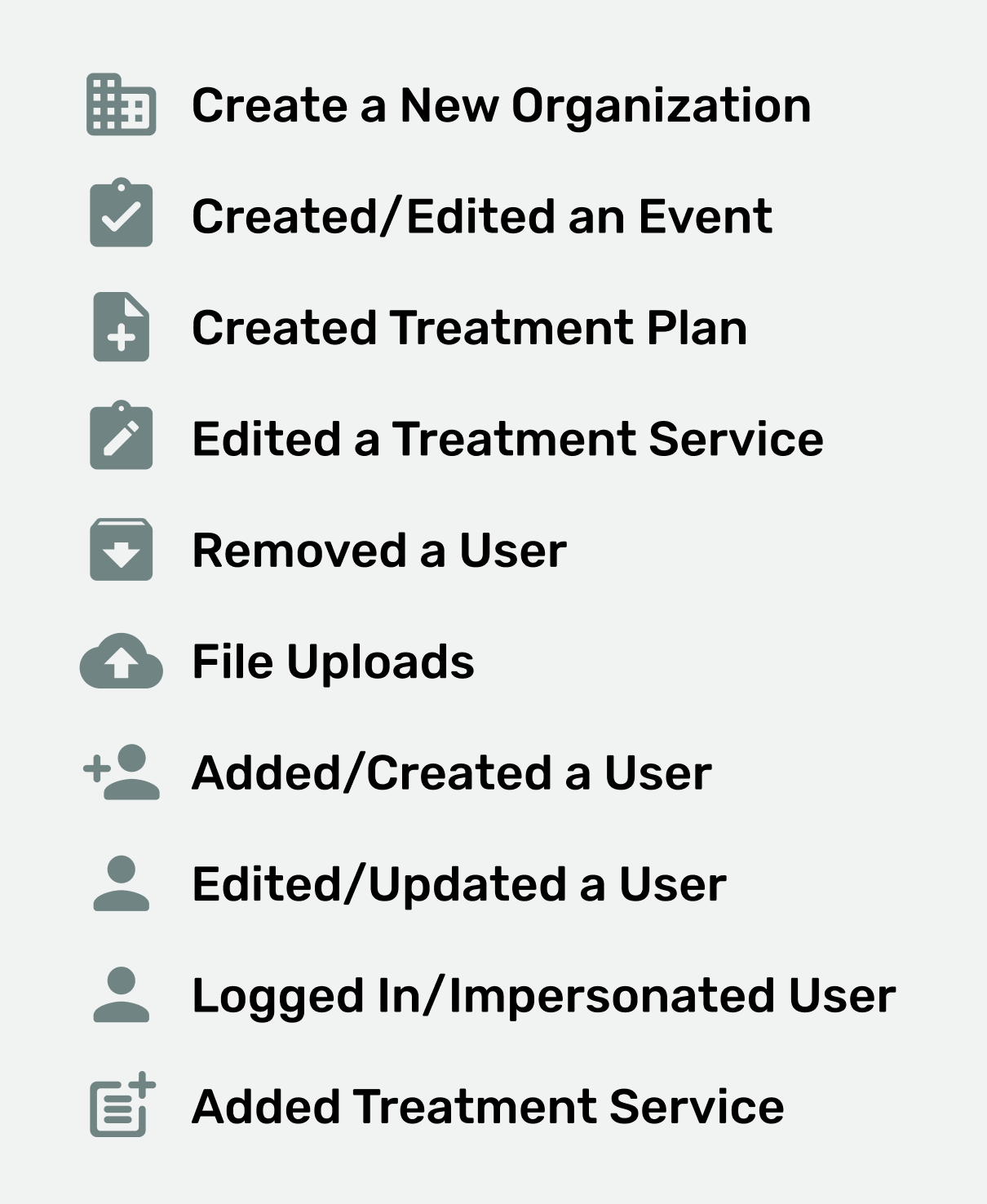
***\*\*\*Dashboard Activity Icon Key***
- [Insight Help Documents](https://onlinetherapy.elumatherapy.com/support/insight-help-documents?hsLang=en#main-content)
- [Treatment Plans and Active Service Lines](https://onlinetherapy.elumatherapy.com/support/insight-help-documents?hsLang=en#treatment-plans-and-active-service-lines)
- [Scheduling Events: Insight Calendar](https://onlinetherapy.elumatherapy.com/support/insight-help-documents?hsLang=en#scheduling-events-insight-calendar)
- [Documenting Events: Insight Calendar](https://onlinetherapy.elumatherapy.com/support/insight-help-documents?hsLang=en#documenting-events-insight-calendar)
- [Run Reports](https://onlinetherapy.elumatherapy.com/support/insight-help-documents?hsLang=en#run-reports)
- [Insight Features and Navigation](https://onlinetherapy.elumatherapy.com/support/insight-help-documents?hsLang=en#insight-features-and-navigation)
- [Assessment and Evaluation Events](https://onlinetherapy.elumatherapy.com/support/insight-help-documents?hsLang=en#assessment-and-evaluation-events)
- [Provider Success Community](https://onlinetherapy.elumatherapy.com/support/provider-success-community?hsLang=en#main-content)
- [Using BackPack](https://onlinetherapy.elumatherapy.com/support/provider-success-community?hsLang=en#using-backpack)
- [Assessments](https://onlinetherapy.elumatherapy.com/support/provider-success-community?hsLang=en#assessments)
- [Additional Features](https://onlinetherapy.elumatherapy.com/support/provider-success-community?hsLang=en#additional-features)
- [Zoom Support](https://onlinetherapy.elumatherapy.com/support/zoom-support?hsLang=en)
[.png?width=939&height=281&name=eluma-logo-color-notag-lg%20(2).png "eLuma Online Therapy")](http://eluma.com)
[mailto:email@email.com](mailto:email@email.com)
Copyright © 2026, eLuma