---
title: Understanding the Activity Logs
description: published
---
[[Skip to content](https://onlinetherapy.elumatherapy.com/support/article/578-understanding-the-activity-log-types#main-content) English Show submenu for translations Open main navigation Close main navigation - English Show submenu for translations - Contact us Contact us How can we help you? - There are no suggestions because the search field is empty.](https://www.canva.com/design/DAHLjH8jnIs/hTUz9WpLsvZ0LDEbb__LvQ/view?utm_content=DAHLjH8jnIs&utm_campaign=designshare&utm_medium=embeds&utm_source=link)
1. [eLuma Knowledge Base](https://onlinetherapy.elumatherapy.com/support?hsLang=en)
2. [Insight Help Documents](https://onlinetherapy.elumatherapy.com/support/insight-help-documents?hsLang=en)
3. [Insight Features and Navigation](https://onlinetherapy.elumatherapy.com/support/insight-help-documents?hsLang=en#insight-features-and-navigation)
# Understanding the Activity Logs
As a School Admin or Service Provider I can search and view updates in the Activity Logs that are made within an Organization and Students with whom I am connected.
The Activity Log details include:
- Who made the change
- In the case of impersonation: impersonator’s name
- Name of user being impersonated
- Details of change
- Item that was changed
- Old value
- New value
- Student’s name if applicable to the change
- Timestamp of logged change
Items in bold when clicked will navigate you to that specific Page, User, Event, or Document.
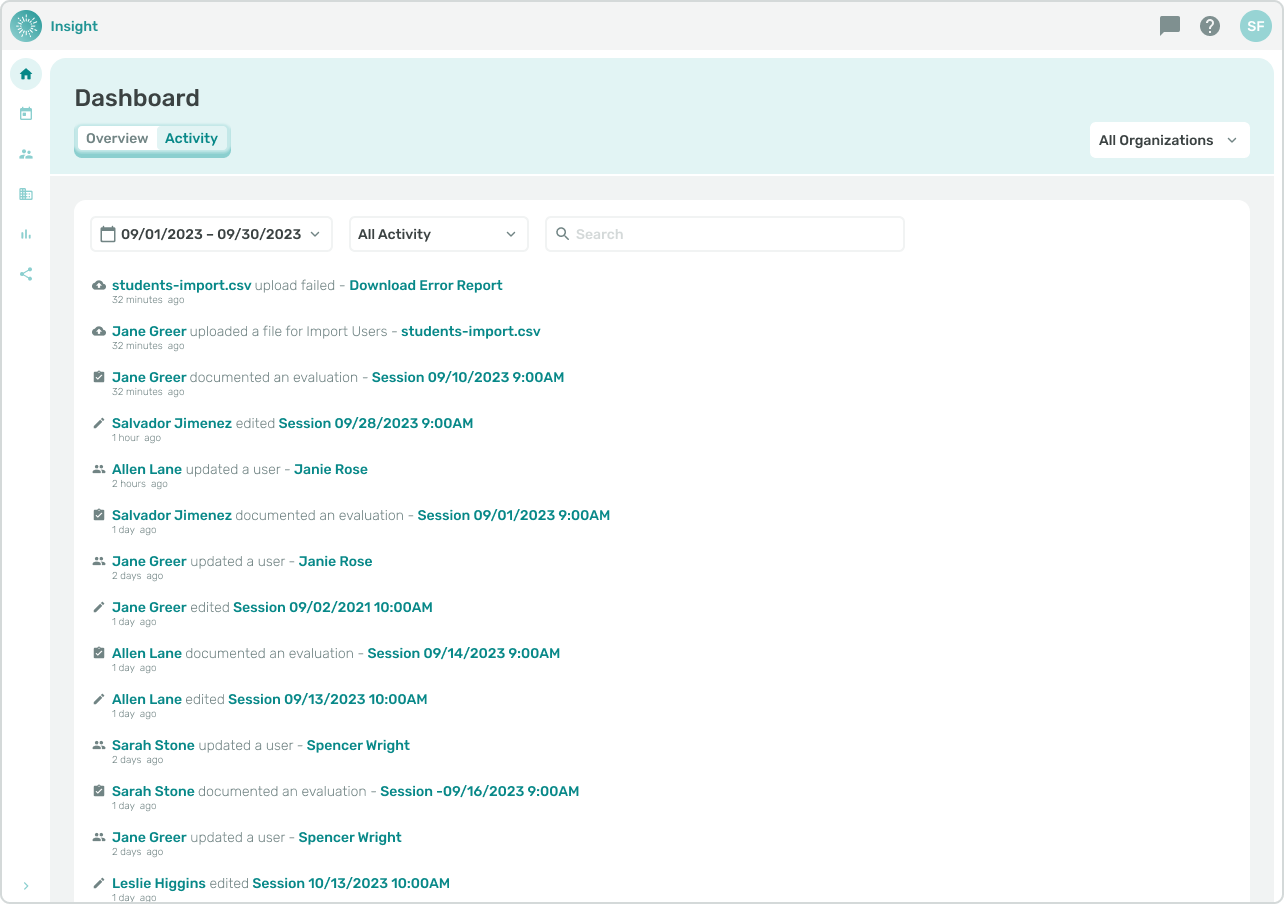
- There are two locations to view the Activity Logs:
- **Dashboard Page**
- Activity Tab
- Recent Activity Widget
- **Organizations Page**
- Logs Tab
**I. Dashboard Page**
- Activity Tab
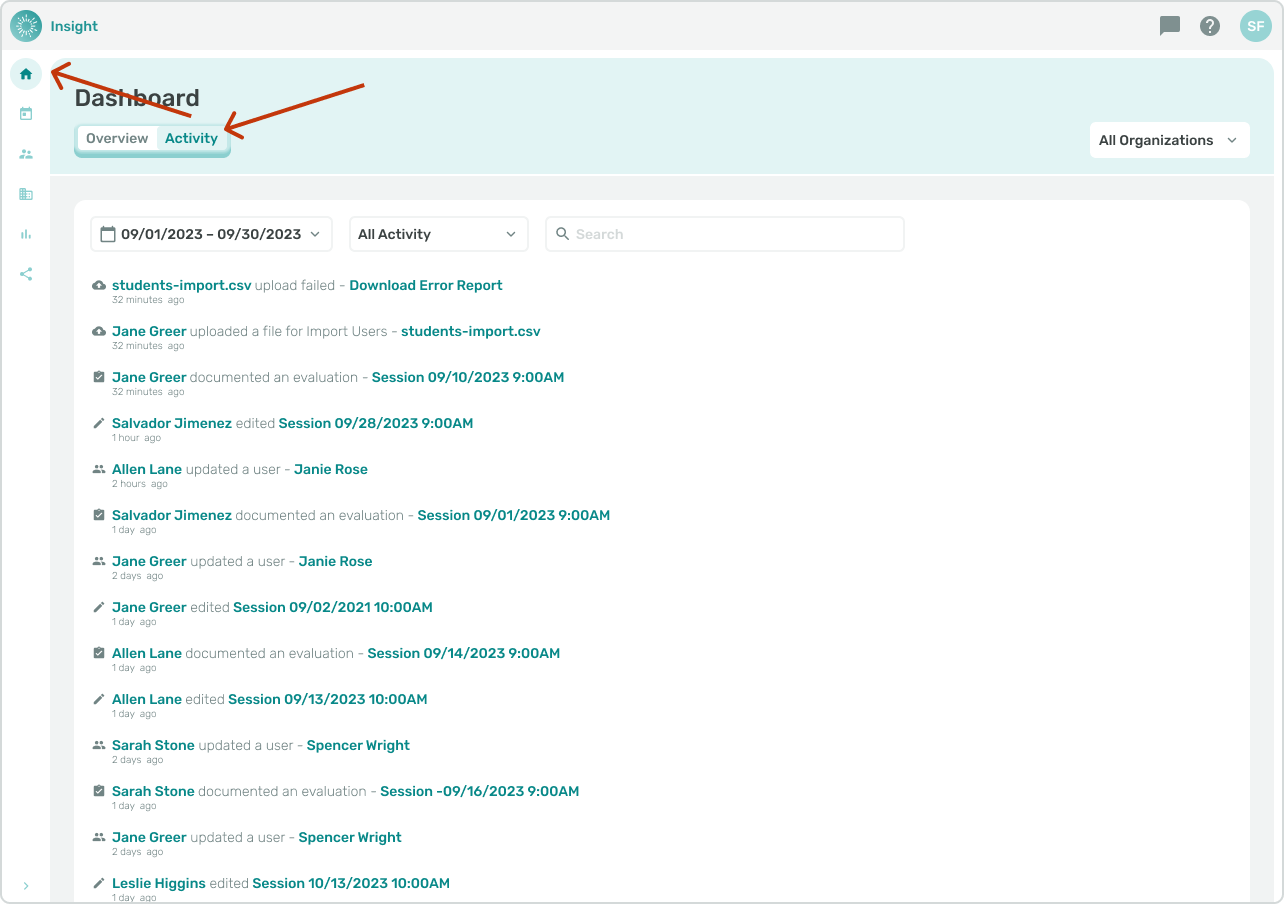
1. Navigate to the Dashboard Page by clicking on the side menu. Under the Dashboard banner at the top of the page click on the Activity Tab.
**Recent Activity Widget**
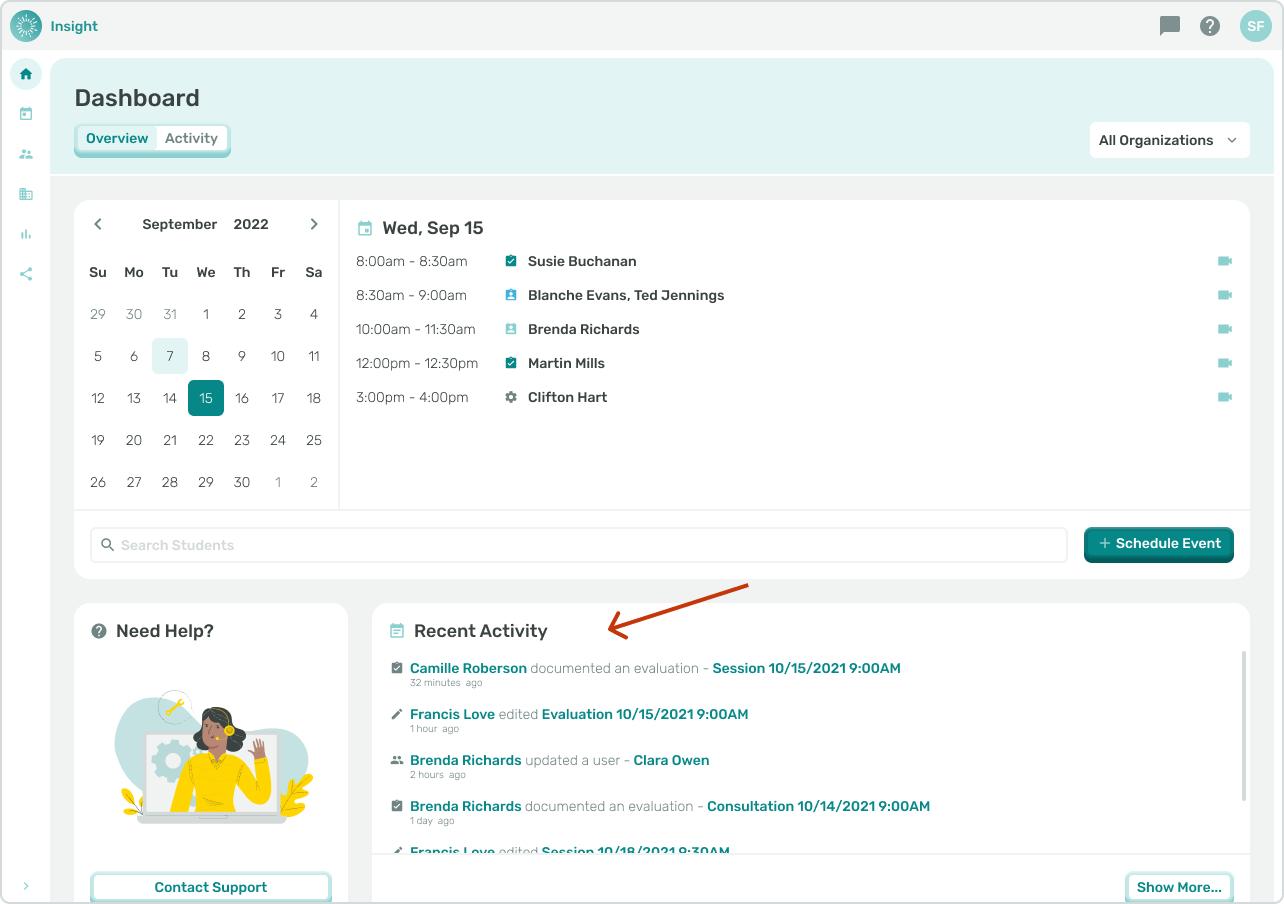
1. Navigate to the Dashboard Page by clicking on the side menu.
2. Scroll down to the middle of the page to view the Recent Activity Widget.
3. At the bottom right of the widget click on the ‘Show More…’ button to be redirected to the Dashboard Activity Tab to see the expanded Activity Log.
**II. Organizations Page**
- Logs Tab
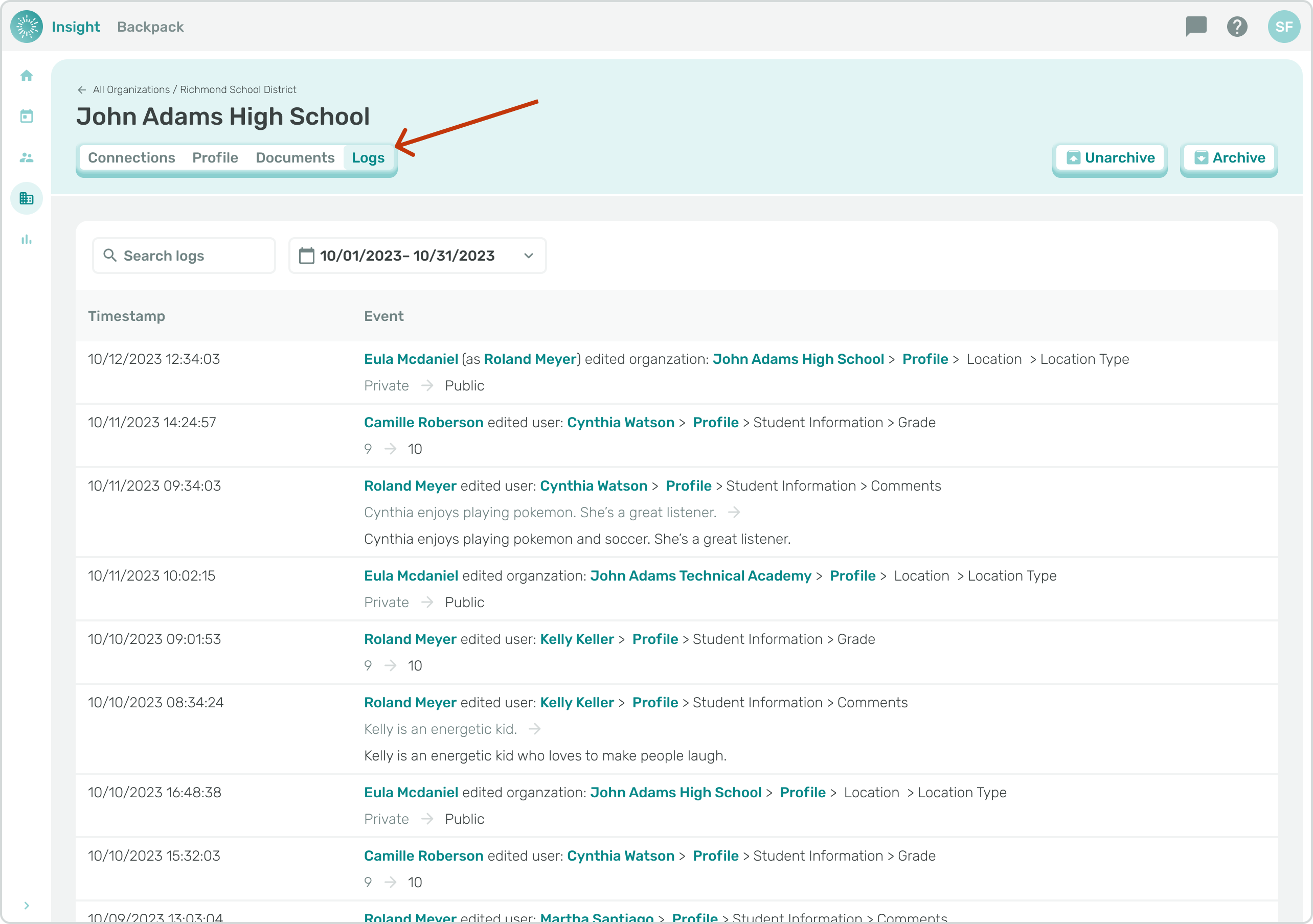
1. Navigate to the Organizations Page by clicking on the left menu.
2. Next click on the name of the Organization in the list.
3. Finally, under the Organization name in the header click on the Logs tab.
- For additional information and instructions go to the related article 'Filtering and Searching in the Activity Logs'.
- [Insight Help Documents](https://onlinetherapy.elumatherapy.com/support/insight-help-documents?hsLang=en#main-content)
- [Treatment Plans and Active Service Lines](https://onlinetherapy.elumatherapy.com/support/insight-help-documents?hsLang=en#treatment-plans-and-active-service-lines)
- [Scheduling Events: Insight Calendar](https://onlinetherapy.elumatherapy.com/support/insight-help-documents?hsLang=en#scheduling-events-insight-calendar)
- [Documenting Events: Insight Calendar](https://onlinetherapy.elumatherapy.com/support/insight-help-documents?hsLang=en#documenting-events-insight-calendar)
- [Run Reports](https://onlinetherapy.elumatherapy.com/support/insight-help-documents?hsLang=en#run-reports)
- [Insight Features and Navigation](https://onlinetherapy.elumatherapy.com/support/insight-help-documents?hsLang=en#insight-features-and-navigation)
- [Assessment and Evaluation Events](https://onlinetherapy.elumatherapy.com/support/insight-help-documents?hsLang=en#assessment-and-evaluation-events)
- [Provider Success Community](https://onlinetherapy.elumatherapy.com/support/provider-success-community?hsLang=en#main-content)
- [Using BackPack](https://onlinetherapy.elumatherapy.com/support/provider-success-community?hsLang=en#using-backpack)
- [Assessments](https://onlinetherapy.elumatherapy.com/support/provider-success-community?hsLang=en#assessments)
- [Additional Features](https://onlinetherapy.elumatherapy.com/support/provider-success-community?hsLang=en#additional-features)
- [Zoom Support](https://onlinetherapy.elumatherapy.com/support/zoom-support?hsLang=en)
[.png?width=939&height=281&name=eluma-logo-color-notag-lg%20(2).png "eLuma Online Therapy")](http://eluma.com)
[mailto:email@email.com](mailto:email@email.com)
Copyright © 2026, eLuma