As a School Admin or Service Provider you can view attendance data for Students with whom you are connected in the Attendance Widget on the Dashboard Page.
- Navigate to the Dashboard page from the side menu.
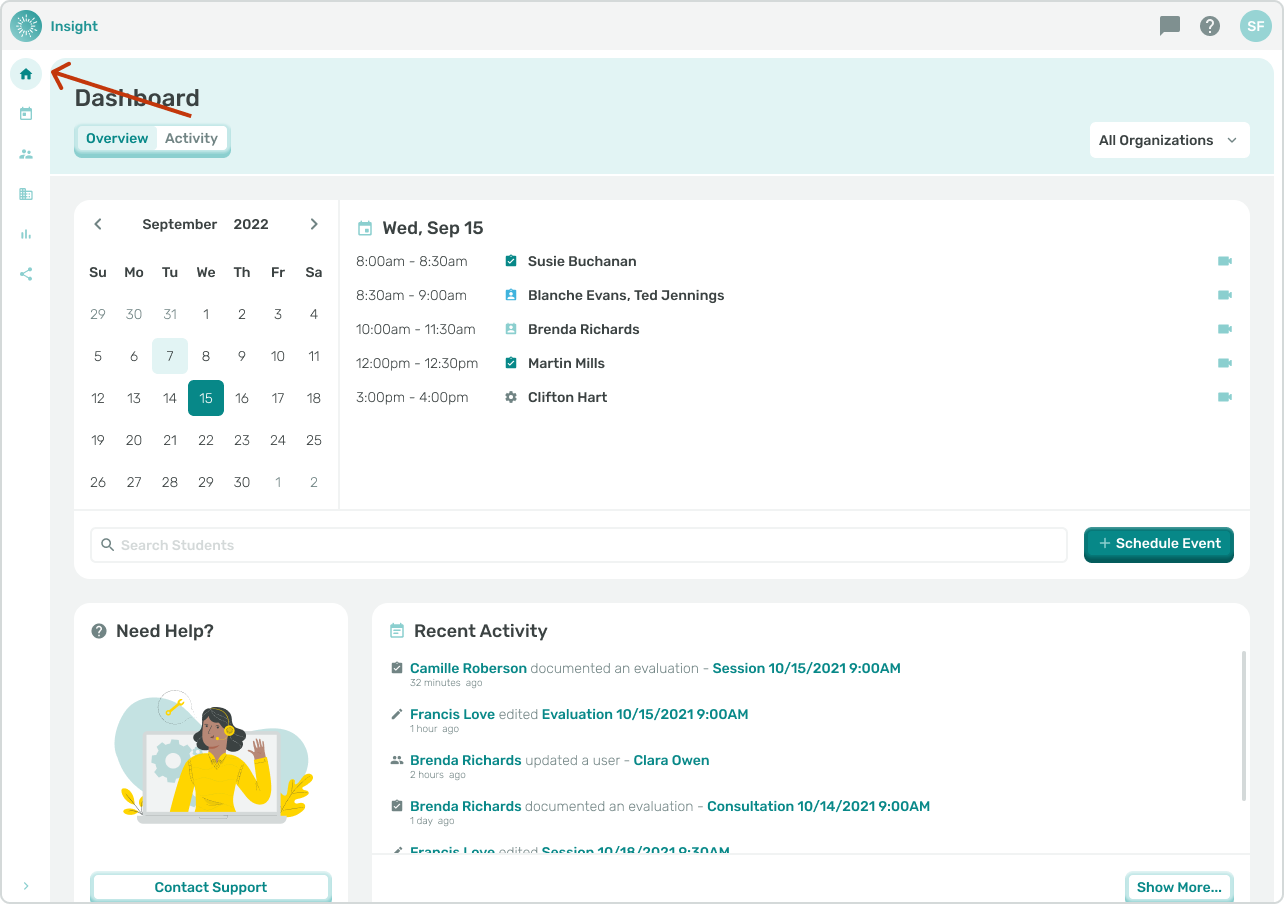
- Scroll down to the middle of the Dashboard page until you see the Attendance Widget.
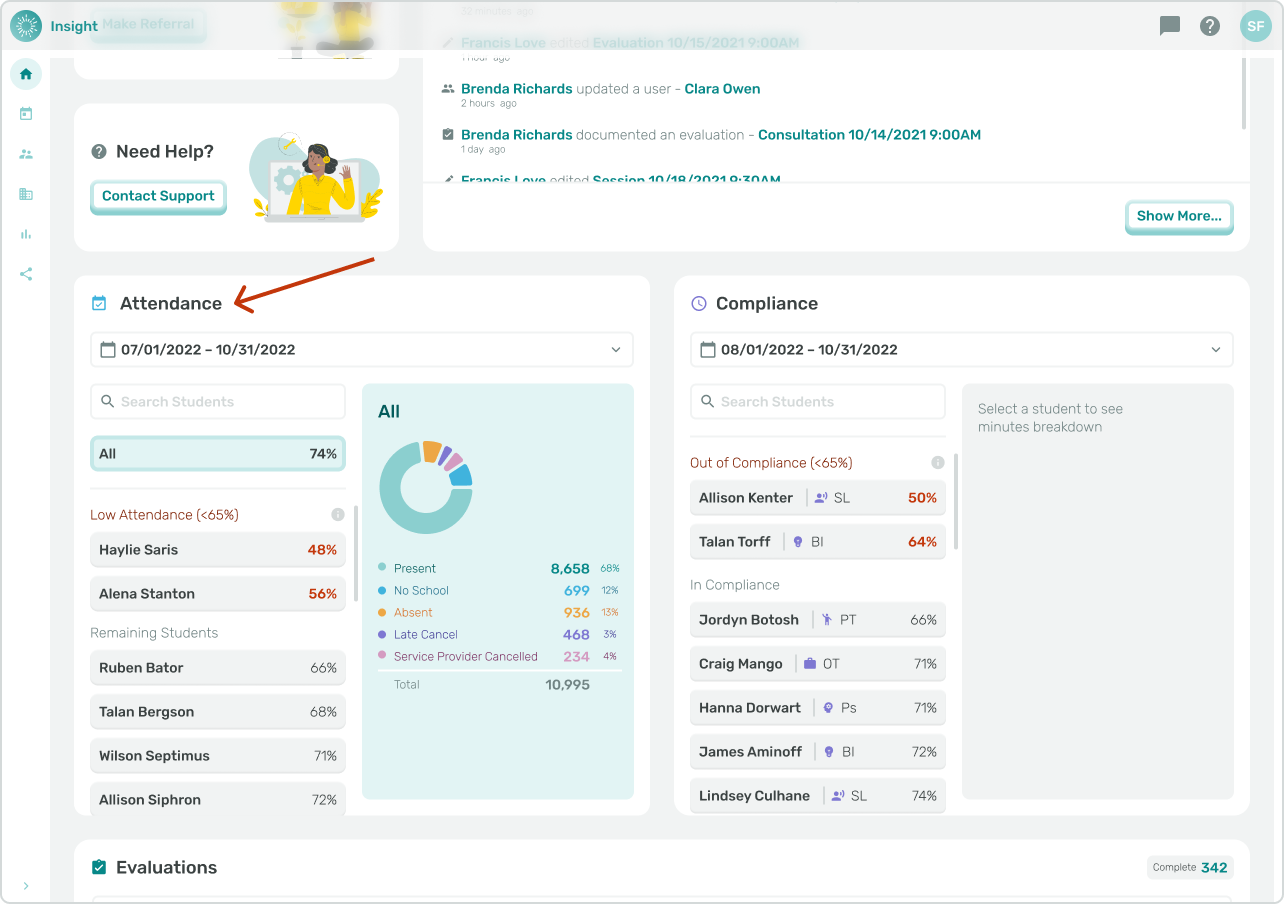
- Selecting and Setting Dates
- The default dates you will see in the Date Boxes are today’s date and four weeks prior to today.
- Changing these dates will update the data being displayed in the Attendance Widget.
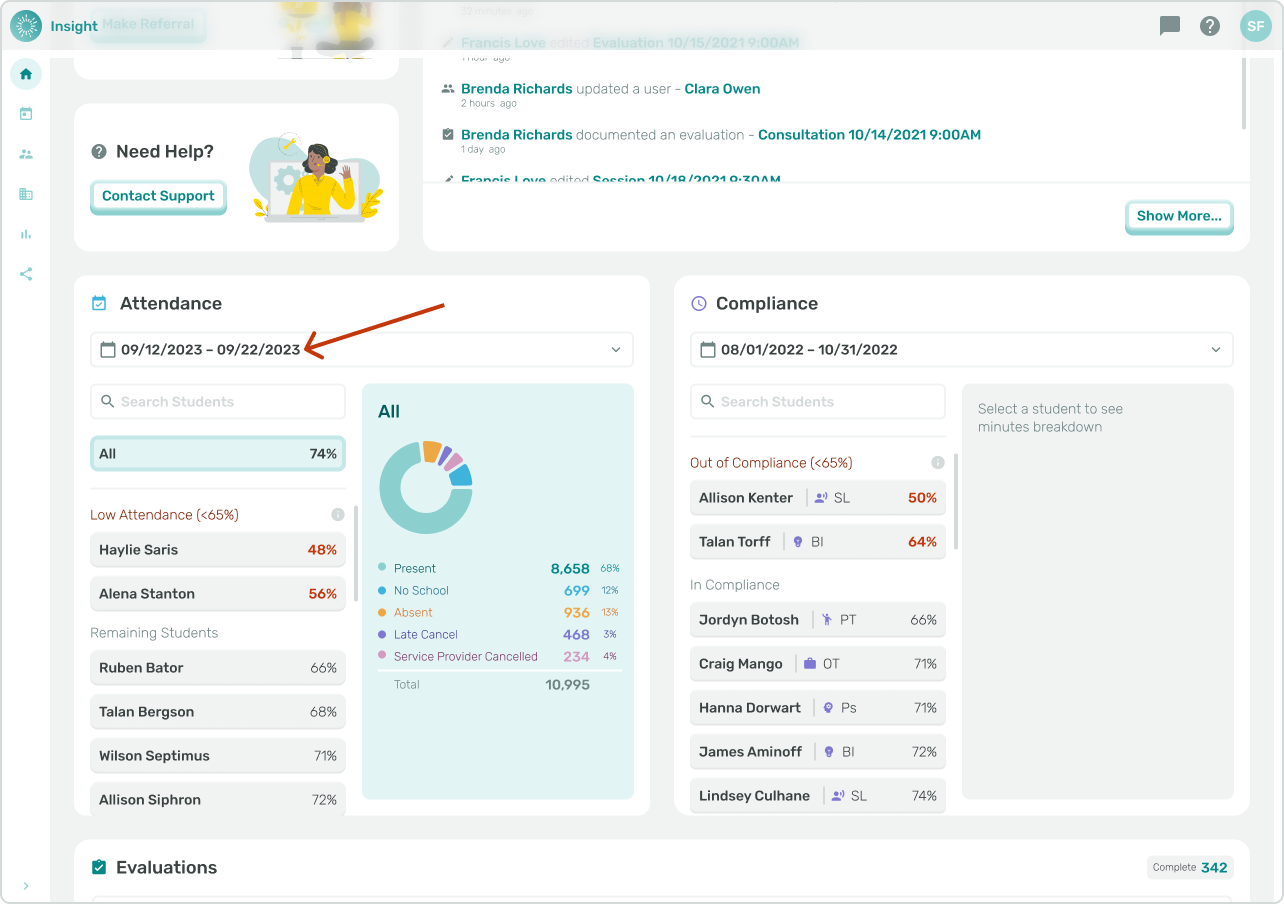
- To change the Attendance dates click in the Date Box. A calendar modal will open with the default dates highlighted in the calendar and also at the bottom of the calendar in separate boxes.
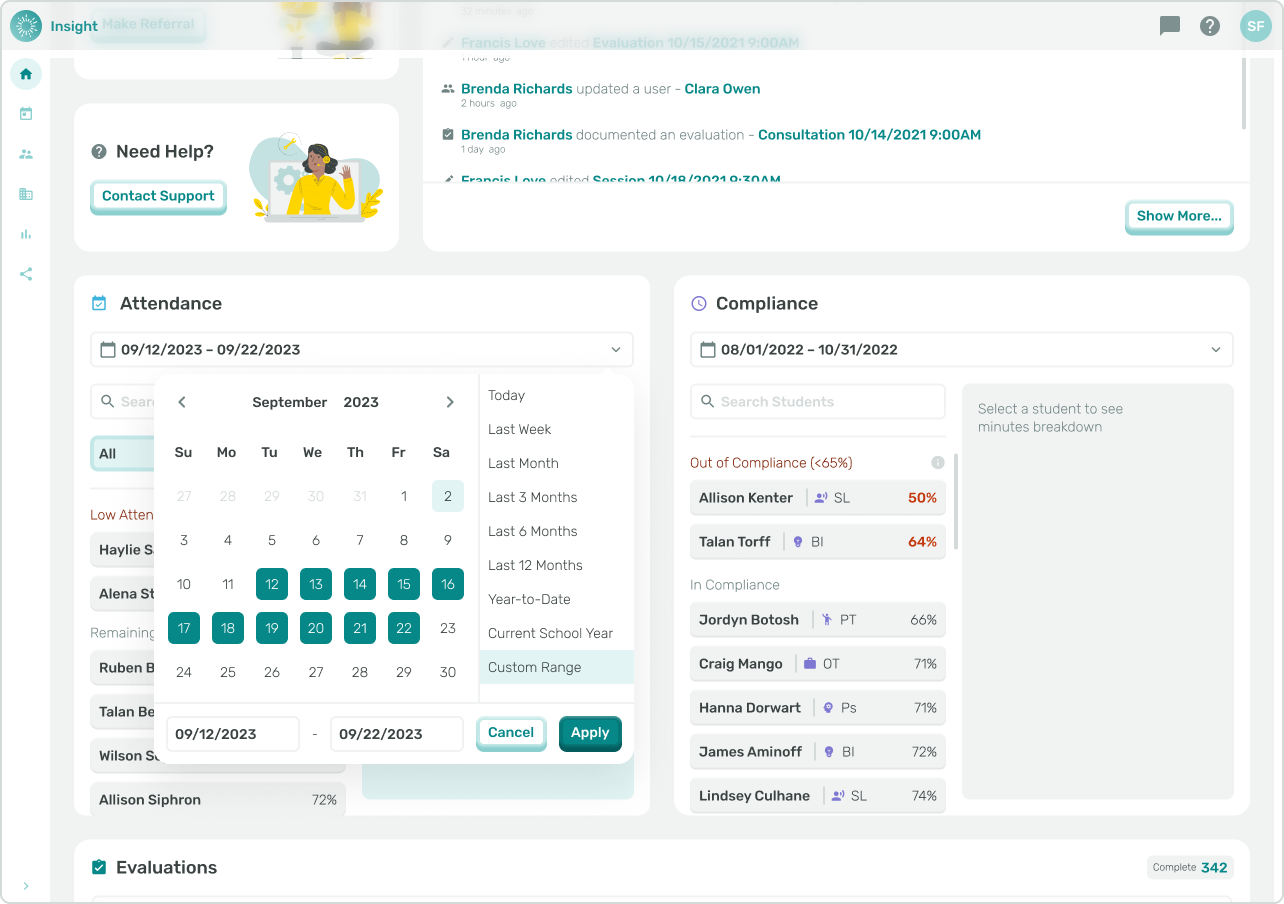
- There are three options to edit the starting and ending dates.
- You can click into the separate date boxes at the bottom of the calendar and type in the new dates,
- Click on one of the preloaded date options listed to the right of the calendar, or
- Select the corresponding starting and ending dates in the calendar.
- When clicking into the calendar to edit the dates
- To change the month, click on the arrows at the top of the calendar and on each side of the month.
- To go to previous months click on the left arrow and to go forward in months click on the right arrow.
- Next, click on the starting date which will populate in the left Date box at the bottom of the calendar. Secondly, click on the ending date to populate the right Date box.
- The dates you have selected will be highlighted on the calendar.
- Lastly, click on the “Apply” button which is at the bottom right.
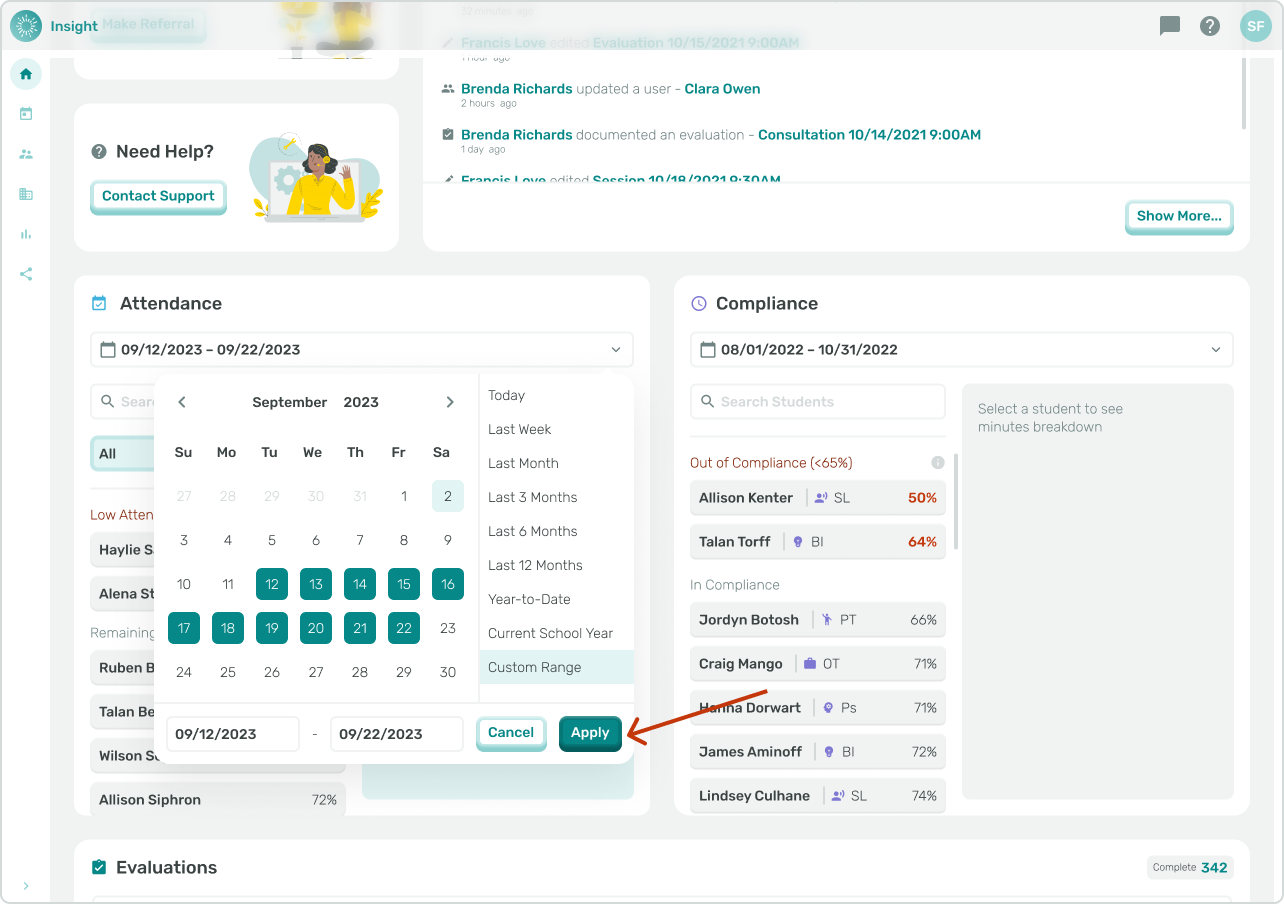
- The modal will close and based on the dates you selected the data and charts will update.
Search Students
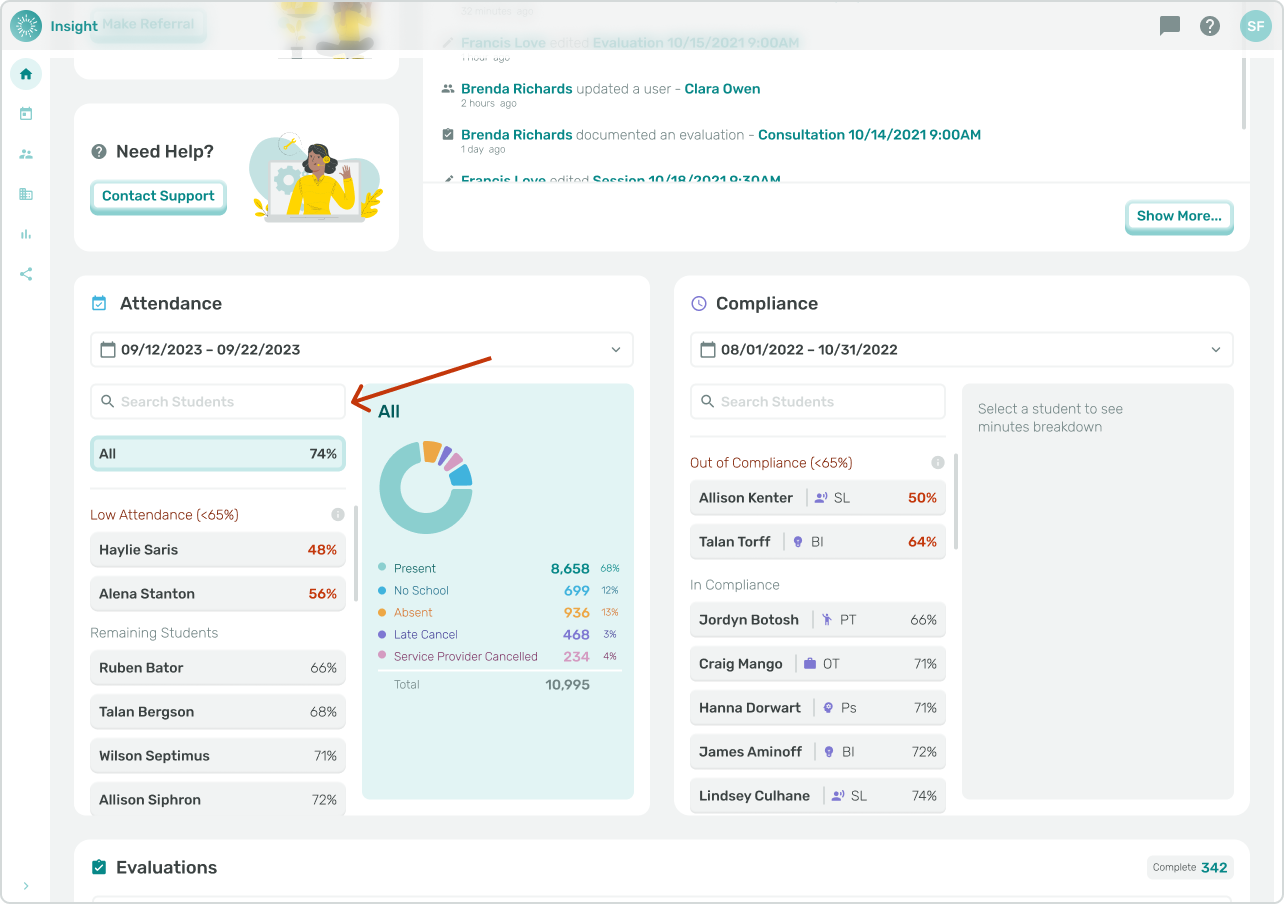
The default for the Attendance Widget graph section is All Students.
- To check Attendance data for a specific Student type their name in the ‘Search Students’ box. As you start typing the system will automatically list matching Students.
- Click on the name of the Student to populate the box.
- The Student’s name will be highlighted in the list of Students
- The title of the graph to the right will update from the default of “All” to the Student’s name, and the charts and data will be reflected for that Student.
- The specific Student graph data is solely based on Documented Events and does not include Scheduled Events.
- Click on the ‘See Details’ link underneath the ‘Totals’ to view Event dates, times, and Attendance status.