As a School Admin or Service Provider that is connected to multiple Organizations, you can filter the Widgets on the Dashboard by Organizations with whom you are connected.
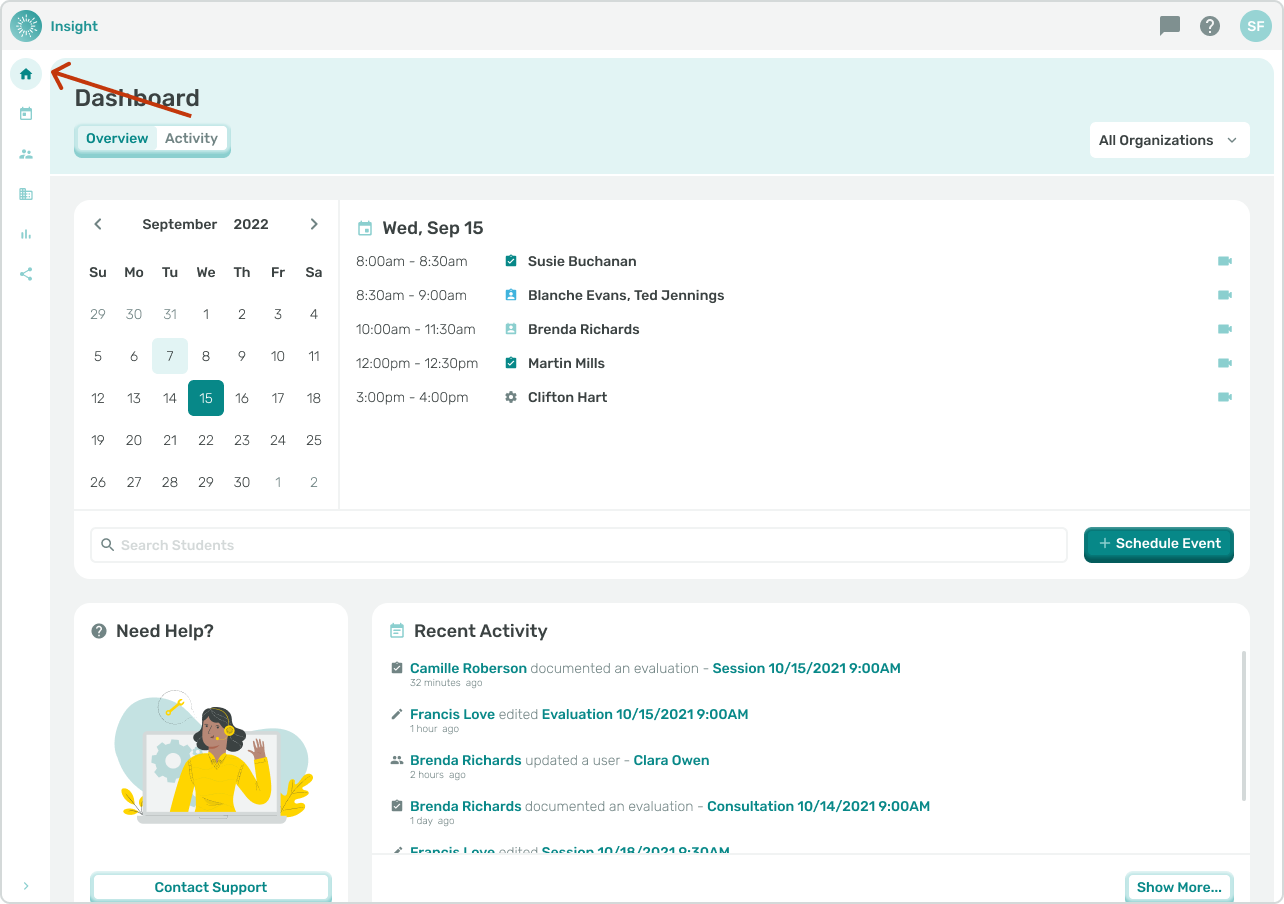
- Navigate to the Dashboard from the side menu.
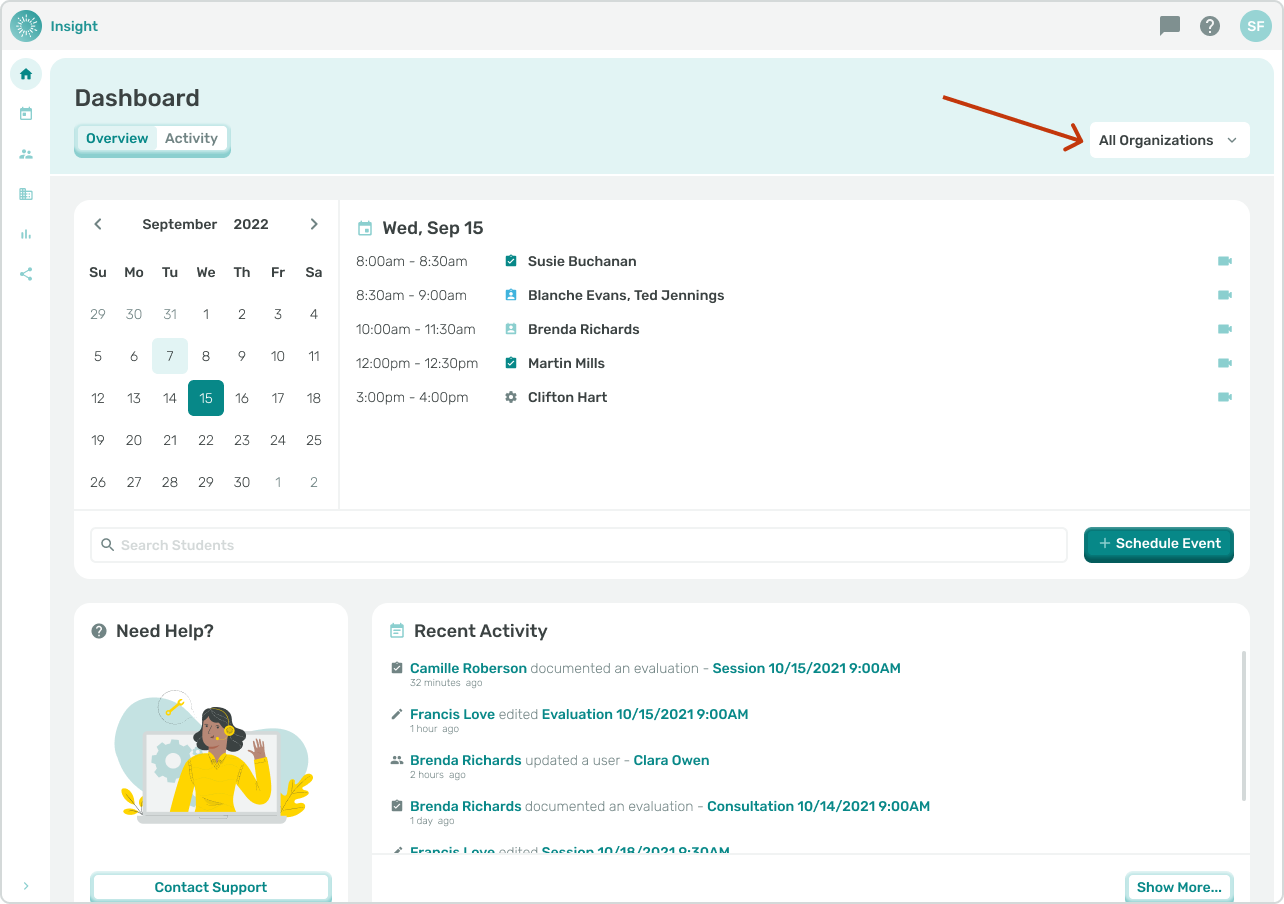
- The Organization filter on the Dashboard page defaults to ‘All Organizations’ with whom you are connected. The data displayed in the Dashboard Widgets
- Calendar
- Recent Activity
- Attendance
- Compliance
- Evaluations
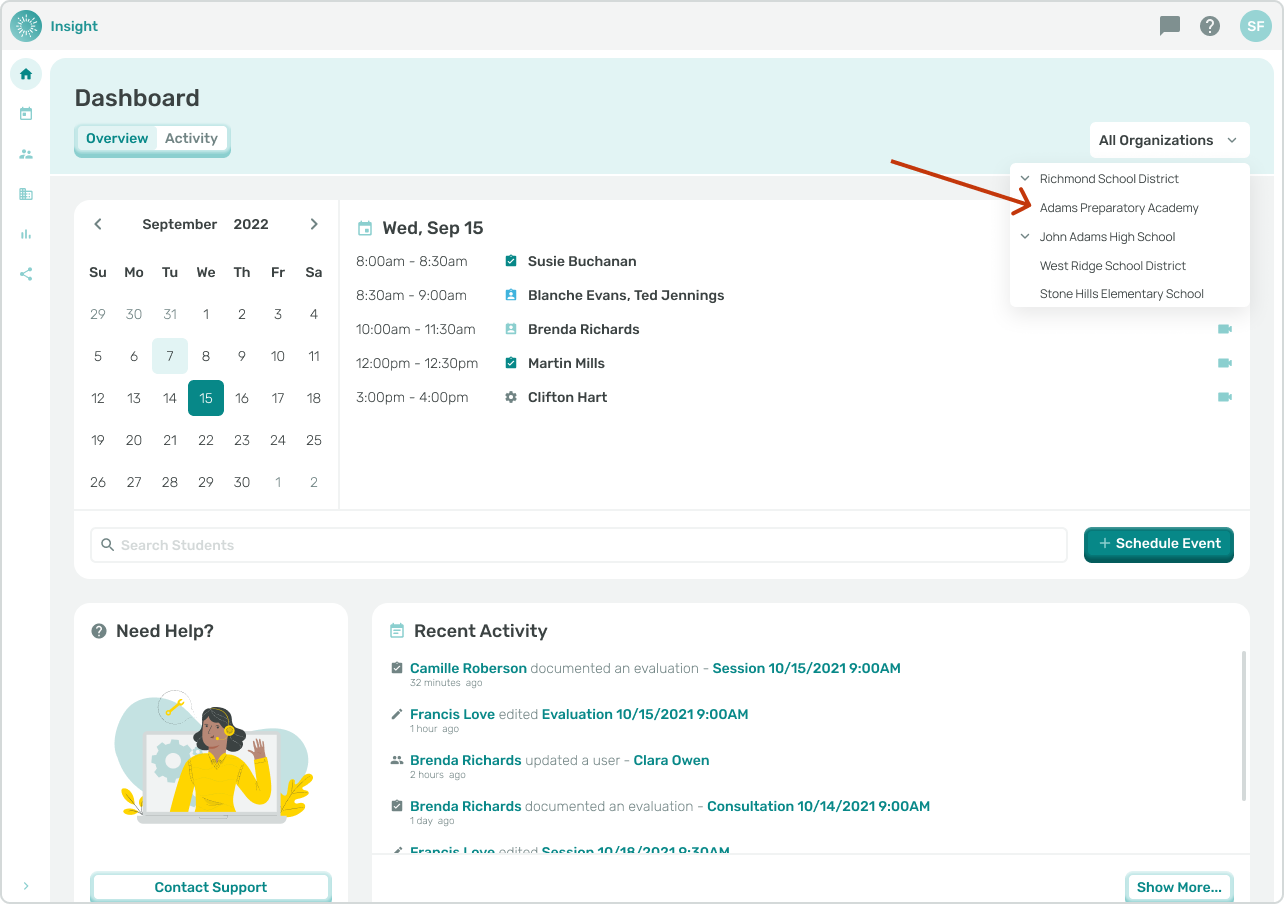
- To update the Organization filter click on the ‘All Organizations’ box. The highest Organization with whom you are connected will be listed first with a caret pointing to the right.
- Click on the caret and the list of organizations with whom you are connected will be displayed.
- If there is a caret pointing to the right on the organization name click the caret to list the sub- organization.
- To select an organization from the list click on the name once so it is highlighted. You can select more than one organization to add to the filter.
- To remove an organization from the filter click on the name of the school once and the highlight will be removed.
- To exit the Organization filter and go back to the Dashboard to view the filter changes you made, click outside the Organization filter box.
- The organizations you selected will be listed in the filter box and the data on the Dashboard and Widgets will update based on the selected organizations.
- To return to the default of ‘All Organizations’ click inside the Organization filter and click once on each organization's name. You may need to scroll down to see all the previously selected organizations .
- When all the organizations have been deselected the filter will return to ‘All Organizations’.