---
title: Viewing and Adding Treatment Plan Notes
description: published
---
[[Skip to content](https://onlinetherapy.elumatherapy.com/support/article/550-viewing-and-creating-treatment-plan-notes#main-content) English Show submenu for translations Open main navigation Close main navigation - English Show submenu for translations - Contact us Contact us How can we help you? - There are no suggestions because the search field is empty.](https://www.canva.com/design/DAHLjH8jnIs/hTUz9WpLsvZ0LDEbb__LvQ/view?utm_content=DAHLjH8jnIs&utm_campaign=designshare&utm_medium=embeds&utm_source=link)
1. [eLuma Knowledge Base](https://onlinetherapy.elumatherapy.com/support?hsLang=en)
2. [Insight Help Documents](https://onlinetherapy.elumatherapy.com/support/insight-help-documents?hsLang=en)
3. [Treatment Plans and Active Service Lines](https://onlinetherapy.elumatherapy.com/support/insight-help-documents?hsLang=en#treatment-plans-and-active-service-lines)
# Viewing and Adding Treatment Plan Notes
As a Service Provider or a School Admin, you can View or Add Treatment Plan Notes to Students with whom you are connected.
1. Navigate to the Student Page from the side menu.
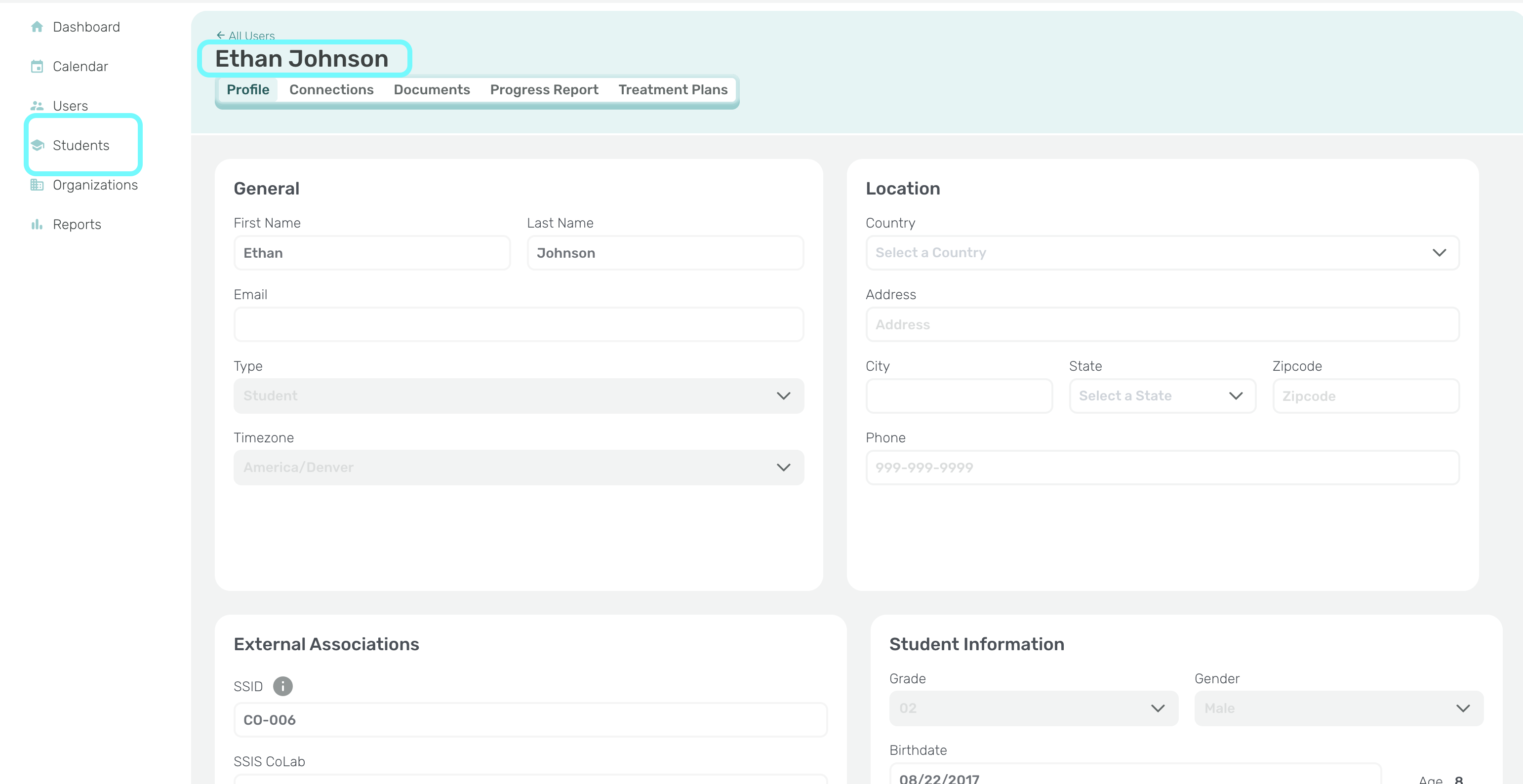
1. Click on the Student’s name to view their
- Profile
- Activity
- Connections
- Documents
- Progress Report
- Treatment Plans
1. Click on the ‘Treatment Plans’ tab.
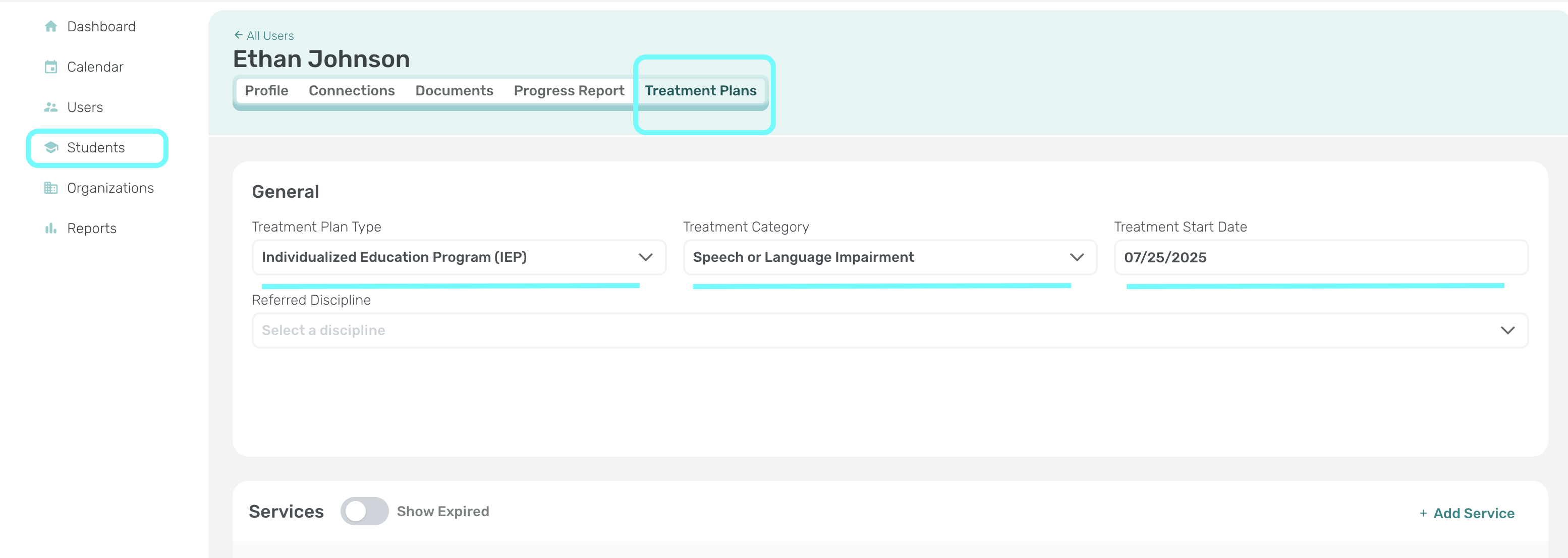
- There are 3 sections listed under ‘Treatment Plans’ that you can Edit or Add new information:
- **General**
- **Services**
- **Notes**
- For additional instructions, go to the related articles 'Select and Edit a Treatment Plan' or 'Add and Edit Services'.
*\*\*\*For this article we are focusing on the **Notes** section.*
- The **Notes** section is for additional comments or information pertaining to the Student’s Treatment Plan.
- You can also view historical Notes that have been added in the past.
- Also, an automatic system generated Note will be created when there are updates to the Student’s Treatment Plan, Services or Goals.
- **\*Once a Note is added in this section you cannot edit or delete it.**
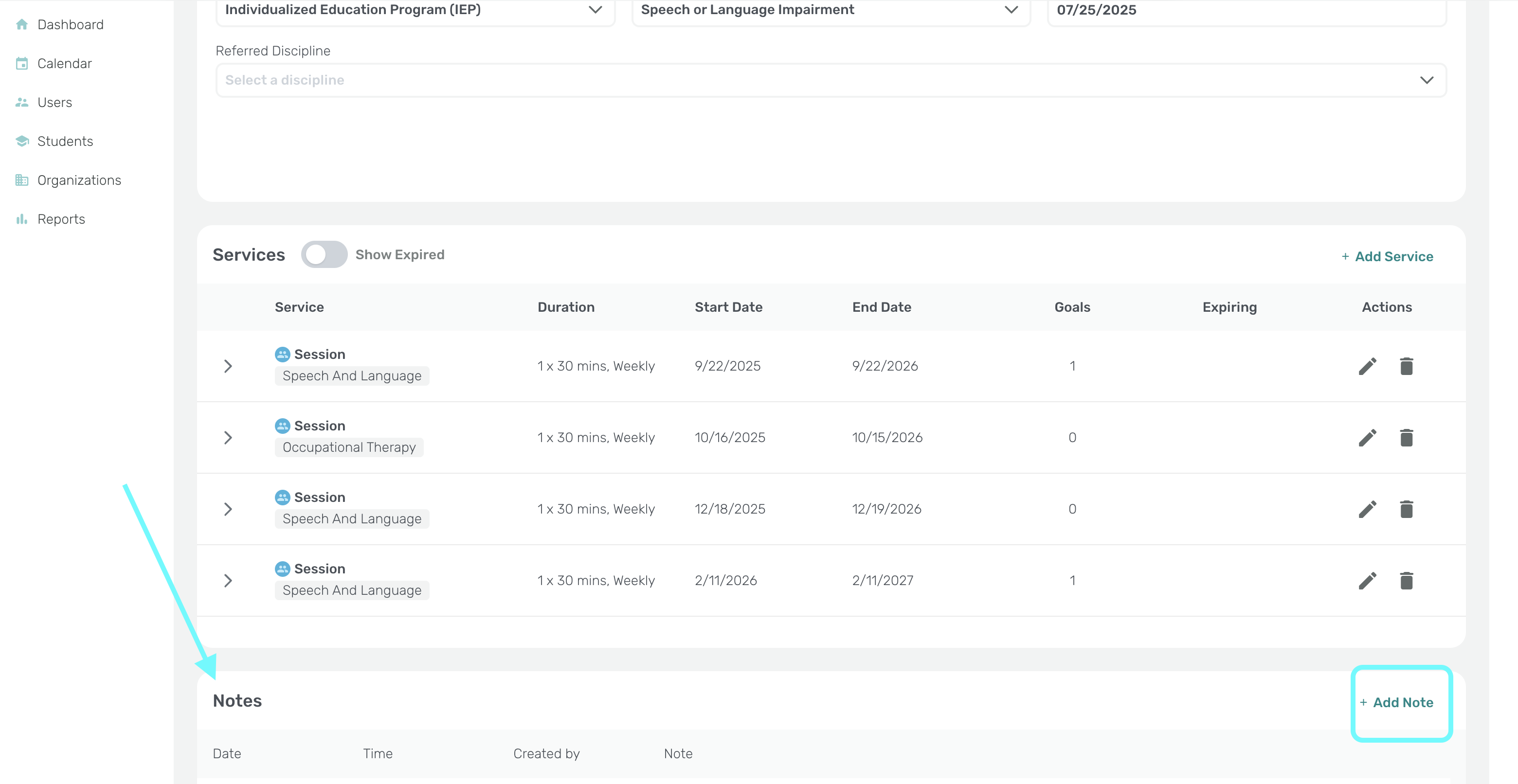
1. When you click the ‘Add Note’ button the system will automatically timestamp and document who typed the note.
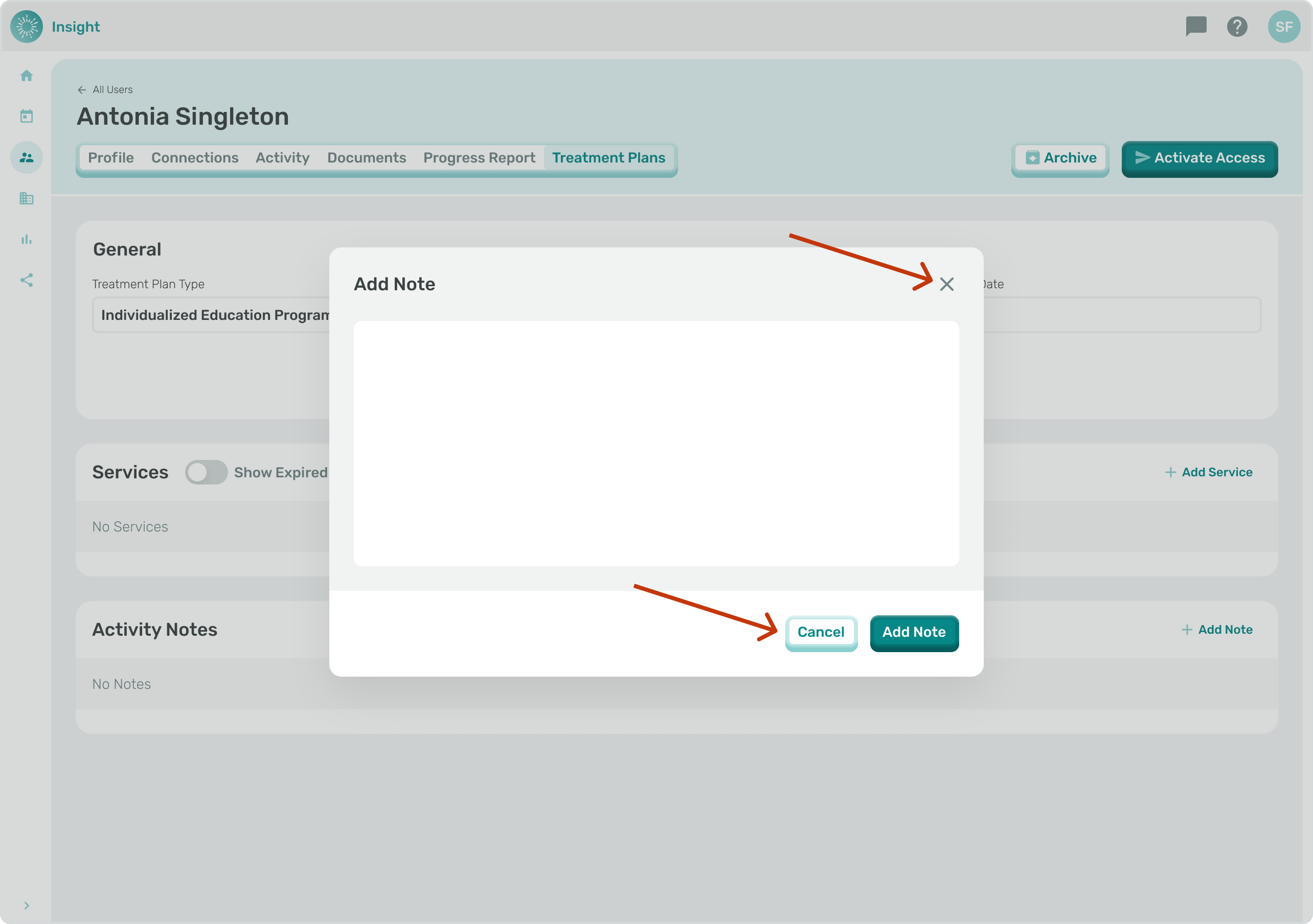
2. The Add Note modal will appear with a Text box, Cancel button, and Add Note button.
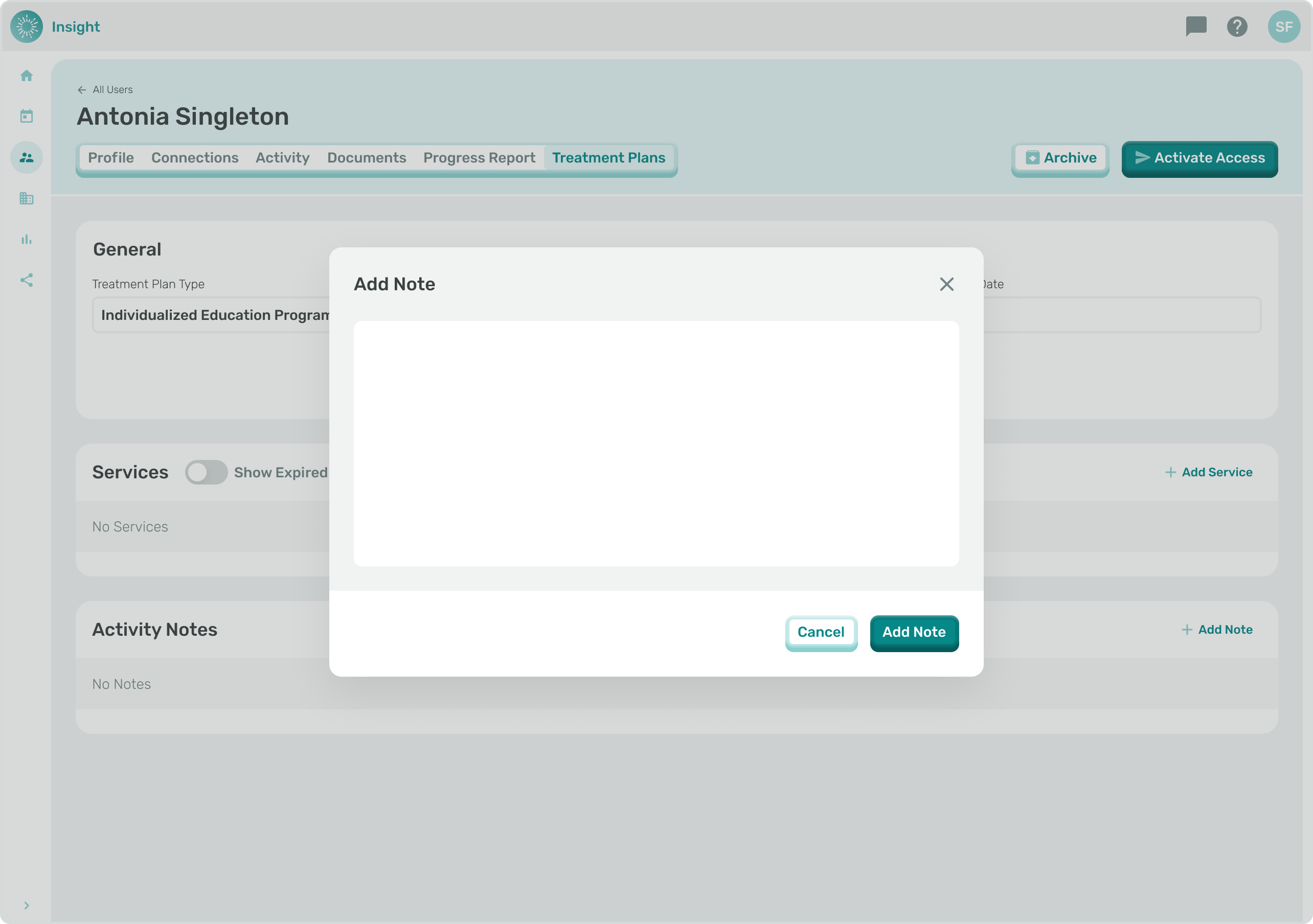
1. Click inside the Text box and type your Notes.
6a. To Exit the Add Note modal at any time and **not** ‘Save’ your Note, you can either click the “X” in the top right corner or click the Cancel button at the bottom right corner of the modal.
- Once clicked you will go back to the Treatment Plans tab page without creating a new Note..
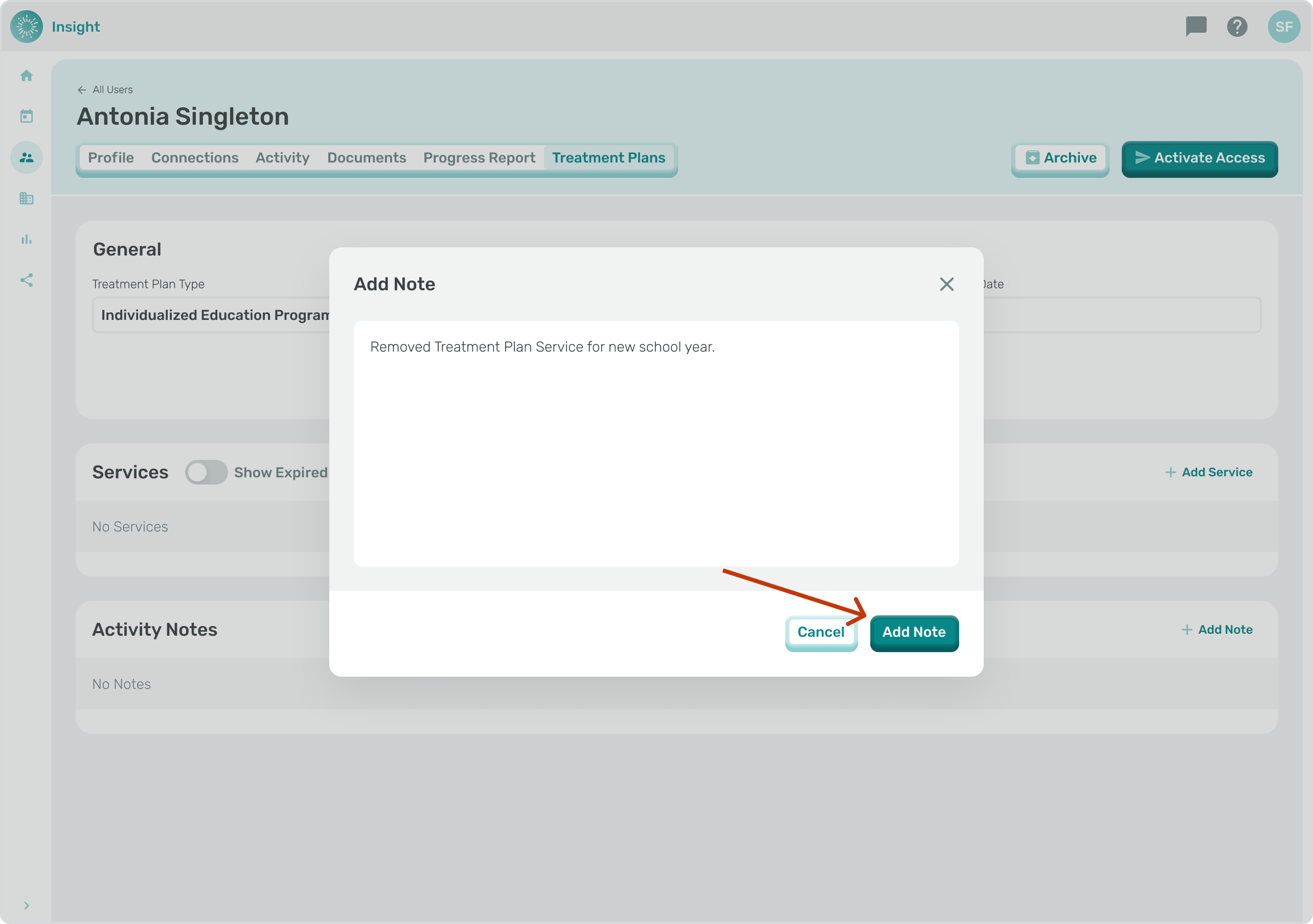
1. When you have completed typing your Note click on the ‘Add Note’ button in the bottom right corner of the modal.
- A Confirmation notification at the top of your screen briefly pop-up that says, “Added Note has been added”.
- [Insight Help Documents](https://onlinetherapy.elumatherapy.com/support/insight-help-documents?hsLang=en#main-content)
- [Treatment Plans and Active Service Lines](https://onlinetherapy.elumatherapy.com/support/insight-help-documents?hsLang=en#treatment-plans-and-active-service-lines)
- [Scheduling Events: Insight Calendar](https://onlinetherapy.elumatherapy.com/support/insight-help-documents?hsLang=en#scheduling-events-insight-calendar)
- [Documenting Events: Insight Calendar](https://onlinetherapy.elumatherapy.com/support/insight-help-documents?hsLang=en#documenting-events-insight-calendar)
- [Run Reports](https://onlinetherapy.elumatherapy.com/support/insight-help-documents?hsLang=en#run-reports)
- [Insight Features and Navigation](https://onlinetherapy.elumatherapy.com/support/insight-help-documents?hsLang=en#insight-features-and-navigation)
- [Assessment and Evaluation Events](https://onlinetherapy.elumatherapy.com/support/insight-help-documents?hsLang=en#assessment-and-evaluation-events)
- [Provider Success Community](https://onlinetherapy.elumatherapy.com/support/provider-success-community?hsLang=en#main-content)
- [Using BackPack](https://onlinetherapy.elumatherapy.com/support/provider-success-community?hsLang=en#using-backpack)
- [Assessments](https://onlinetherapy.elumatherapy.com/support/provider-success-community?hsLang=en#assessments)
- [Additional Features](https://onlinetherapy.elumatherapy.com/support/provider-success-community?hsLang=en#additional-features)
- [Zoom Support](https://onlinetherapy.elumatherapy.com/support/zoom-support?hsLang=en)
[.png?width=939&height=281&name=eluma-logo-color-notag-lg%20(2).png "eLuma Online Therapy")](http://eluma.com)
[mailto:email@email.com](mailto:email@email.com)
Copyright © 2026, eLuma