---
title: Searching and Filtering on the Calendar Page
description: published
---
[[Skip to content](https://onlinetherapy.elumatherapy.com/support/article/527-search-and-filter-calendar#main-content) English Show submenu for translations Open main navigation Close main navigation - English Show submenu for translations - Contact us Contact us How can we help you? - There are no suggestions because the search field is empty.](https://www.canva.com/design/DAHLjH8jnIs/hTUz9WpLsvZ0LDEbb__LvQ/view?utm_content=DAHLjH8jnIs&utm_campaign=designshare&utm_medium=embeds&utm_source=link)
1. [eLuma Knowledge Base](https://onlinetherapy.elumatherapy.com/support?hsLang=en)
2. [Insight Help Documents](https://onlinetherapy.elumatherapy.com/support/insight-help-documents?hsLang=en)
3. [Insight Features and Navigation](https://onlinetherapy.elumatherapy.com/support/insight-help-documents?hsLang=en#insight-features-and-navigation)
# Searching and Filtering on the Calendar Page
As a School Admin or Service Provider you can 'Search Attendees' and select ‘Filters’ to search for specific Students and Events on the Calendar Page.
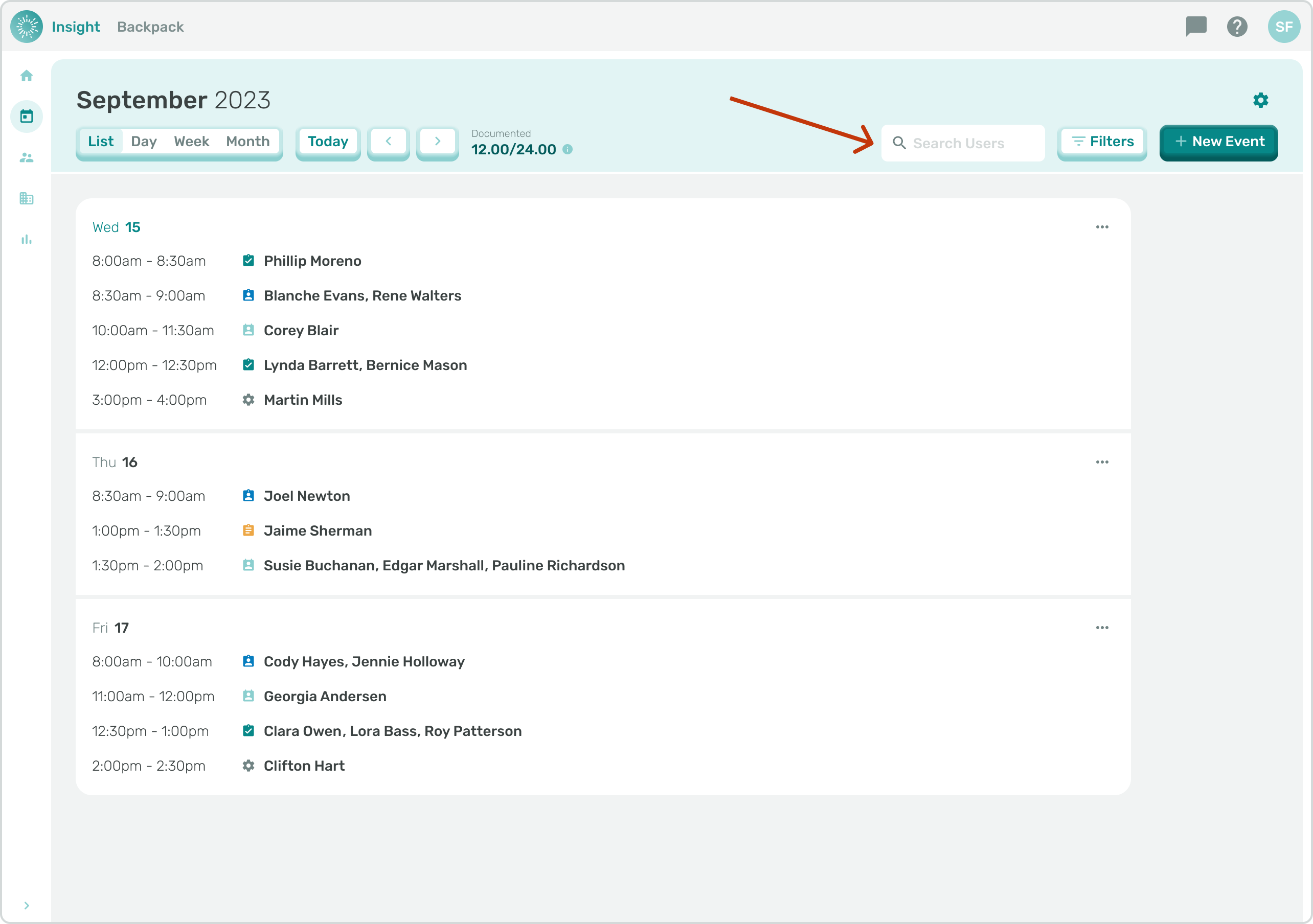
1. To 'Search Attendees’ for specific Events Navigate to the Calendar Page by clicking on the sidebar menu.
- The default for the Calendar Page is today’s Date.
- Under the current month on the Calendar there are options for how you would like to view the Calendar. You can switch between the views by clicking on their buttons.
- There are also left and right arrow buttons that can be clicked on for all the viewing options, the left arrow goes back in time and the right arrow goes forward in time.
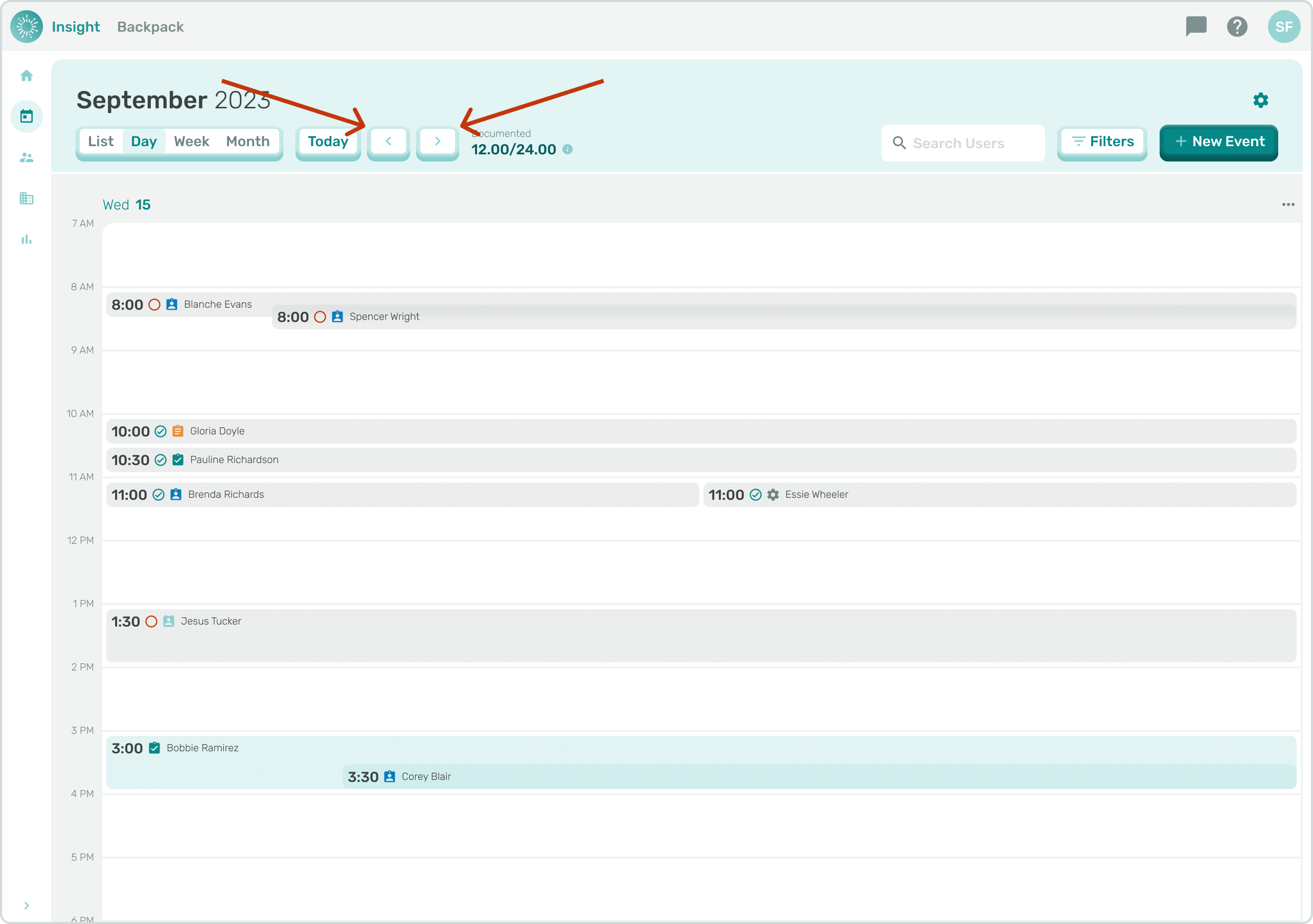
- The other options to view Events on the Calendar include:
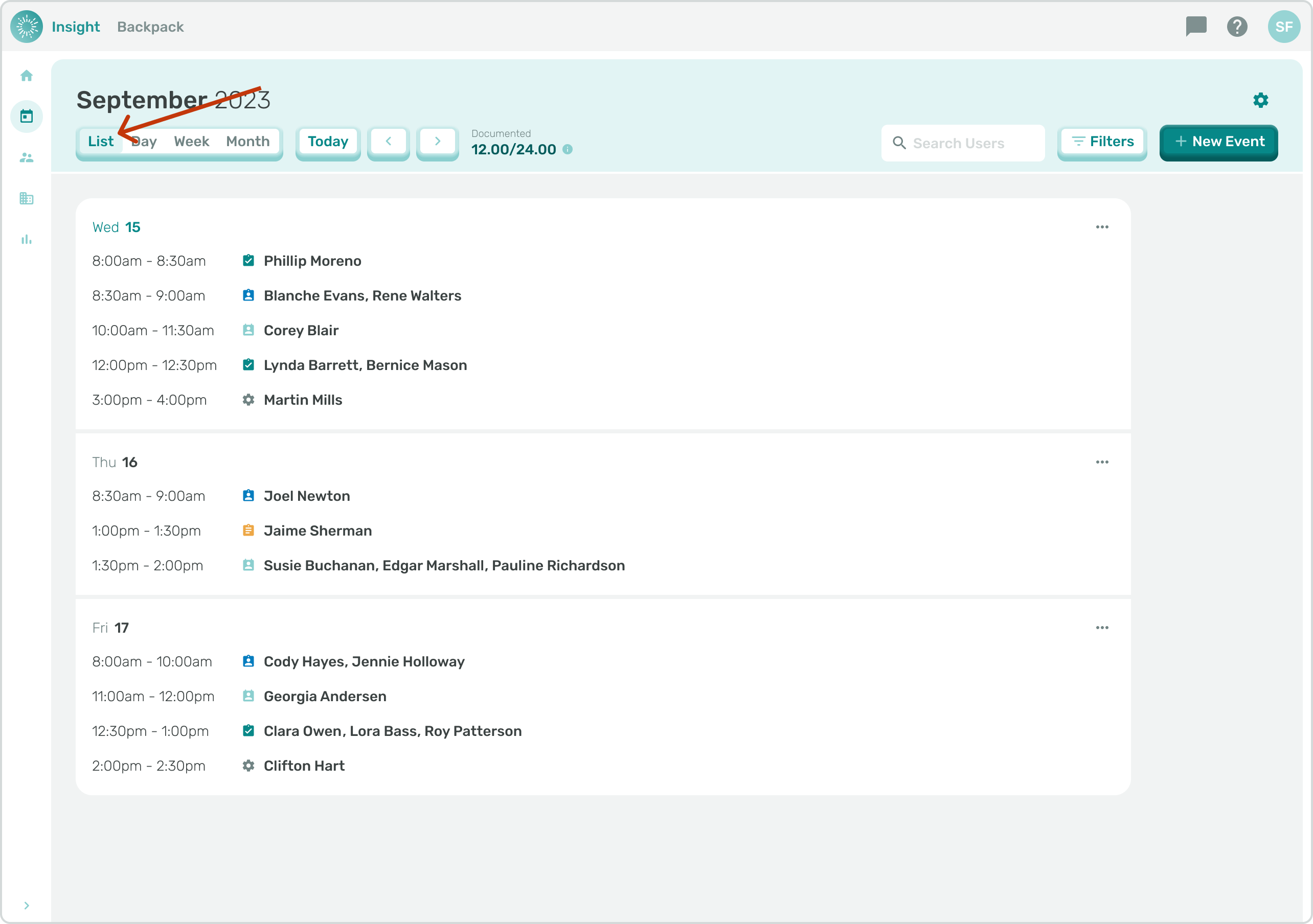
- **List**: This is the default view for the Calendar Page and will display a list of Events for each day for the current week.
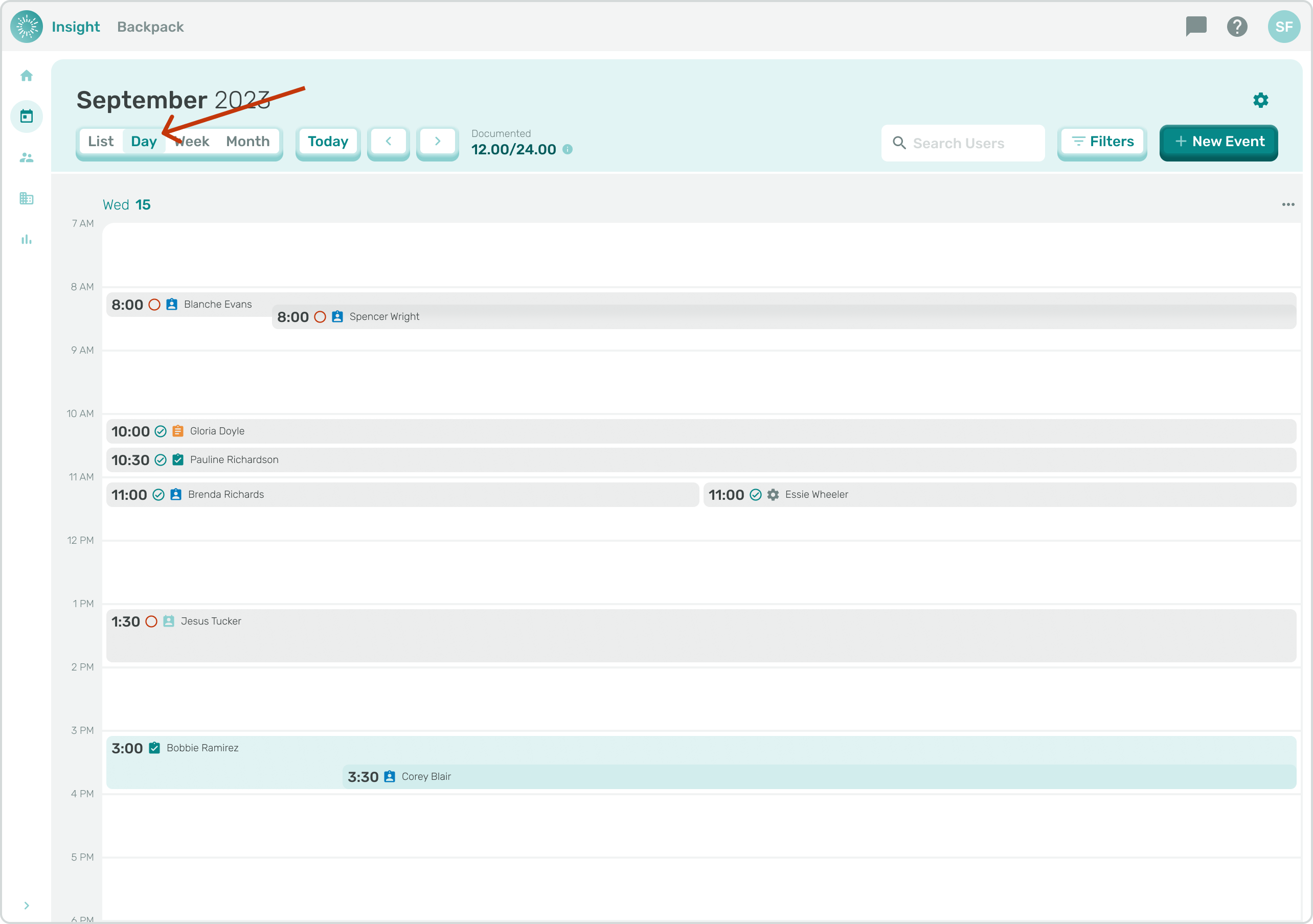
- **Day**: When ‘Day’ is selected the Calendar will only display the selected day’s Events.
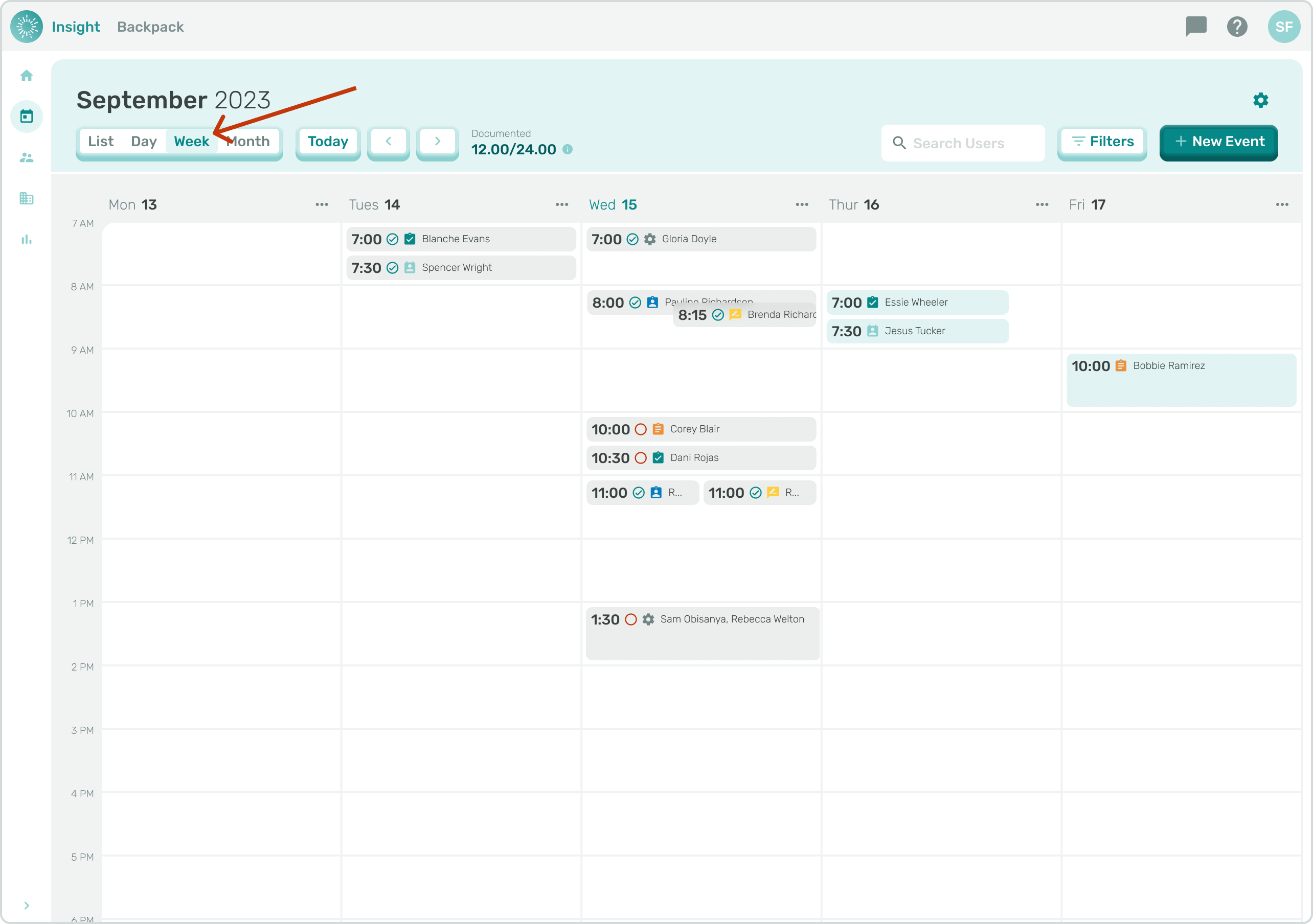
- **Week**: When the ‘Week’ view is selected the Events for the week are displayed in a Calendar-like format of the week.
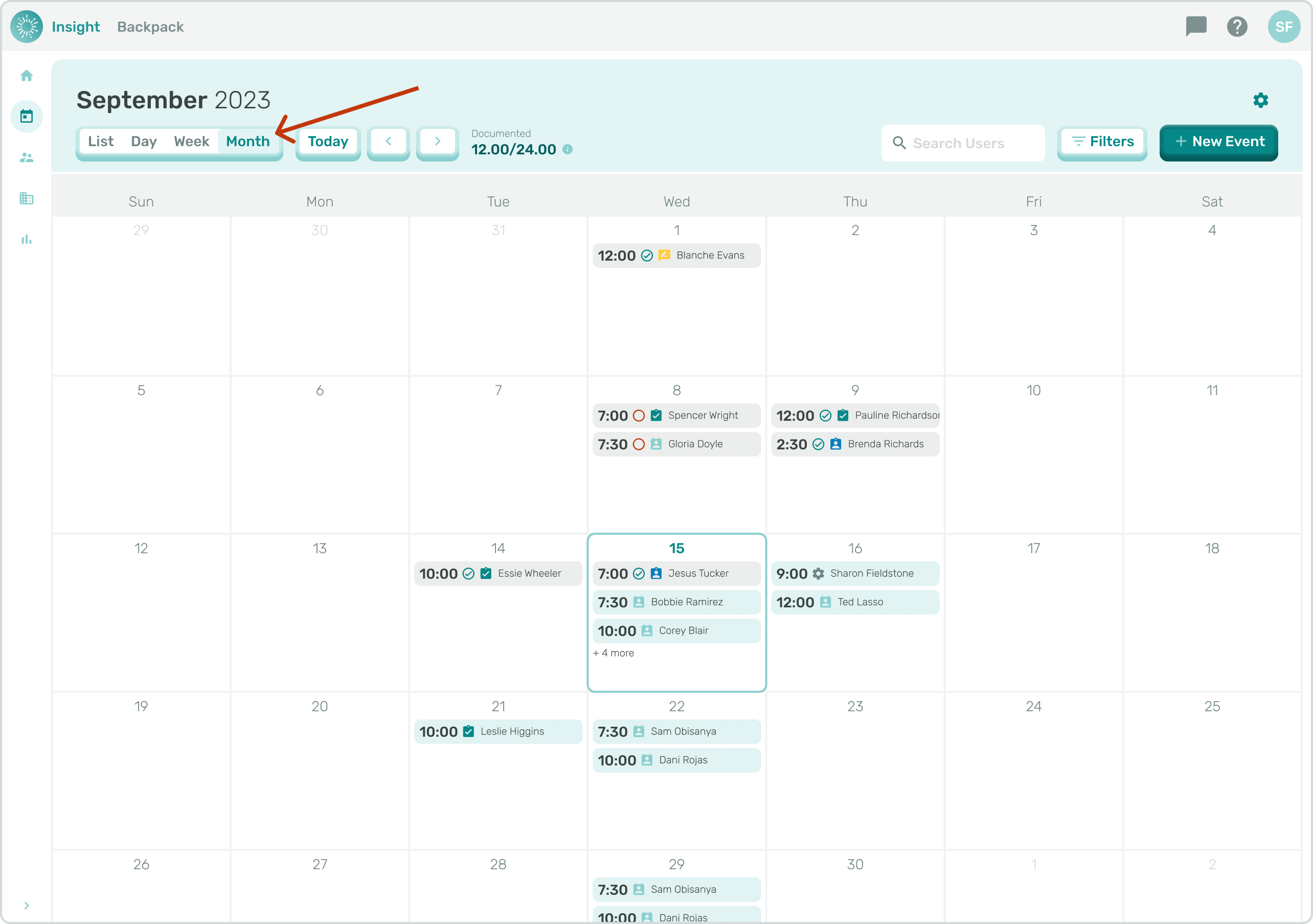
- **Month**: For the ‘Month’ view the Events are displayed in a Calendar-like format for the full month selected.
1. **Today**: When any of the above views are selected you can click on the ‘**Today’** button to highlight today’s Events.
- If you are in ‘Week View’ of another week, clicking the ‘**Today**’ button will take you to the current week (today's week).
- If you are in Day View and looking at a different day, clicking the ‘**Today**’ button will take you to today.
- If you are in Month View in a different month, then clicking the ‘**Today’** button will take you back to the current month (today's month).
1. In the ‘Search Attendees’ box enter the name of a Student(s). When you start typing a name possible matches will appear beneath the box.
2. Click on the name(s) that match and they will populate in the box.
- To remove a name from the box click on the ‘X’ to the right of the Student(s) name. As soon as you click on the name the Calendar will update and only show Events with the entered Student(s) name(s).
- You will also now see that depending on the number of students you added in the ‘Search Attendees’ box.
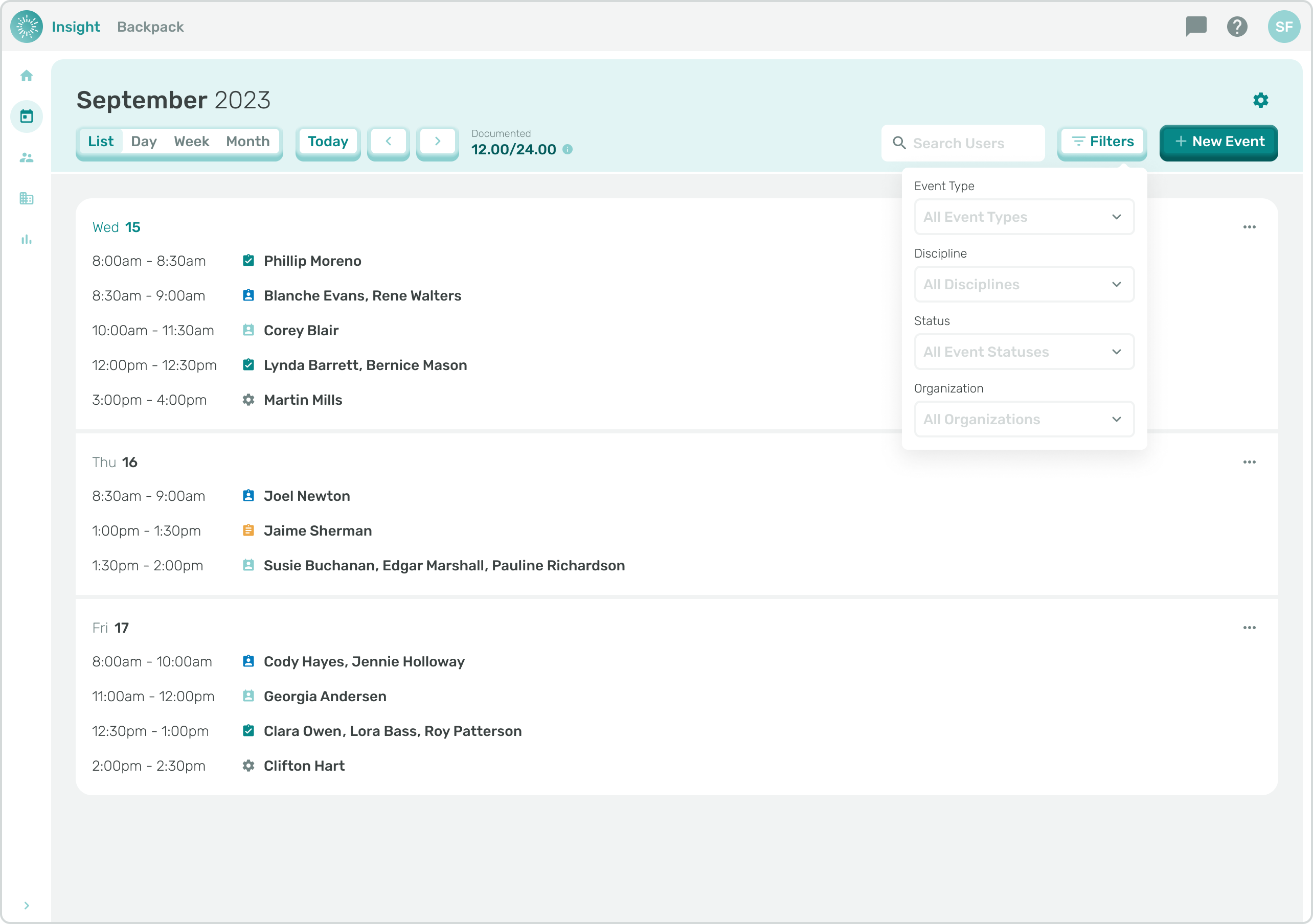
1. The ‘Filters’ box to the right now has a number inside that correlates to the number of ‘Filters’ enabled. Click on the ‘Filters’ box to view, enable, or remove.
- The additional filters are below. The default for each of the ‘Filters’ is to ‘All’.
- Event Type, Discipline
- Status
- Organization
1. To change each filter click on the individual downward arrows and click
2. Then click on the desired selection to filter the results.
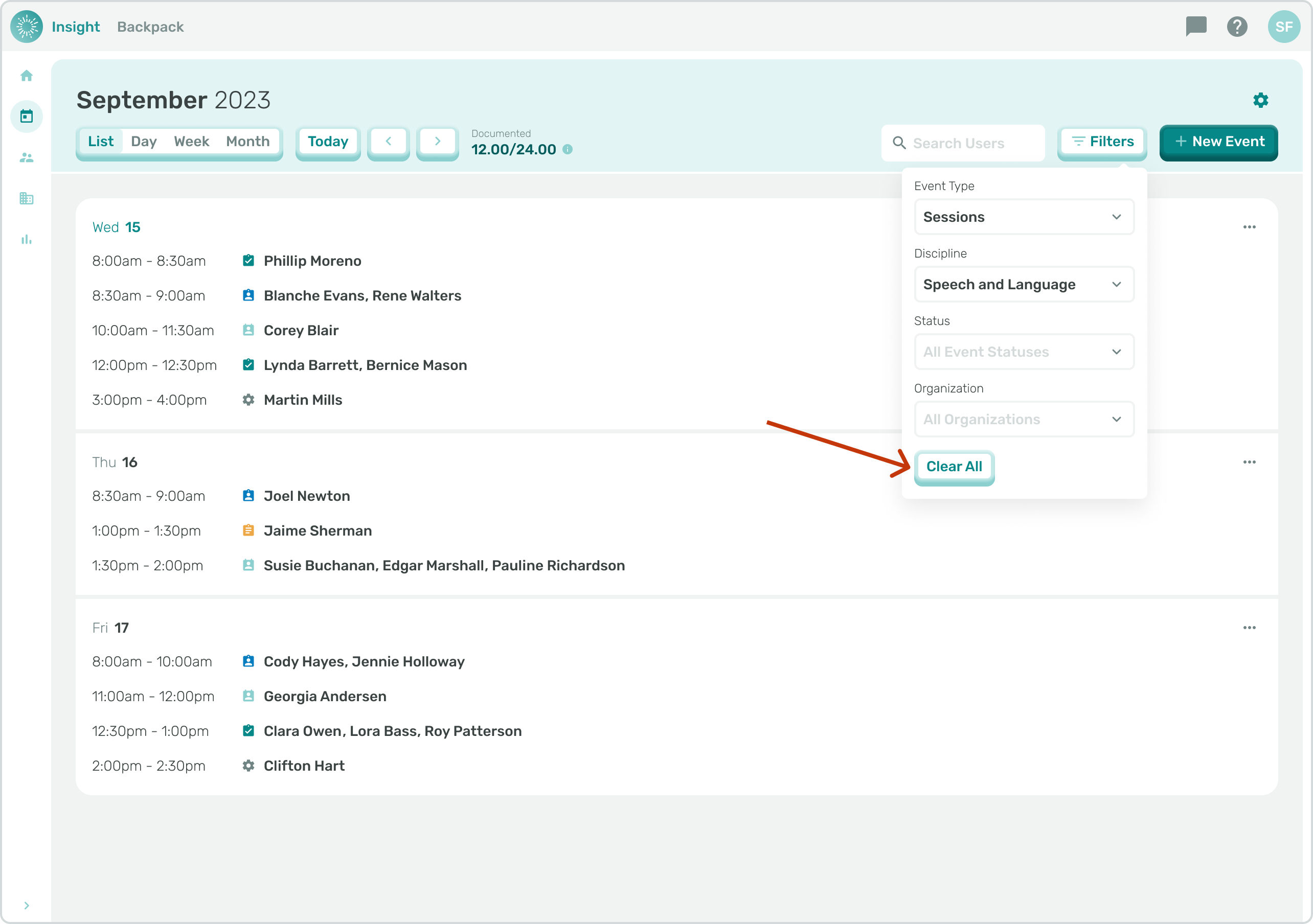
5a. To return to the default with no Student Name(s) and ‘All’ for the additional ‘Filters’ click on the ‘Clear All’ button at the bottom of the ‘Filters’ modal.
5b. To return to the default for ‘Attendees Name’ with no Student Name(s) and ‘All’ for the additional ‘Filters’ click on the ‘Clear All’ button at the bottom of the ‘Filters’ modal.
- Go to the related articles '[Scheduling an Event'](https://onlinetherapy.elumatherapy.com/support/article/537-scheduling-an-event-option-b?hsLang=en) or '[Editing an Event](https://onlinetherapy.elumatherapy.com/support/article/522-editing-an-event?hsLang=en)' for additional instructions.
- [Insight Help Documents](https://onlinetherapy.elumatherapy.com/support/insight-help-documents?hsLang=en#main-content)
- [Treatment Plans and Active Service Lines](https://onlinetherapy.elumatherapy.com/support/insight-help-documents?hsLang=en#treatment-plans-and-active-service-lines)
- [Scheduling Events: Insight Calendar](https://onlinetherapy.elumatherapy.com/support/insight-help-documents?hsLang=en#scheduling-events-insight-calendar)
- [Documenting Events: Insight Calendar](https://onlinetherapy.elumatherapy.com/support/insight-help-documents?hsLang=en#documenting-events-insight-calendar)
- [Run Reports](https://onlinetherapy.elumatherapy.com/support/insight-help-documents?hsLang=en#run-reports)
- [Insight Features and Navigation](https://onlinetherapy.elumatherapy.com/support/insight-help-documents?hsLang=en#insight-features-and-navigation)
- [Assessment and Evaluation Events](https://onlinetherapy.elumatherapy.com/support/insight-help-documents?hsLang=en#assessment-and-evaluation-events)
- [Provider Success Community](https://onlinetherapy.elumatherapy.com/support/provider-success-community?hsLang=en#main-content)
- [Using BackPack](https://onlinetherapy.elumatherapy.com/support/provider-success-community?hsLang=en#using-backpack)
- [Assessments](https://onlinetherapy.elumatherapy.com/support/provider-success-community?hsLang=en#assessments)
- [Additional Features](https://onlinetherapy.elumatherapy.com/support/provider-success-community?hsLang=en#additional-features)
- [Zoom Support](https://onlinetherapy.elumatherapy.com/support/zoom-support?hsLang=en)
[.png?width=939&height=281&name=eluma-logo-color-notag-lg%20(2).png "eLuma Online Therapy")](http://eluma.com)
[mailto:email@email.com](mailto:email@email.com)
Copyright © 2026, eLuma