- As a Service Provider, there are two locations where you can Document an Event:
- The Dashboard Page and The Calendar Page.
- Both locations require the same steps to Document an Event.
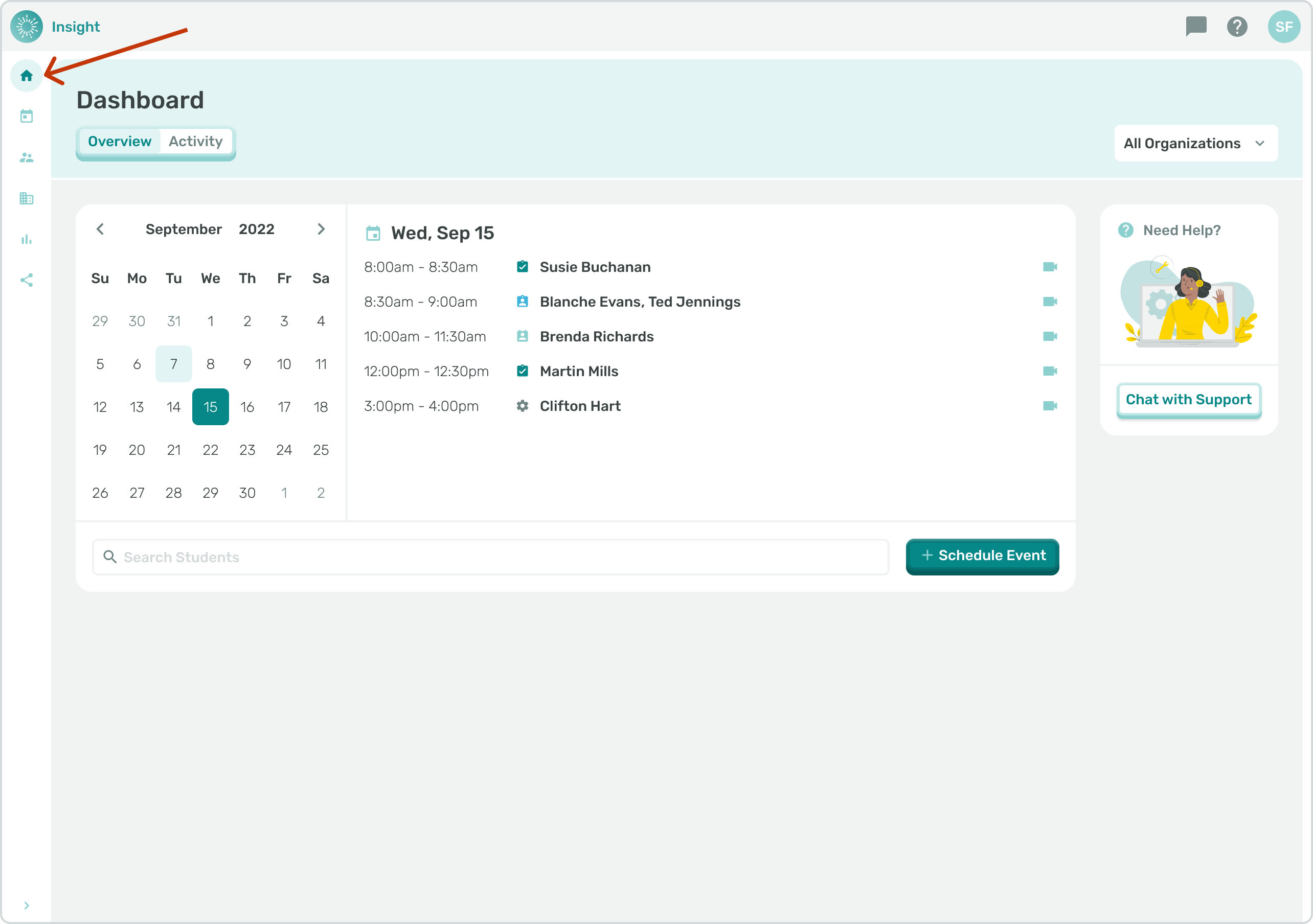
- Navigate to the Dashboard by clicking on Dashboard in the side menu.
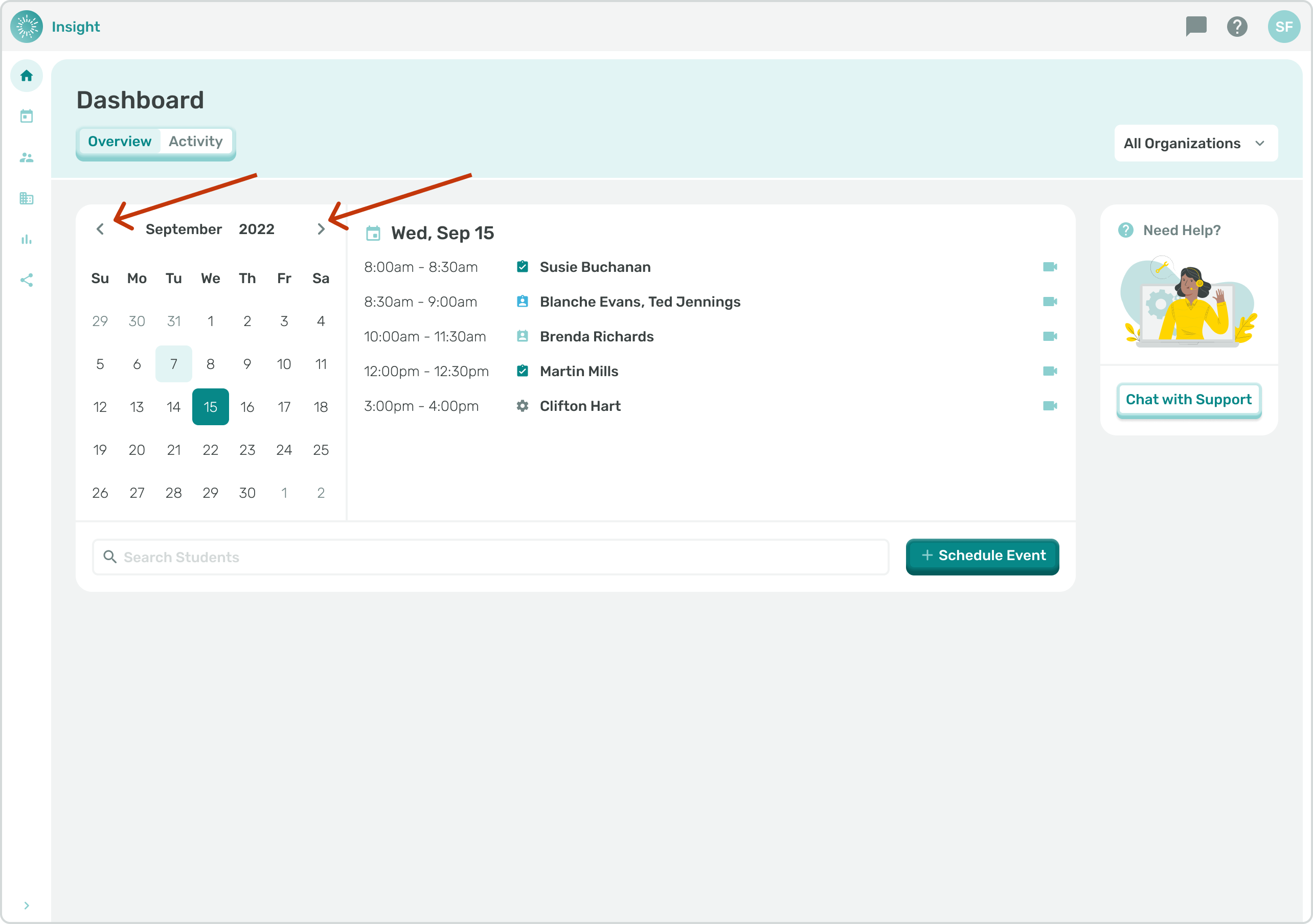
- For the Calendar, the current month will be the default. The Day, Date you are logging in is the default Day/Date and will be highlighted with a colored circle.
- If there are any Events scheduled for this today they will be listed in the space to the right of the Calendar.
- To view a different month click on the arrows at the top of the Calendar:
- To look back in time, a month at a time, click on the left arrow and to look forward in time, a month at a time, click on the right arrow.
- When you change the month, in order to see the daily Events again, you need to click on one of the dates on the Calendar.
2. If you have access to multiple Organizations to help narrow your search you can use the Dashboard Calendar filter.
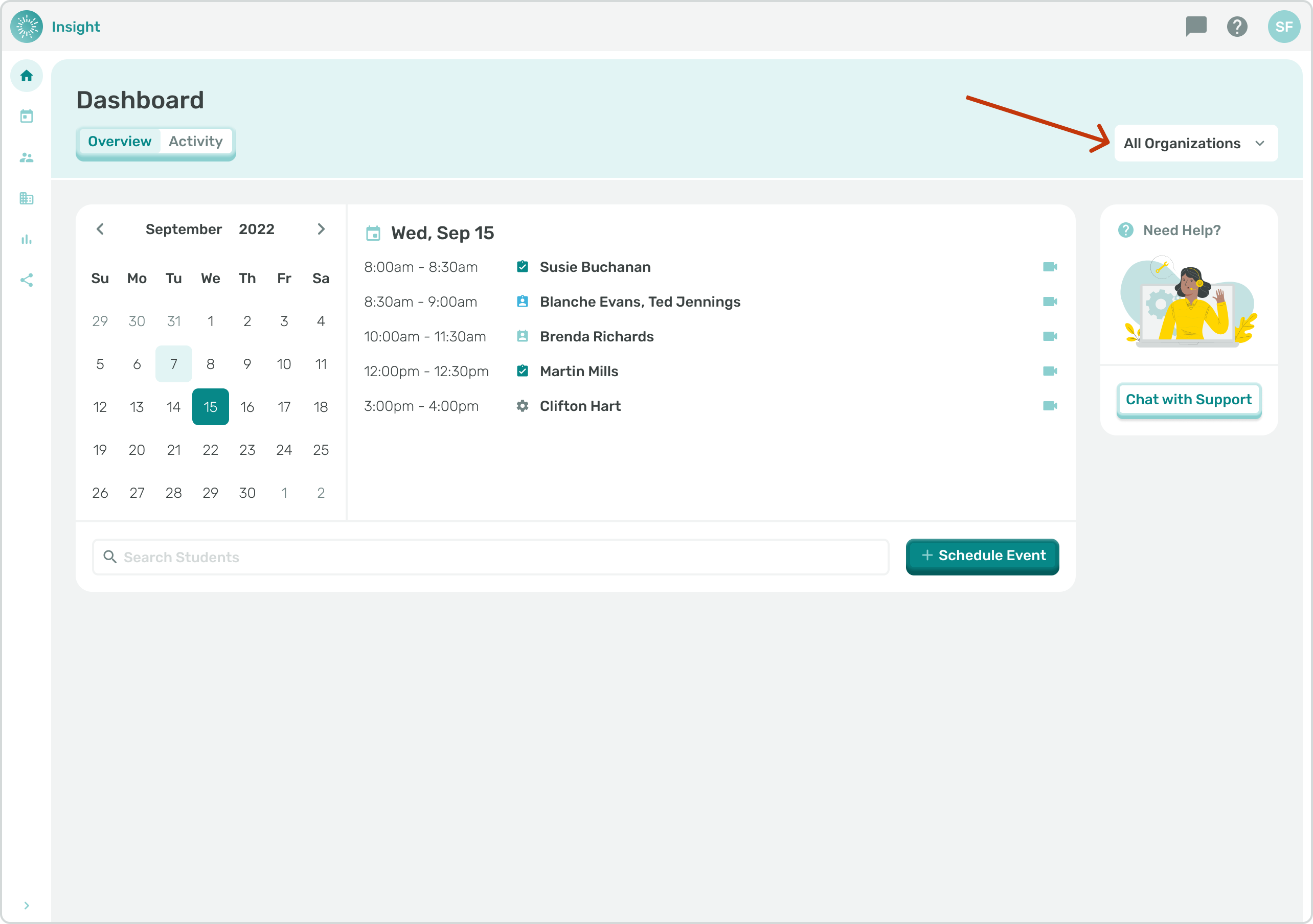
- For additional instructions, go to the related article 'All Organizations' Dashboard Calendar filter.
- The space directly to the right of the Calendar will populate Events that are scheduled for that Day, Date and will include one of the following icons:
- An outlined in ‘Red Circle’ indicating the Event has passed and is ready for Documentation
- An outlined in ‘Blue Circle’ with a green check mark indicating this Event has been Documented
- When 'No Circle' is present this indicates that the Event is in the future.
- Also included is the Event starting and ending time and the Student name(s) that are scheduled for the Event.
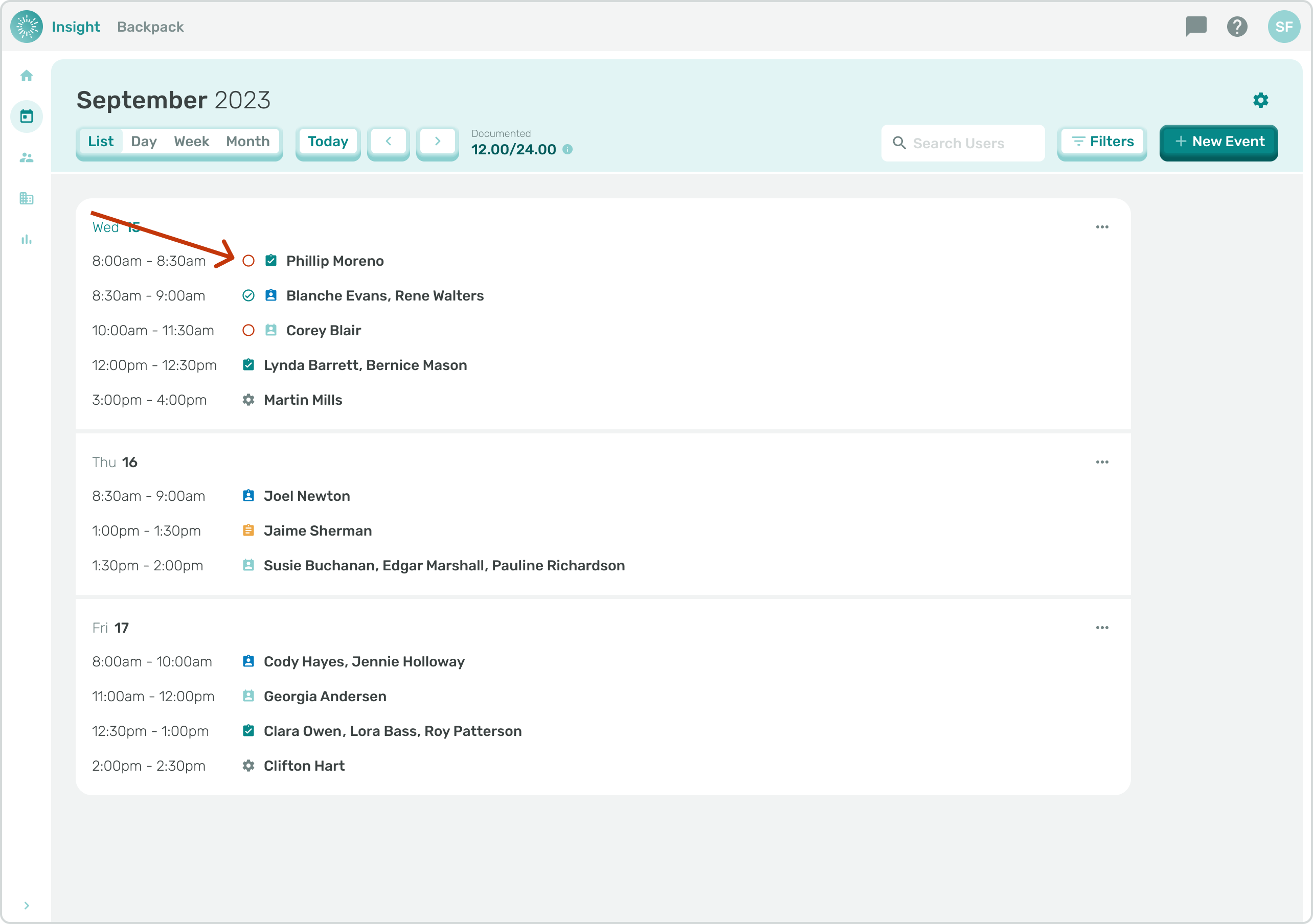
3. To document an event, click on an event that has already occurred.
- Events that are ready to be documented will feature the red circle near the student's name.
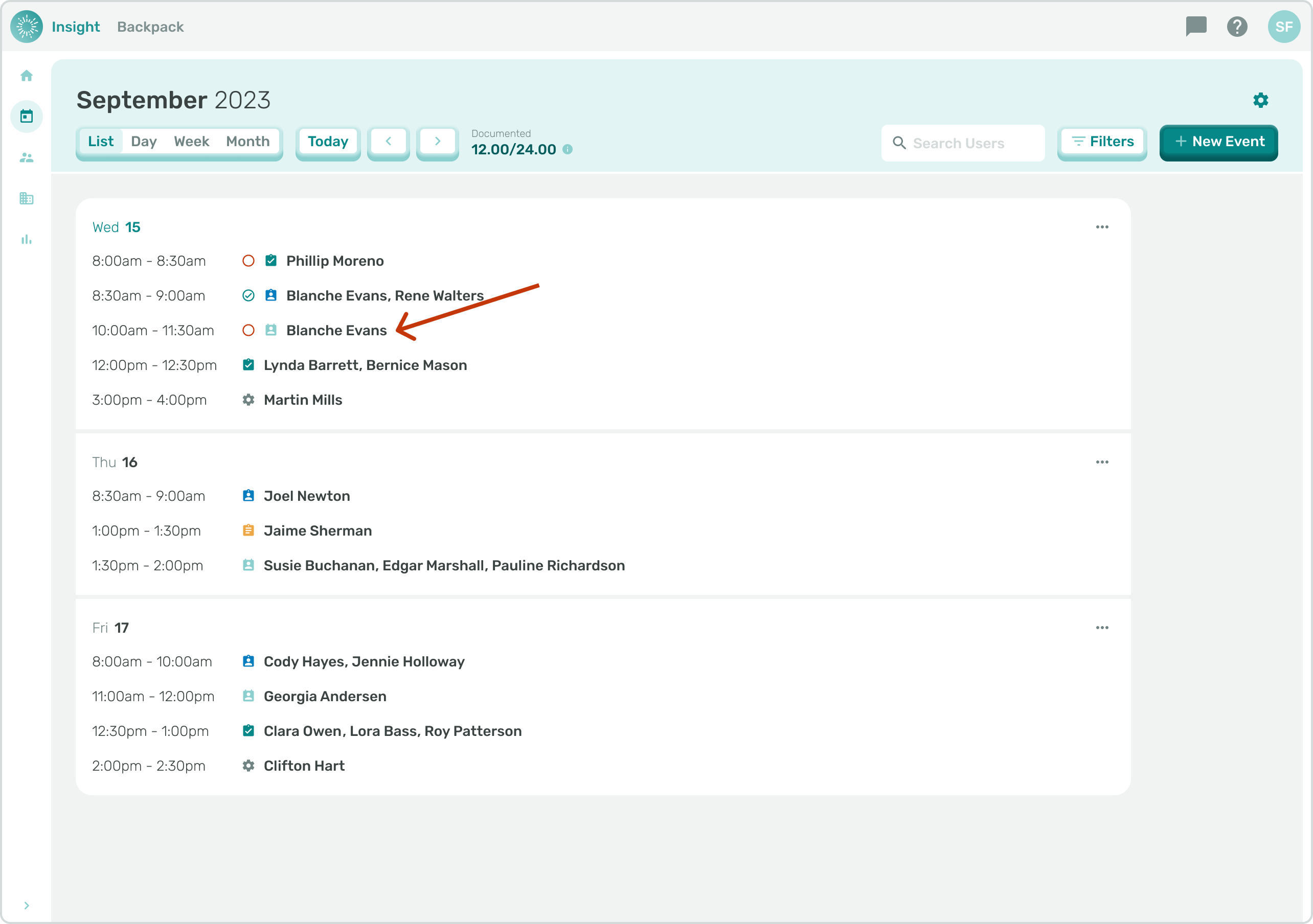
4. When Documenting Events for Individuals or Groups, when you click on an Event and the modal opens there is a small clock icon to the right of the Student’s name.
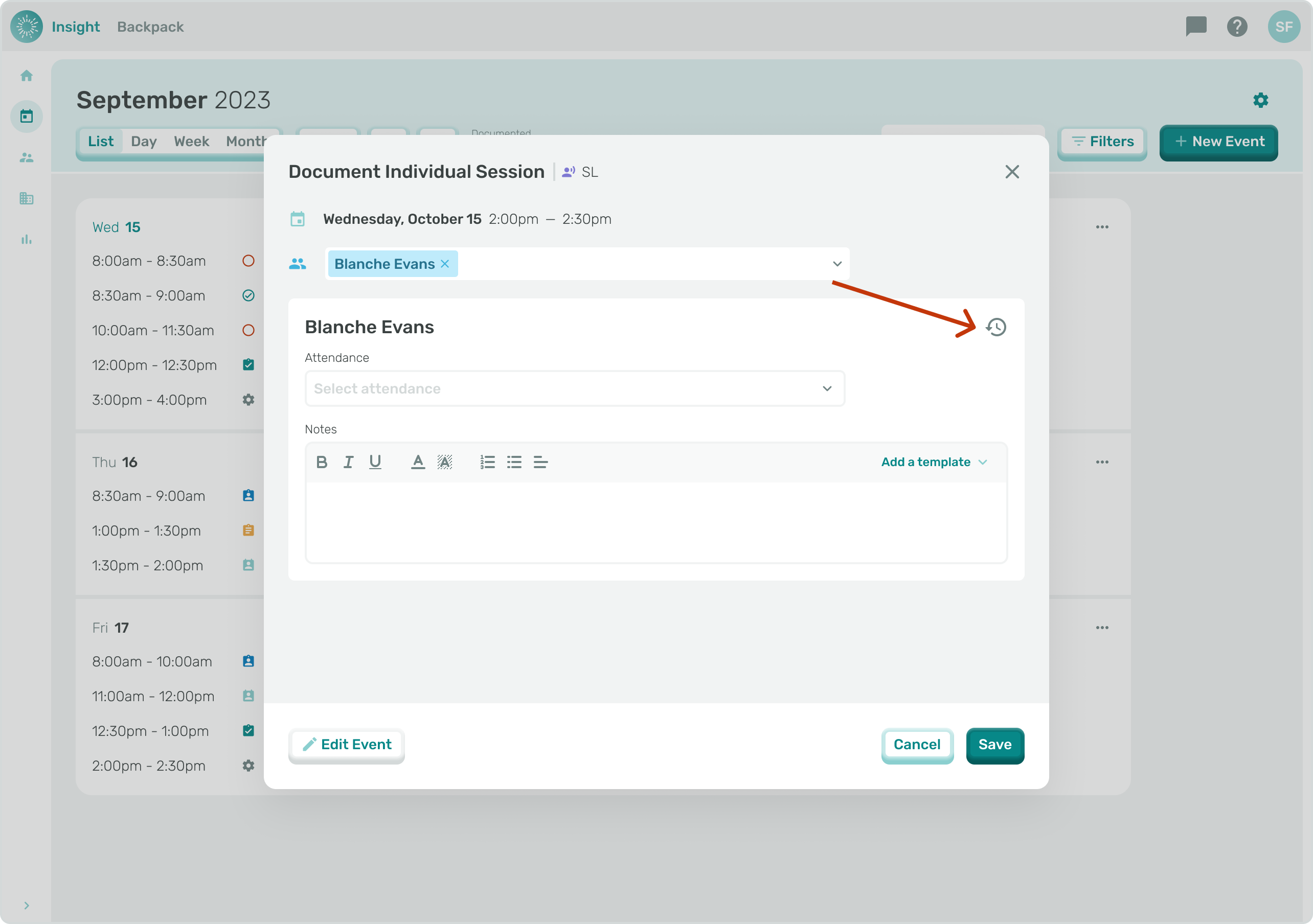
5. Clicking on the clock opens the ‘Past Sessions’ drawer next to the Event you are Documenting and lists the Student’s Past Sessions including the completed past comments and Documented Goals.
- If there are no Past Sessions for the Student there will be a note indicating “No past sessions to display.”
6. To close this modal click on the “X” in the upper right corner.
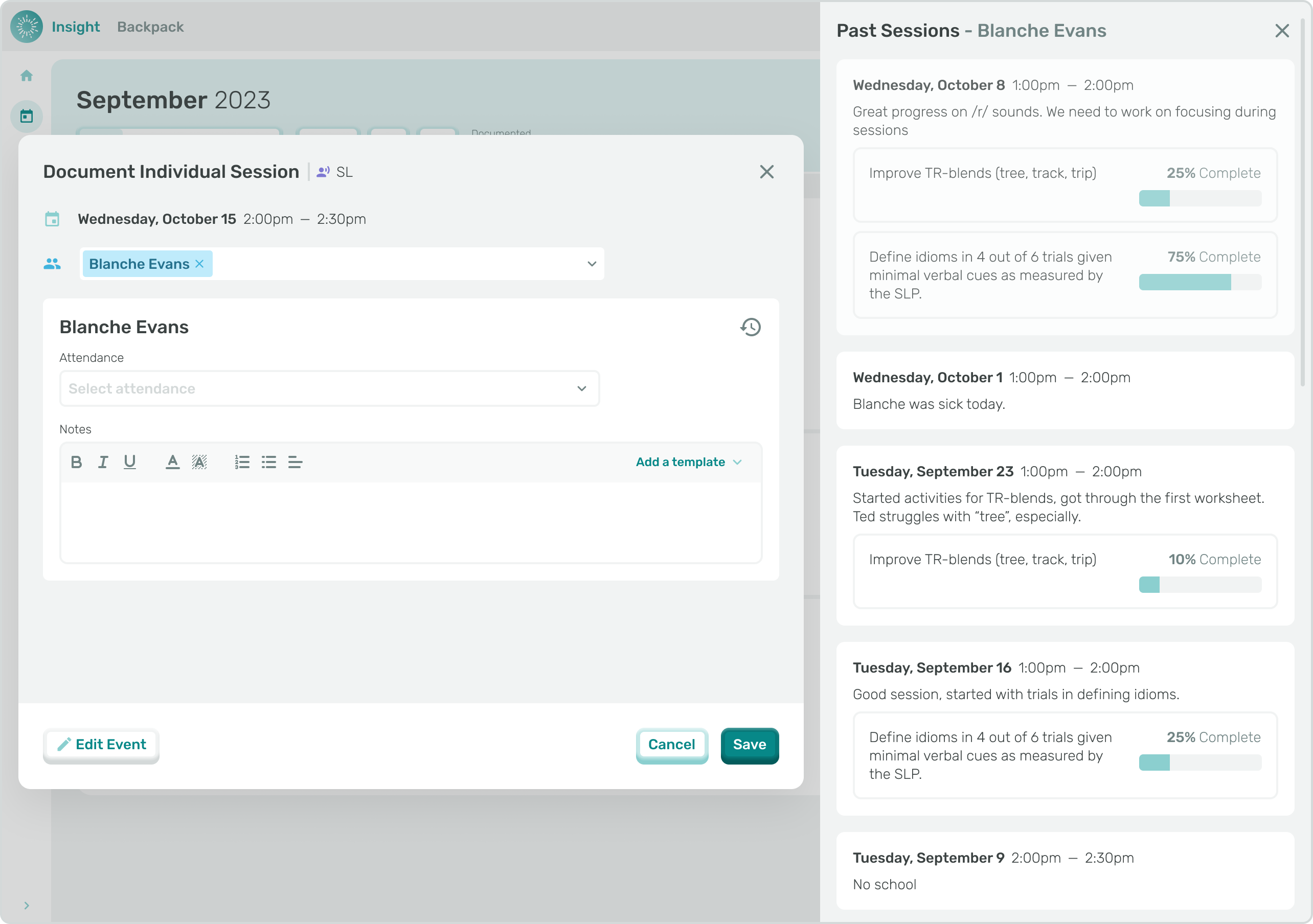
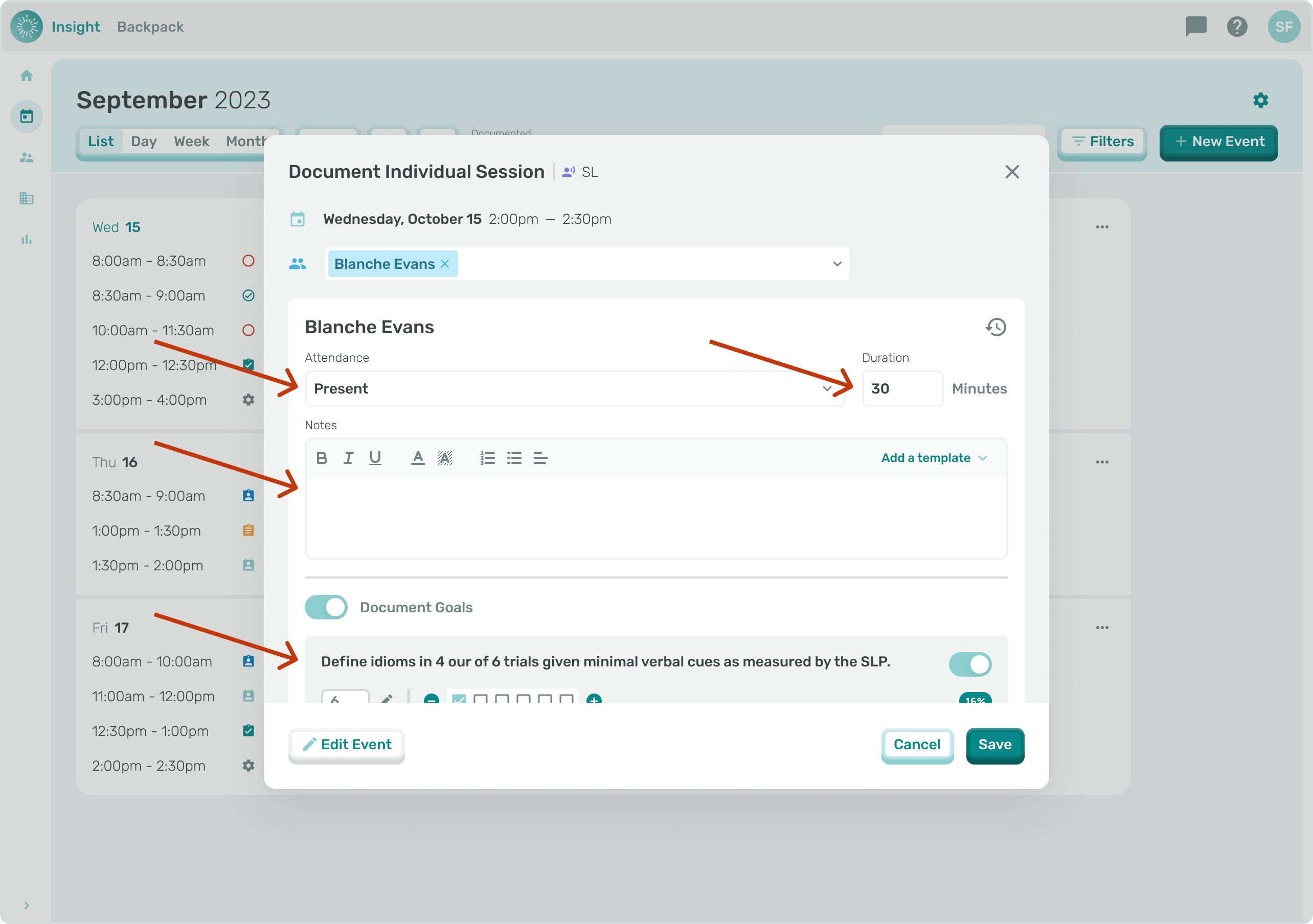
7. When clicking on an Event with a ‘Red Circle’, which means it is ready for Documentation, the Event will open and you can update several fields:
- Attendance: the options are
- Present - use when attendee attended the event
- No Show- use when attendee does not attend the event
- No School - use if the event was not held due to a scheduled non-school day per the school calendar
- Customer Cancelled - use if the school or parent cancels an event
- Service Provider Cancelled - use if an event was not held due to the service provider's availability
- Late Cancel - use if the event was not held due to an unexpected cancellation by the school or attendee
- Notes section: in the notes section:
- you can click on ‘Add a template’ to select either the Progress Notes or SOAP (Subject Data, Objective Data, Assessment Information, Plan Details) templates to add your notes
- Or you can freely type your notes and comments.
- Duration: this box will be pre-filled with the Event duration in minutes and can be updated if the Event is different than the planned Duration of the Event.
- Goals (for Sessions only and they are not required): once the Attendance for the Event has been updated with ‘Present’, a Goals button will appear under the Duration box if the Student has Goals.
7a. When displayed, click the ‘Goals’ button to enable the list to open.
7b. Each Goal will also have a button to click, which will allow you to update each individual Goal.
- The ‘Edit Event’ button on the bottom left corner will trigger the Edit Event modal screen and allow an Event in the past to be Edited.
- Once you click on the ‘Edit Event’ button a new ‘Document’ button will take the place of the ‘Edit Event’ button.
*Before toggling the buttons, make sure to Save any updates needed or you will lose the updates you have already made.
*Please note, once you click on the ‘Edit Event’ button that button will switch back to the ‘Document’ button.
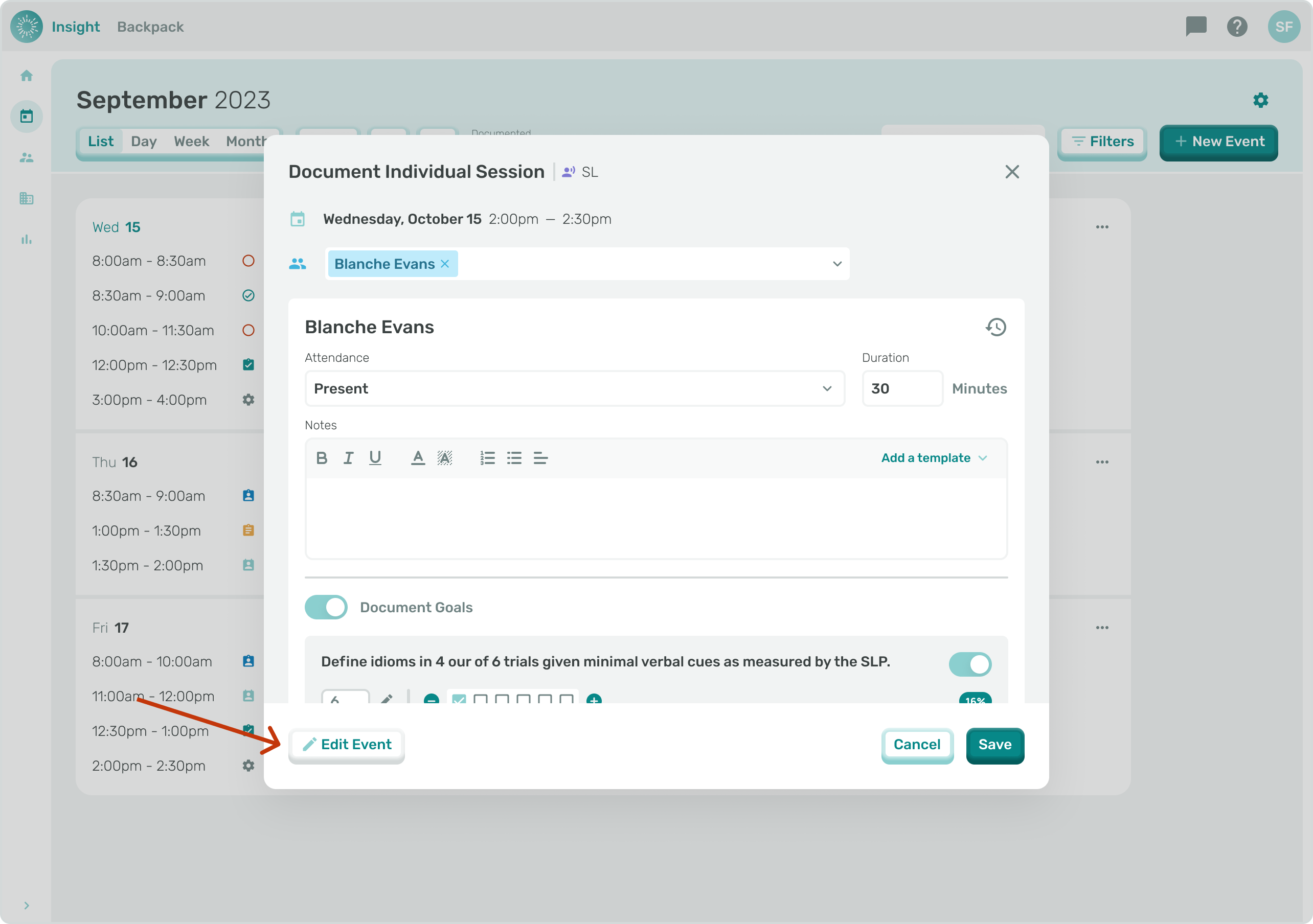
- Go to the related article 'Editing an Event' for additional instructions.
9a. When clicking on an Event with a ‘Blue Circle’ and a blue check mark, indicating this Event has been Documented.
- Click the ‘Edit Event’ box in the bottom left corner.
9b. When clicking on an Event with ‘No Circle’, which means it is in the future, the Edit Event modal will open.
- Click on the ‘Document’ button in the bottom left corner.
- For all Future Events, you can only update the ‘Select Attendance’ drop-down by clicking on one of the following statuses:
- No School
- Service Provider Cancelled
- Customer Cancelled
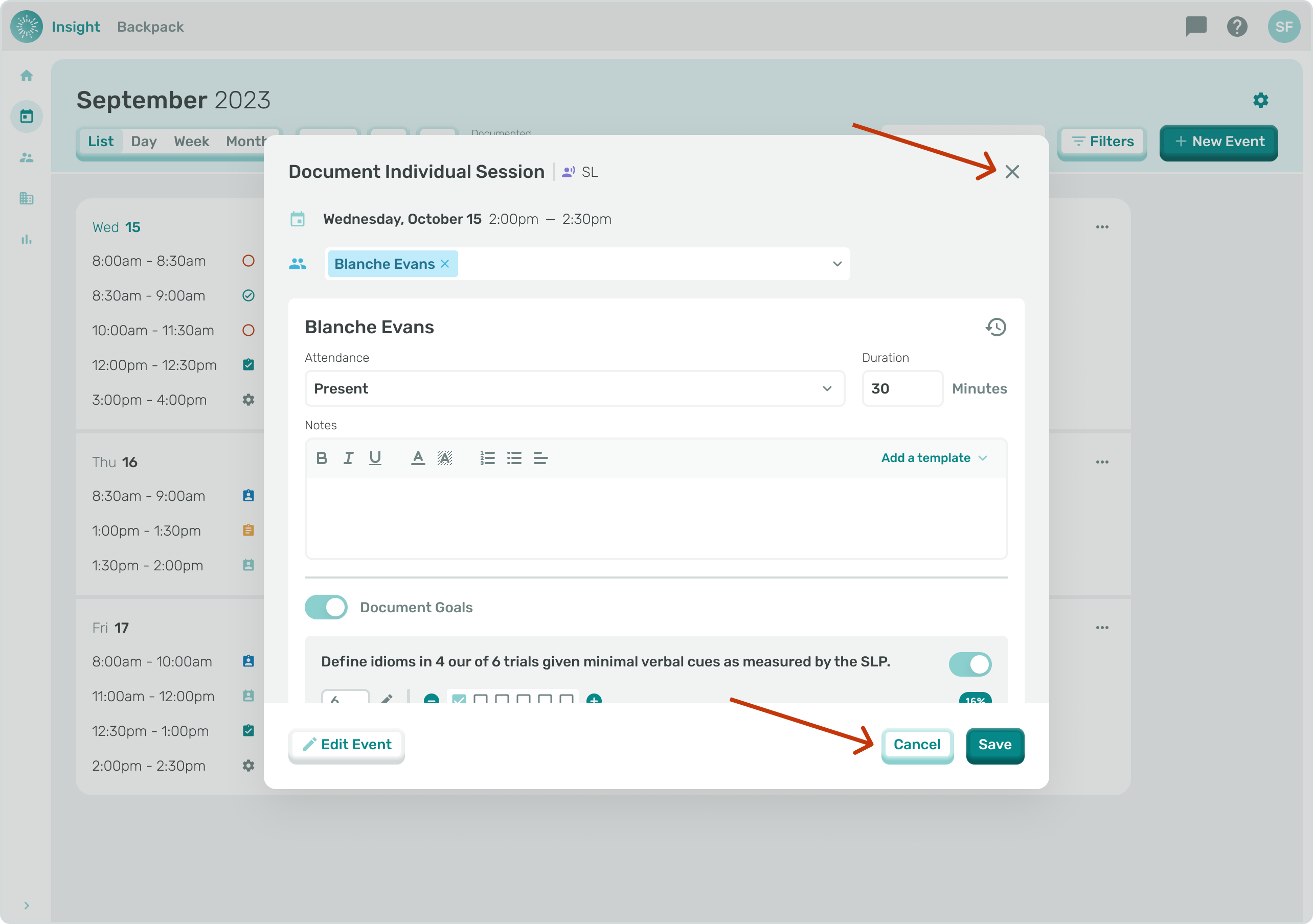
- To Exit the Edit Event modal at any time and not 'Save' your updates, you can either click the “X” in the top right corner or click the 'Cancel' button at the bottom right corner of the modal.
- Once clicked you will go back to the Calendar without making any updates to your Events.
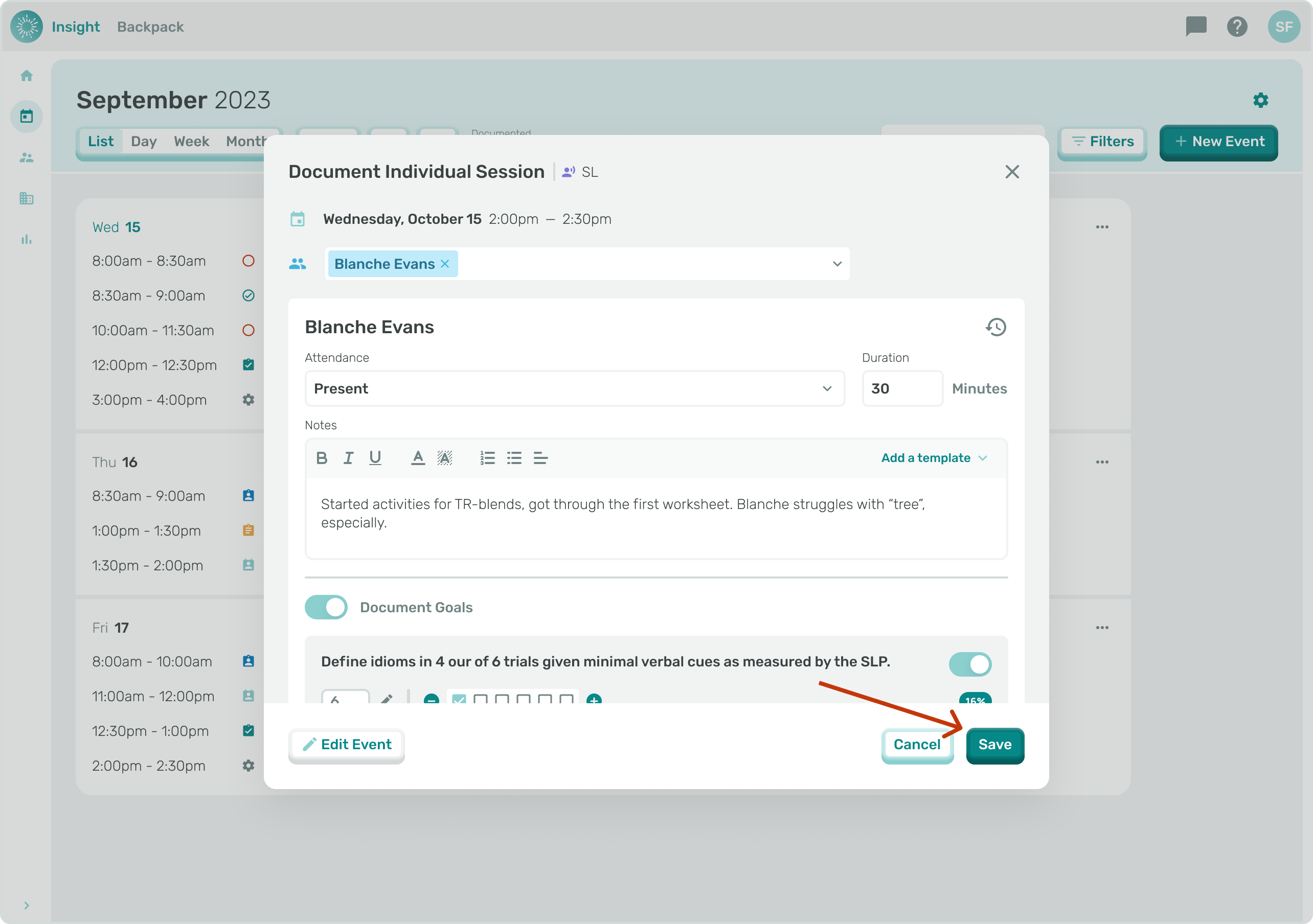
- When you are finished ‘Documenting’ and all the required fields have been updated the ‘Save’ button will be enabled
- Click on the ‘Save’ button on the bottom right corner of the modal.
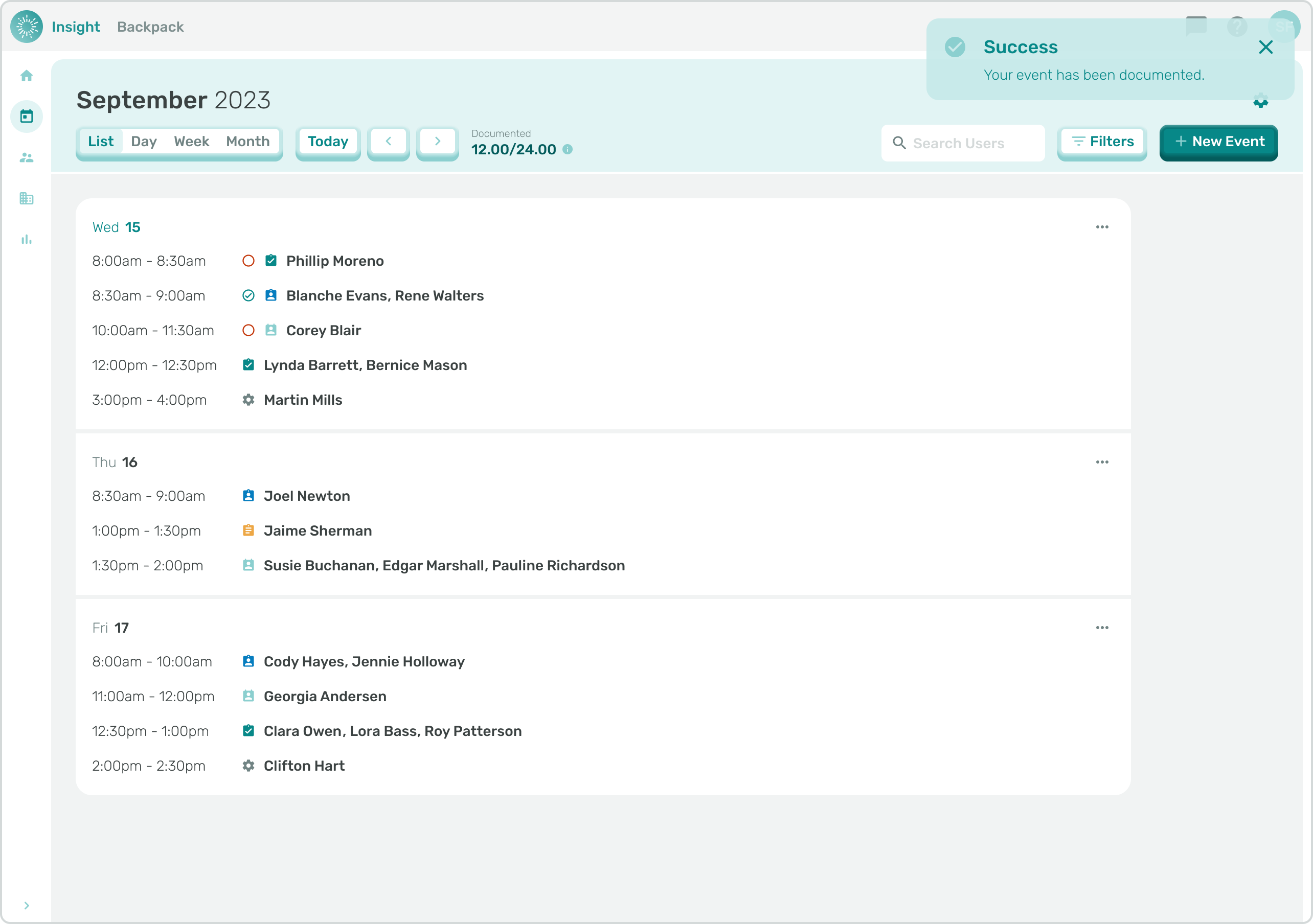
- Once you have clicked on the Save button you will see a Confirmation notification at the top of your screen briefly pop-up that says, “Success Your Event has been Documented.”