---
title: Reviewing the Calendar
description: published
---
[[Skip to content](https://onlinetherapy.elumatherapy.com/support/article/520-reviewing-the-calendar#main-content) English Show submenu for translations Open main navigation Close main navigation - English Show submenu for translations - Contact us Contact us How can we help you? - There are no suggestions because the search field is empty.](https://www.canva.com/design/DAHLjH8jnIs/hTUz9WpLsvZ0LDEbb__LvQ/view?utm_content=DAHLjH8jnIs&utm_campaign=designshare&utm_medium=embeds&utm_source=link)
1. [eLuma Knowledge Base](https://onlinetherapy.elumatherapy.com/support?hsLang=en)
2. [Insight Help Documents](https://onlinetherapy.elumatherapy.com/support/insight-help-documents?hsLang=en)
3. [Insight Features and Navigation](https://onlinetherapy.elumatherapy.com/support/insight-help-documents?hsLang=en#insight-features-and-navigation)
# Reviewing the Calendar
## How to Navigate the Insight Calendar
- As a **Facilitator**, **Parent**, **School Admin**, or **Service Provider** you can Preview the Calendar from the Dashboard.
- As a **Facilitator** you can Preview Event(s) for the Student(s) that are Connected to you.
- As a **Parent,** you can Preview Event(s) for your connected Student(s).
- As a **School Admin** you can Preview all Events in your Organization.
- As a **Service Provider** you can Preview Events that are scheduled for Students who are connected to you and for whom you provide services.
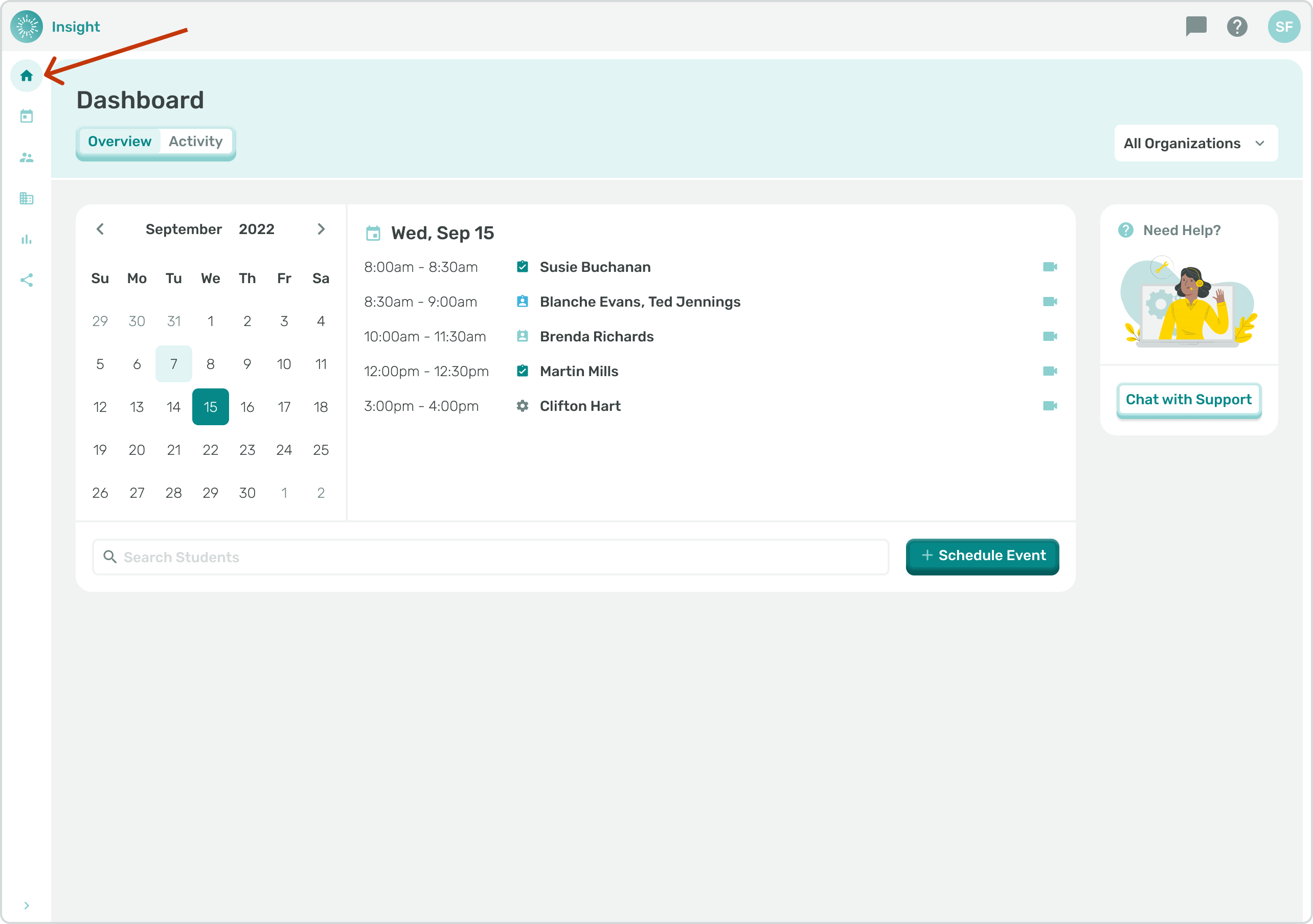
1. Navigate to the Dashboard by clicking on the side menu.
- Notice under the Dashboard heading, above the Calendar, 'Overview' is the default tab and is highlighted.
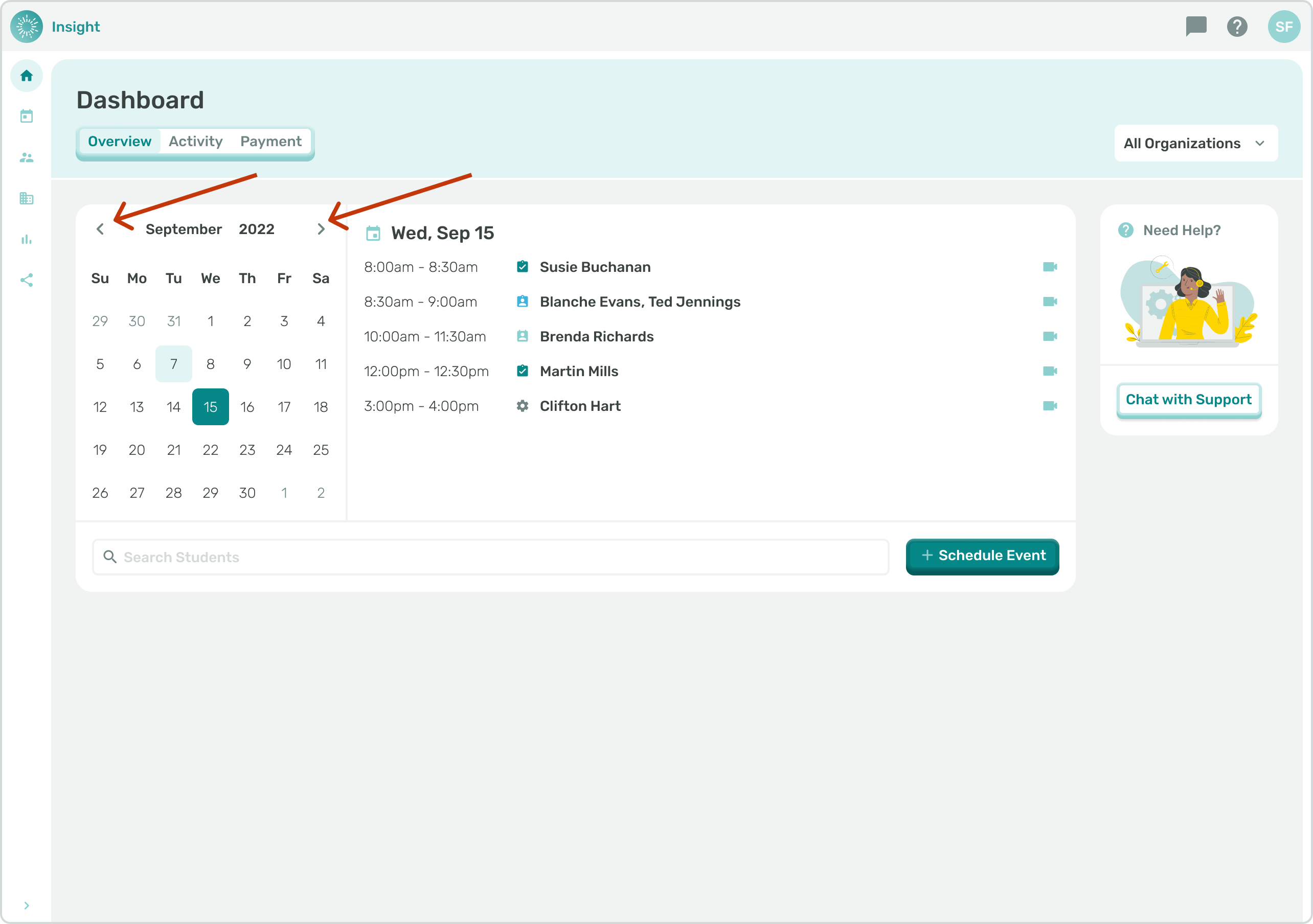
1. The other options to view Events on the Calendar include:
- **List:** This is the default view for the Calendar Page and will display a list of Events for each day for the current week.
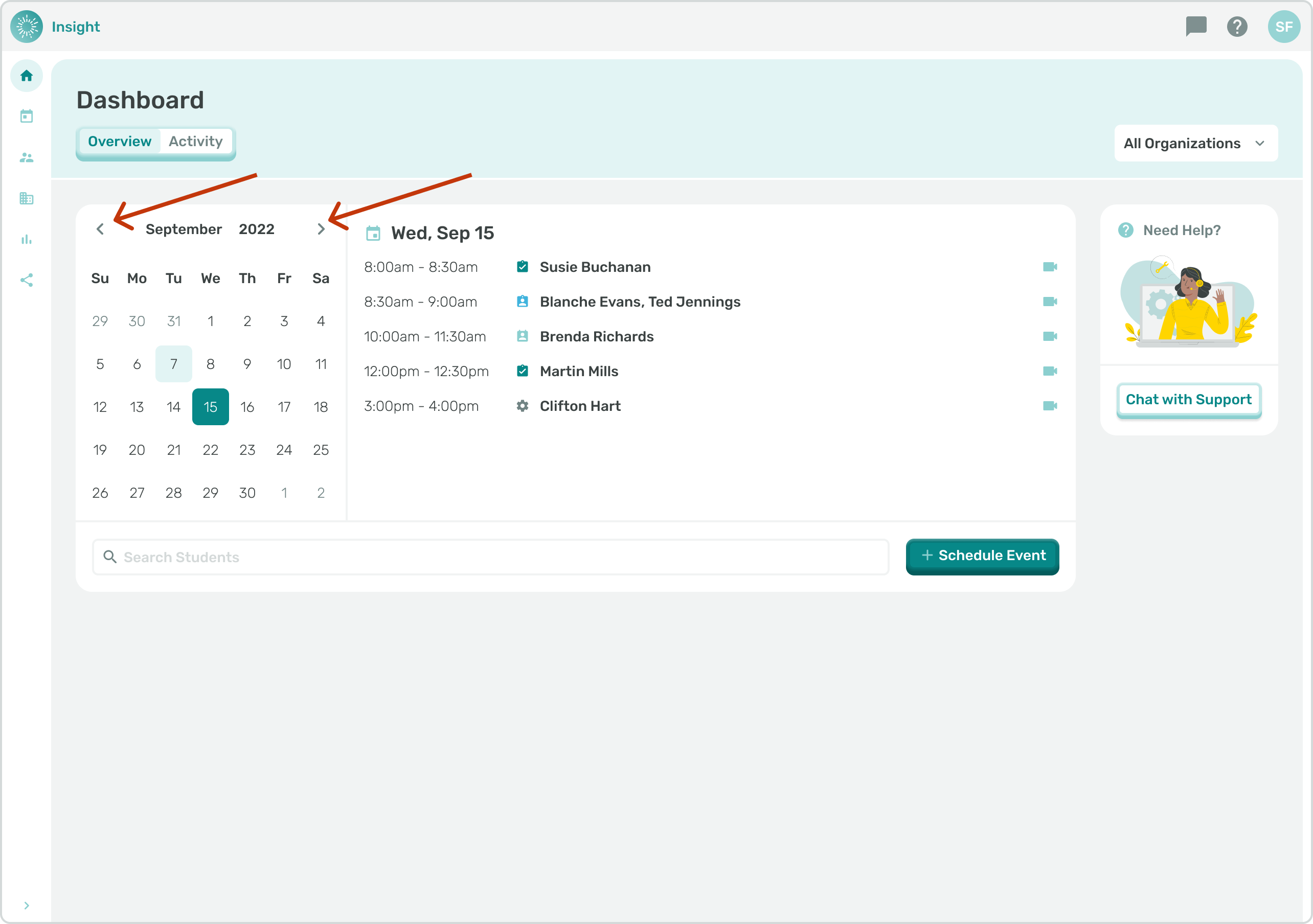
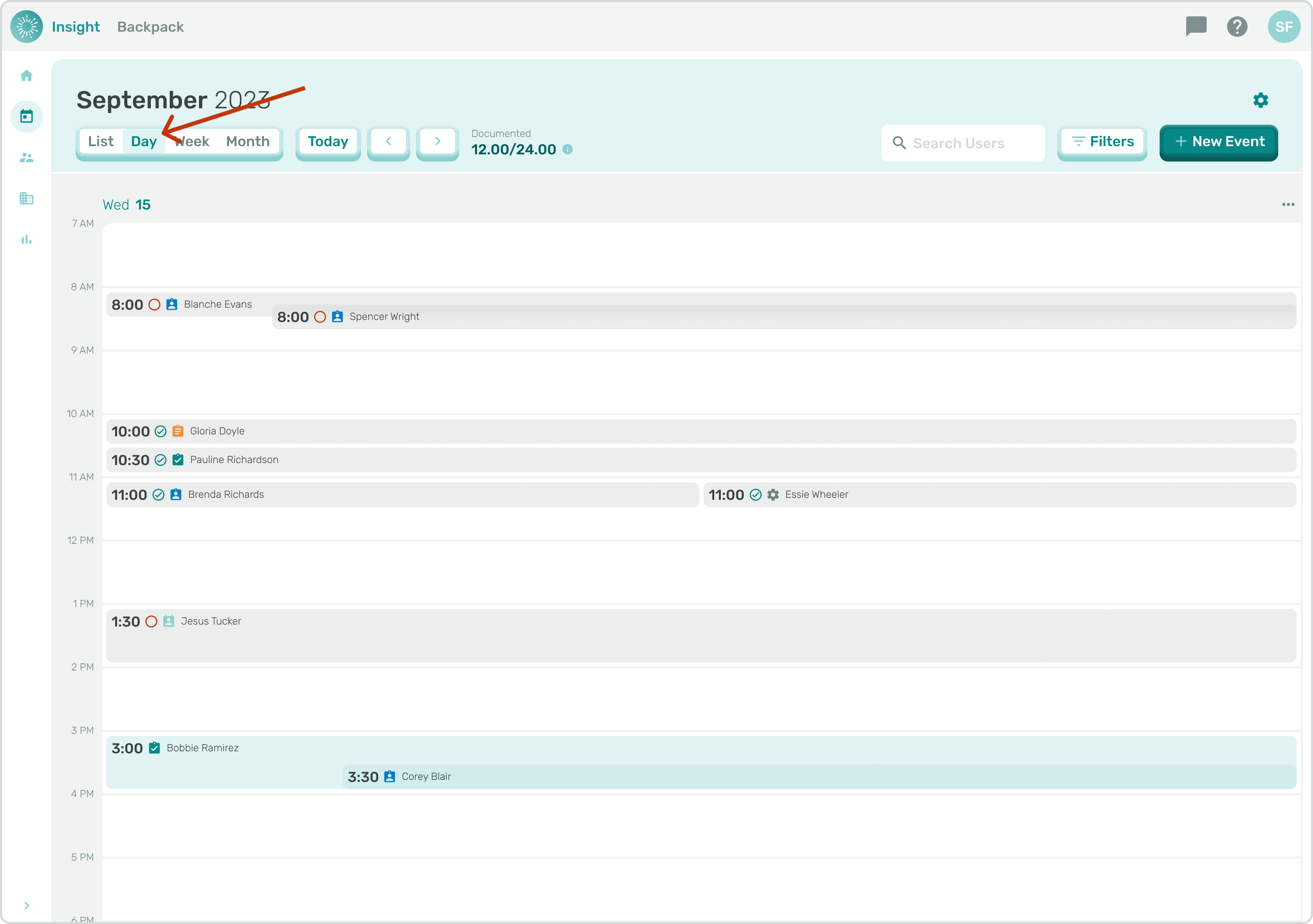
- **Day:** When ‘Day’ is selected the Calendar will only display the selected day’s Events.
- **Week**: When the ‘Week’ view is selected the Events for the week are displayed in a Calendar-like format of the week.
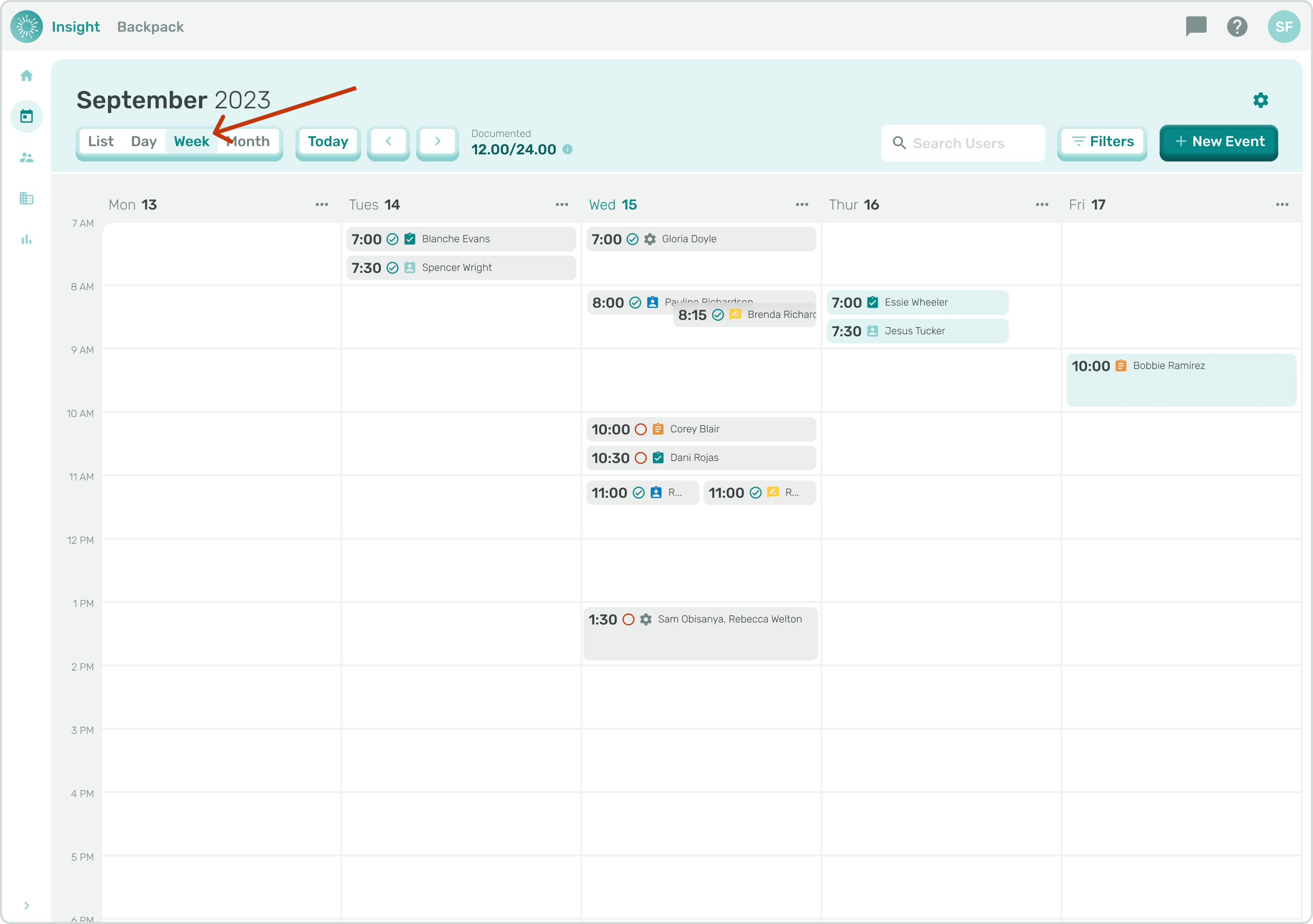
- **Month**: For the ‘Month’ view the Events are displayed in a Calendar-like format for the full month selected.
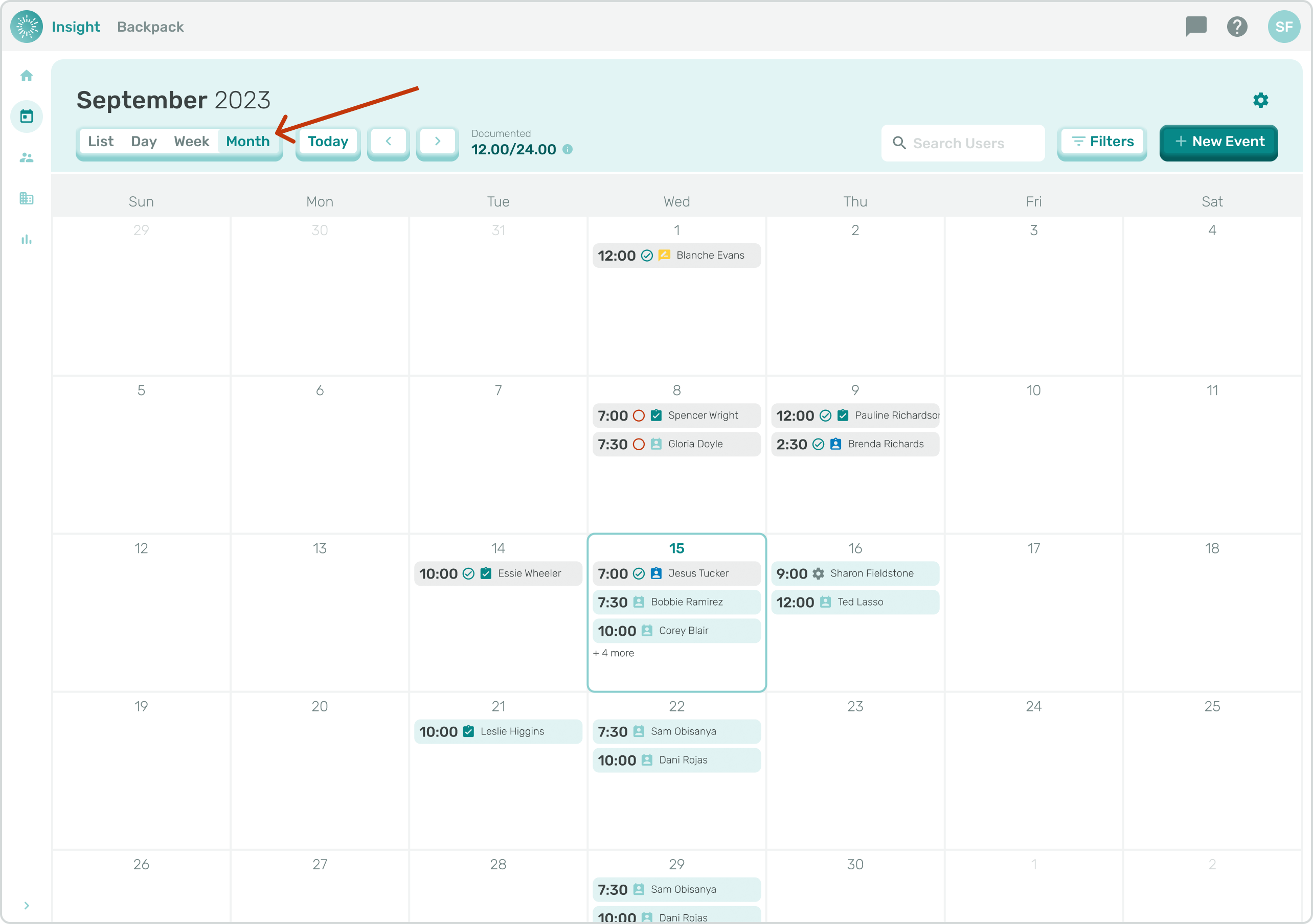
1. **Today**: When any of the above views are selected you can click on the ‘**Today**’ button to highlight today’s Events.
- If you are in ‘Week View’ of another week, clicking the ‘**Today**’ button will take you to the current week (today's week).
- If you are in Day View and looking at a different day, clicking the ‘**Today**’ button will take you to today.
- If you are in Month View in a different month, then clicking the ‘**Today’** button will take you back to the current month (today's month).
- Only a Service Provider can Edit or Document Events. All other users can view the Events.
- For additional instructions go to the related article 'Edit an Event'.
- Only Service Providers and School Admin users can filter the Dashboard Calendar Events by Organizations.
- Go to the related article 'Dashboard Calendar Events' for additional instructions.
- Only Service Providers can schedule a New Event on the Dashboard Calendar Events.
- For additional instructions go to the related article 'Scheduling an Event'.
- The space directly to the right of the Calendar will populate Events that are scheduled for that Day, Date and will display one of the following icons:
- Either an outlined in '**red circle'** indicating the Event has passed and is ready for Documentation,
- An outlined in '**green circle'** with a green check mark indicating this Event has been Documented, and
- When '**no circle'** is present this indicates that the Event is in the future.
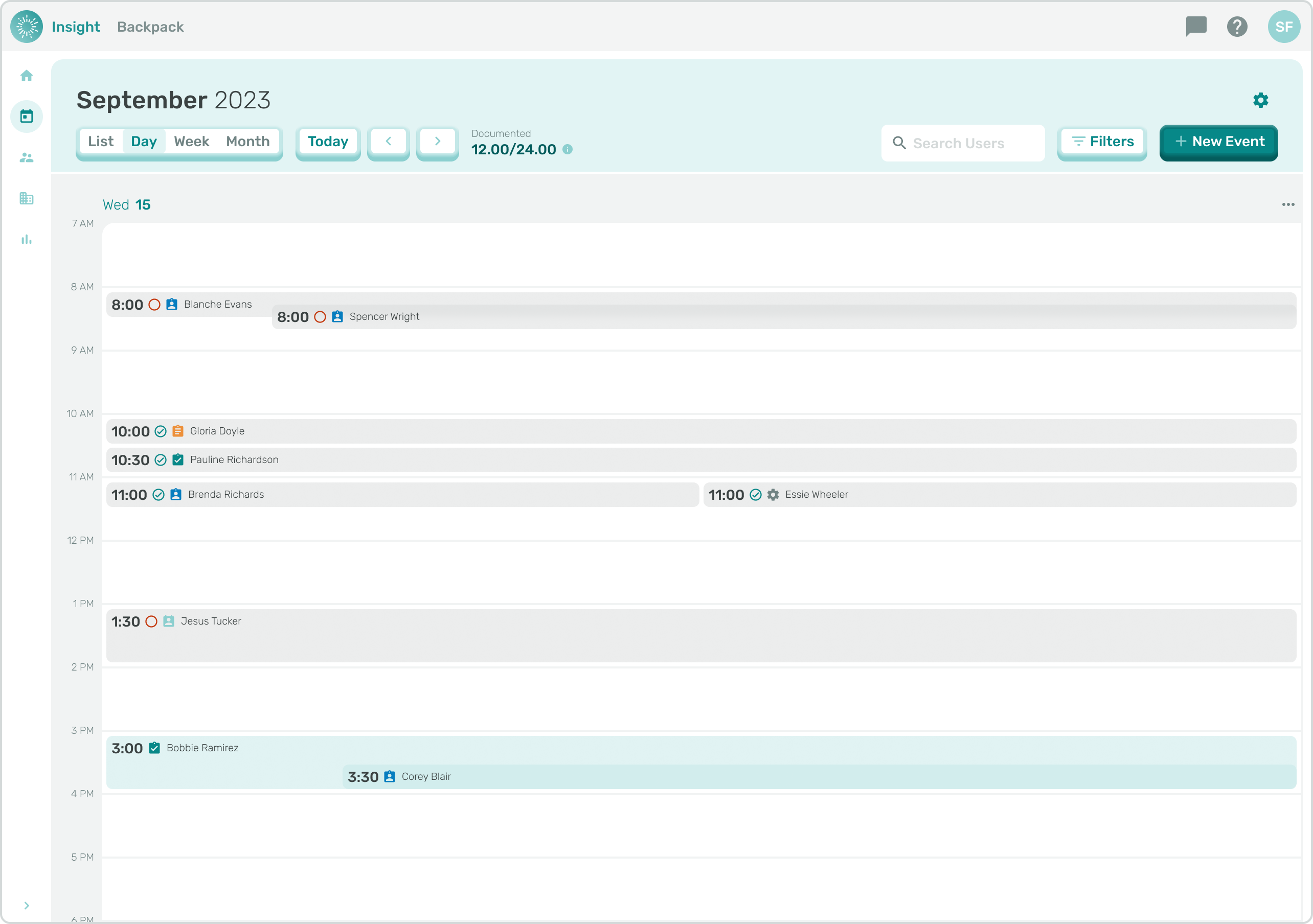
- Also visible in the preview is the starting and ending time of the Event and the Student name(s) that are scheduled for the Event.
1. To view Events on a particular Date click on that Date on the Calendar. The Date you click on will now be highlighted and today's Date will have a clear circle around it.
- Events that are scheduled on this Date will be listed to the right of the Calendar.
1. To view additional details of an Event click on the Student's Name. The additional details include:
- The Day, Date and Time
- If this is a Group or Individual Session
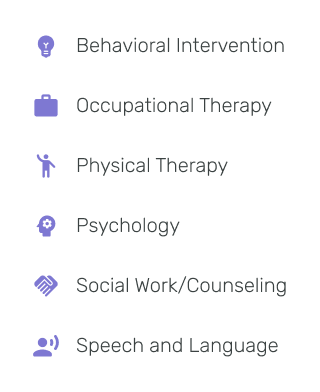
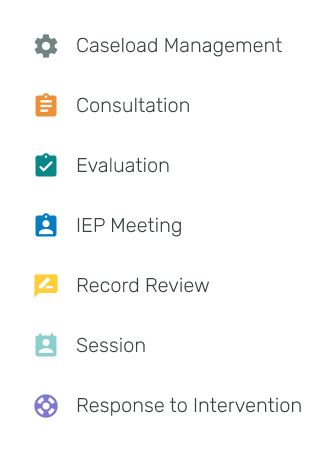
- An icon representing what Service Discipline(s) are being provided:
- Behavioral Intervention (BI)
- Occupational Therapy (OT)
- Physical Therapy (PT)
- Psychology (Ps)
- Social Work/Counseling (SWC)
- Speech or Language (SL)
- If this is a single Event or if this Event recurs,
- Student Name(s)
- Session type
- Regular - standard regular session
- Approved Compensation - an event to fullfill compensatory time
- Extended School Year - an event during extended school year
- Make up - an event to make up a missed or cancelled session
- [Insight Help Documents](https://onlinetherapy.elumatherapy.com/support/insight-help-documents?hsLang=en#main-content)
- [Treatment Plans and Active Service Lines](https://onlinetherapy.elumatherapy.com/support/insight-help-documents?hsLang=en#treatment-plans-and-active-service-lines)
- [Scheduling Events: Insight Calendar](https://onlinetherapy.elumatherapy.com/support/insight-help-documents?hsLang=en#scheduling-events-insight-calendar)
- [Documenting Events: Insight Calendar](https://onlinetherapy.elumatherapy.com/support/insight-help-documents?hsLang=en#documenting-events-insight-calendar)
- [Run Reports](https://onlinetherapy.elumatherapy.com/support/insight-help-documents?hsLang=en#run-reports)
- [Insight Features and Navigation](https://onlinetherapy.elumatherapy.com/support/insight-help-documents?hsLang=en#insight-features-and-navigation)
- [Assessment and Evaluation Events](https://onlinetherapy.elumatherapy.com/support/insight-help-documents?hsLang=en#assessment-and-evaluation-events)
- [Provider Success Community](https://onlinetherapy.elumatherapy.com/support/provider-success-community?hsLang=en#main-content)
- [Using BackPack](https://onlinetherapy.elumatherapy.com/support/provider-success-community?hsLang=en#using-backpack)
- [Assessments](https://onlinetherapy.elumatherapy.com/support/provider-success-community?hsLang=en#assessments)
- [Additional Features](https://onlinetherapy.elumatherapy.com/support/provider-success-community?hsLang=en#additional-features)
- [Zoom Support](https://onlinetherapy.elumatherapy.com/support/zoom-support?hsLang=en)
[.png?width=939&height=281&name=eluma-logo-color-notag-lg%20(2).png "eLuma Online Therapy")](http://eluma.com)
[mailto:email@email.com](mailto:email@email.com)
Copyright © 2026, eLuma