How to Add New Content to Your Backpack
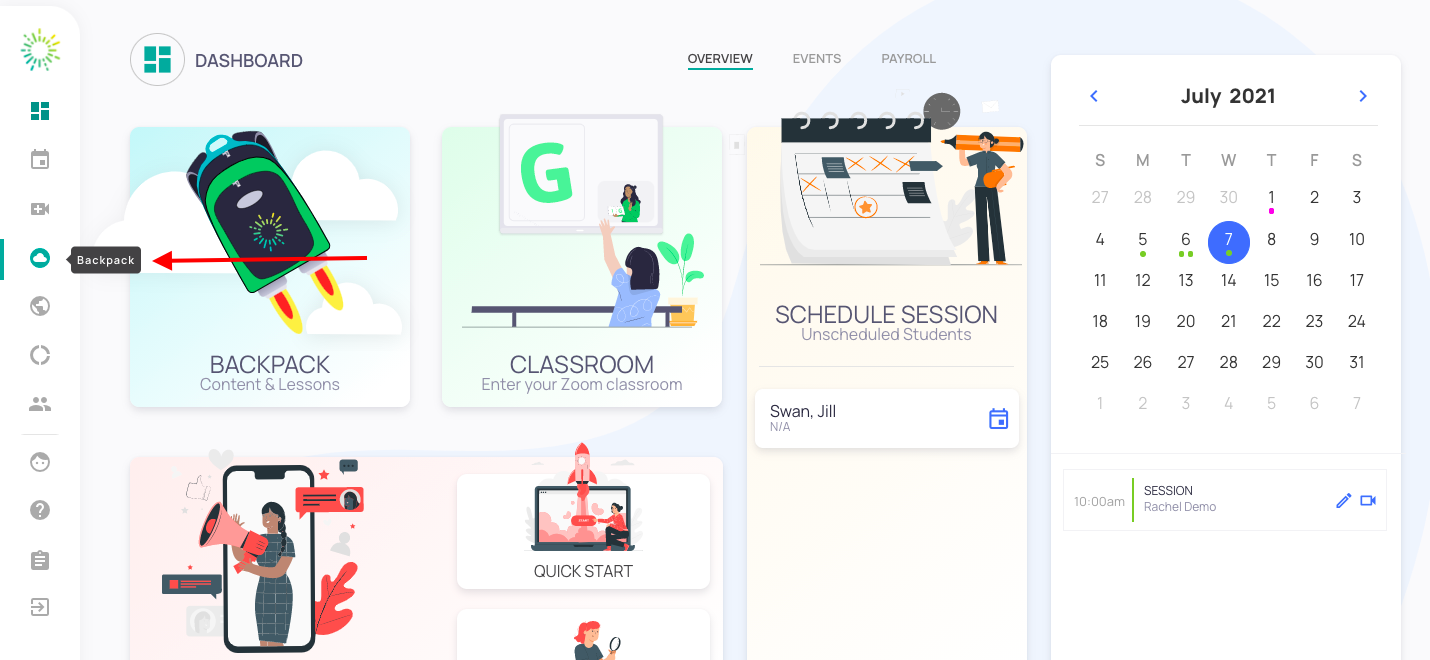
- Once logged into your clinician dashboard, click on "backpack" on your left.
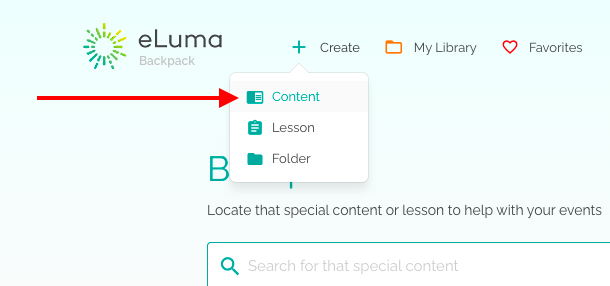
- Click on "create" on the top of the screen and select "Content."
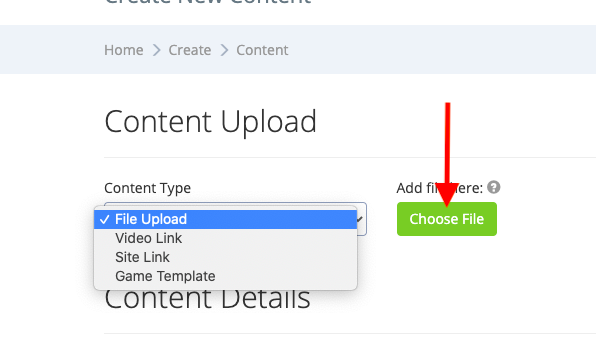
- Select the file "Content-Type." To add pdfs, images, and other files select "File Upload" and click "Choose File."
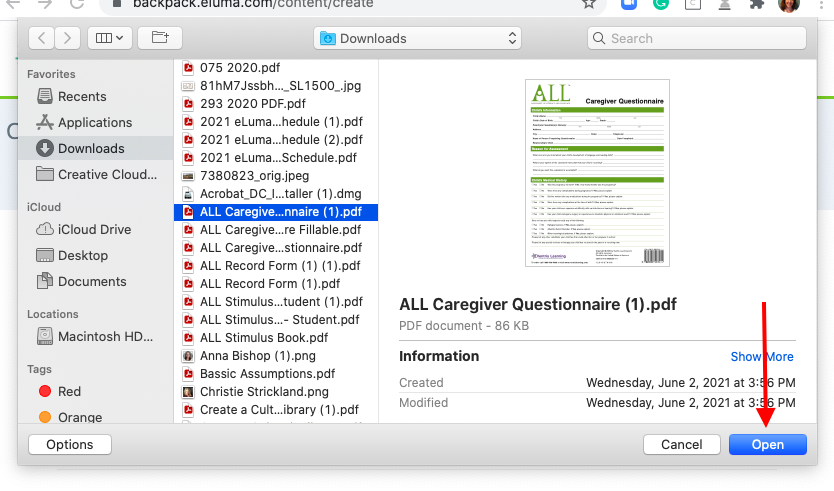
- Select the file and click "Open."
- Complete the form: Title, Description, Topics, Grade Range, Service Categories (At least 1), Tags (Limit 5), Folders (Optional). Select Public or private. What does "Public" mean? If you select Yes, the content will be made public to all users in the system. If you select No, the content will only be visible to you. Check the copy-right agreement.
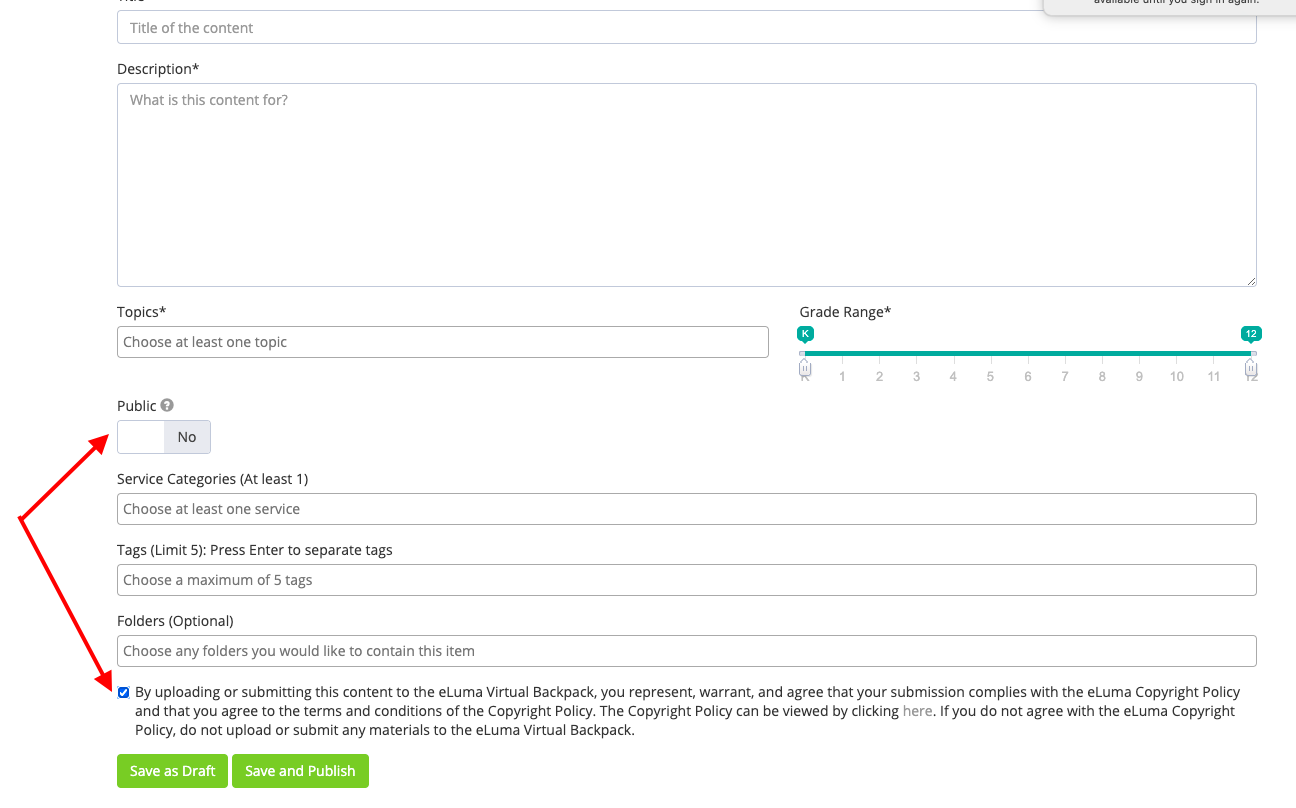
- Click "Save as Draft" to save the lesson and return later to continue to edit. Click "Save and Publish" to publish the content.
Submit questions to support@elumatherapy.com